

Export an IPA file
The iOS export is the final step before publishing or distributing your application.
You will:
- Customize the name, icon, and splash screen.
- Choose iPhone/iPad compatibility and the distribution mode.
- Sign the application with the Apple assets required for your distribution method.
Once the binary is generated, you will have a download link from your PandaSuite dashboard.
The IPA export is only available for Single, Multi, Full, or Ultra plans.
What is an IPA file?
The IPA file is the native package of an iOS application. This is the file used to install an app on an iPhone or iPad. You can export your application’s IPA file from your PandaSuite dashboard.
The .ipa format is used to publish on the App Store, deploy an app with Ad Hoc distribution, or distribute an app in-house.
Replacing an expiring distribution certificate? Export your next IPA with the
new .p12 file and the updated .mobileprovision file. See Replace an
expiring or expired iOS distribution
certificate.
Prerequisites
- IPA export is only available on Single, Multi, Full, or Ultra plans.
- Your project content is finalized and published.
- An Apple Developer account if you want to export a signed IPA for the App Store, Ad Hoc, or in-house distribution.
- An iOS provisioning profile matching the selected distribution mode.
- An iOS certificate (.p12) and its password.
- An App ID / Bundle ID registered in Apple Developer if the app is signed.
Minimum OS Version and Device Compatibility
| Item | Details |
|---|---|
| Minimum supported version | iOS 15.0 |
| Supported devices | iPhone and iPad |
| Choices in the export form | iPhone, iPad, or both (a Single plan is enough) |
| Binary type | Native iOS .ipa file |
| Installation | The IPA must be signed before it can be installed or distributed |
Important points before distribution:
- If you target both iPhone and iPad, test your project on multiple screen sizes and orientations.
- Hardware-related features such as camera, microphone, Bluetooth, geolocation, or push notifications also depend on granted permissions and device capabilities.
- If you enable offline mode, any content update requires generating and redistributing a new IPA.
- The provisioning profile must match the selected distribution mode: App Store, Ad Hoc, or in-house.
Export the IPA file
Access the dashboard
- Log in to your PandaSuite dashboard.
- In Apps, create or select the relevant application.
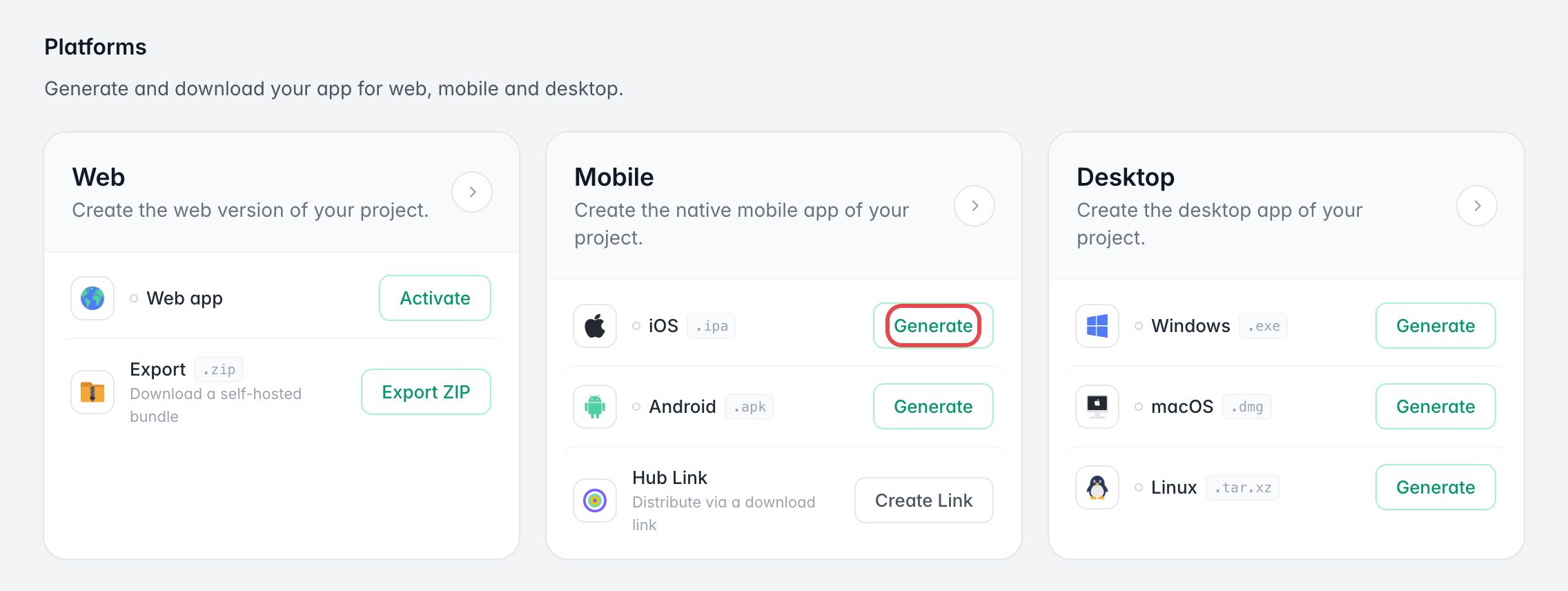
- In Platforms, find the Mobile card.
- Click Generate next to iOS.
Fill out the form
| Field | Description |
|---|---|
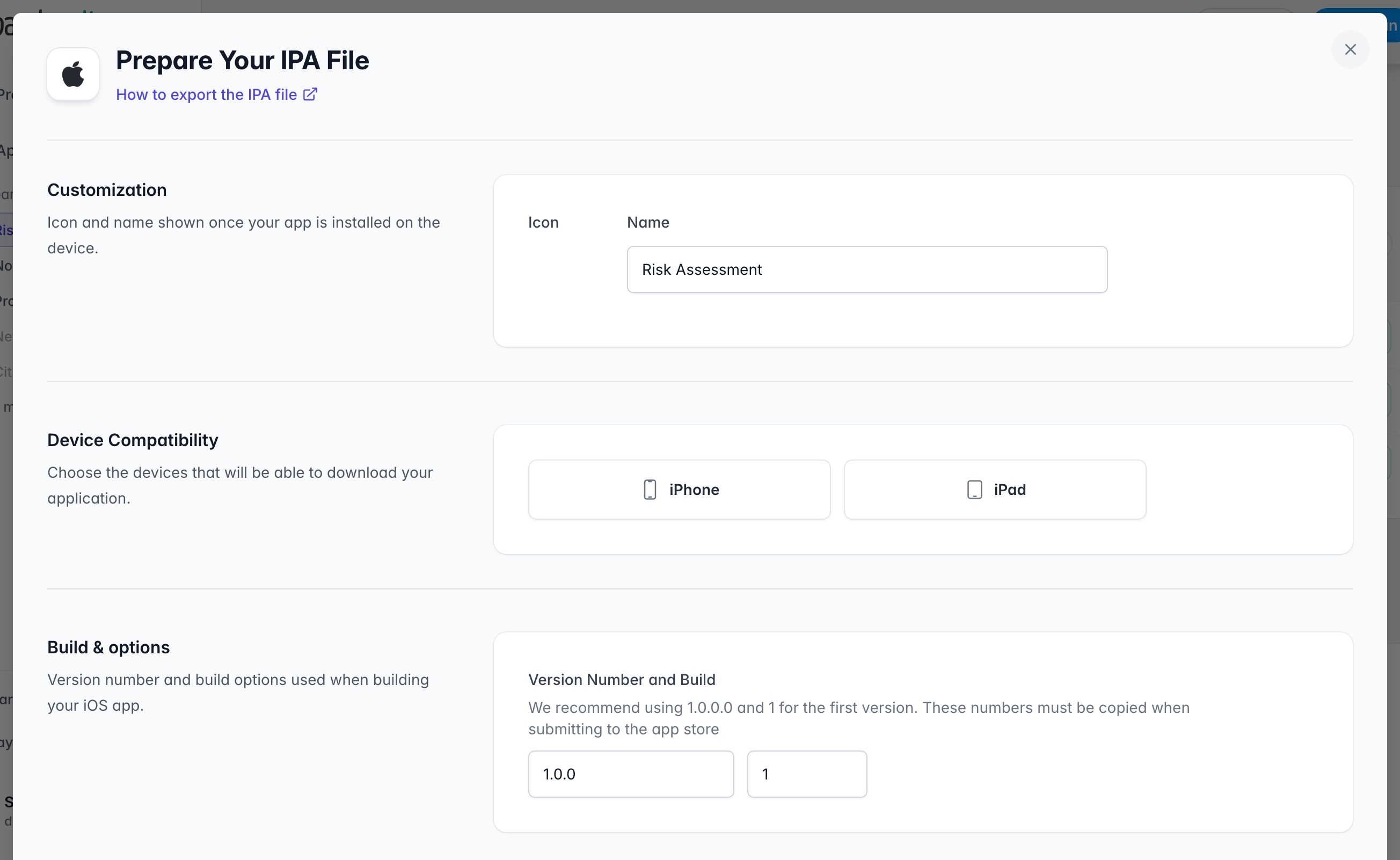
| Icon | PNG 1024 × 1024 px. This icon is used for the iOS app once installed on the device, so it should match the branding you want users to see on their Home Screen. |
| Name | Displayed under the icon on the device. Use the final user-facing app name, because this is the label people will recognize when launching the app. |
| Device Compatibility | Choose iPhone, iPad, or both: a Single plan is enough. This setting defines which devices can install the app and should match the layouts you actually tested in your project. |
| Version / Build | We recommend starting with 1.0.0 and 1. Increment them with each update: the version is the release number visible to users, while the build is the internal revision number used by Apple. |
| Asset management (offline) | If enabled, the IPA embeds the assets needed to run without a connection. This is useful for disconnected environments, but any later content update requires generating and redistributing a new IPA. Requires a Yearly or One-Time Payment plan, and is available only if your application contains a single project. |
| Loading screen | Choose how the splash screen is generated when the app starts. You can let PandaSuite create it from the app icon, or provide your own visuals if you need tighter control over the startup branding. |
| Primary / Secondary color | Used for the loader displayed on top of the loading screen. These colors should stay consistent with your icon or splash screen so the startup experience feels visually coherent. |
| iOS Distribution Mode | Select the delivery target for this IPA: • Publish on the Apple App Store for public release • Deploy in Ad Hoc mode for a limited set of registered devices • Distribute an in-house iOS app for internal company distribution. This choice must match your provisioning profile. |
| Signature | Determines whether PandaSuite signs the IPA for you or whether you keep signing under your own responsibility. The available options depend on your distribution workflow and the Apple assets you provide. |
| Advanced options | Click Show advanced options. • Navigation bar logo (only for hub app): if you are exporting a content hub, choose the logo displayed in the navigation bar. • Tracking Usage (Privacy): turn on Message enabled to include the message that tells users why the app asks for permission to use data for tracking them or their device. • EMM (Enterprise Mobility Management) parameters: appears when your projects declare EMM parameters. Choose Enable so that your MDM can pass their values to the app. You can usually ignore this section for a standard single-app export. |
If you are unsure, review three points before validating: the selected Device Compatibility, the iOS Distribution Mode, and the Version / Build. These are the fields most likely to block installation, Store submission, or update delivery later.
Signature options
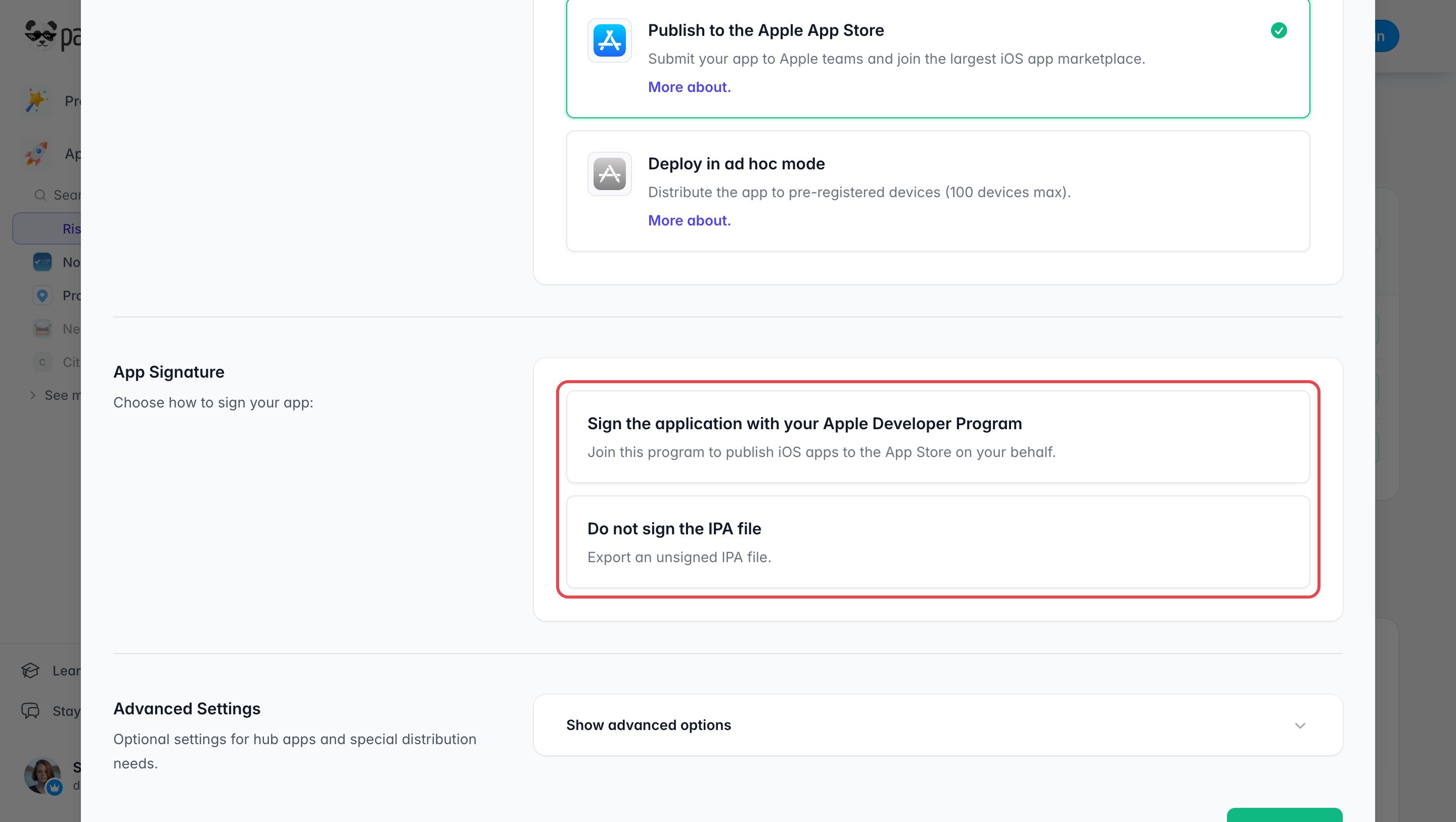
Once a distribution mode is selected, the App Signature section lets you choose how the IPA is signed.
| Option | When to use it? | Requirements |
|---|---|---|
| Sign the application with your Apple Developer Program | You are publishing on the App Store or distributing a signed iOS application with Ad Hoc / in-house deployment. | • Apple Developer account • Provisioning profile matching the selected mode • iOS .p12 certificate + password• App ID / Bundle ID |
| Do not sign the IPA file (expert) | You manage signing through your IT team, internal tooling, or CI pipeline. | Download an unsigned IPA and handle the full signing workflow yourself |
Start the generation
Click Export.
The process takes place on our servers and can last from a few minutes to several hours depending on the load.
You will receive:
- A confirmation email;
- The download link on the Mobile card of your app page.
To publish on the App Store: follow the guide Publish on the Apple App Store. To send your build to Apple: use Upload your IPA via Transporter. For private distribution: see the Ad Hoc and in-house guides.
FAQ
Can I install an unsigned IPA?
No, not directly. An IPA must be signed with the correct Apple assets before it can be installed on an iOS device.
Which distribution mode should I choose between App Store, Ad Hoc, and in-house?
Choose App Store for public distribution, Ad Hoc for a limited number of registered devices, and in-house for internal distribution within an eligible organization.
Do I need to export a new IPA if I change the certificate or provisioning profile?
Yes. If your signing assets change, you need to generate a new IPA with the updated files.
Can I update content without exporting again if offline mode is enabled?
No. In offline mode, any content update requires generating and redistributing a new IPA.