
Manage connected apps
Some third-party apps, such as AI assistants, can connect to your PandaSuite account to work with your projects and apps. You decide what each app can do, and you can revoke its access at any time.
Authorize an app
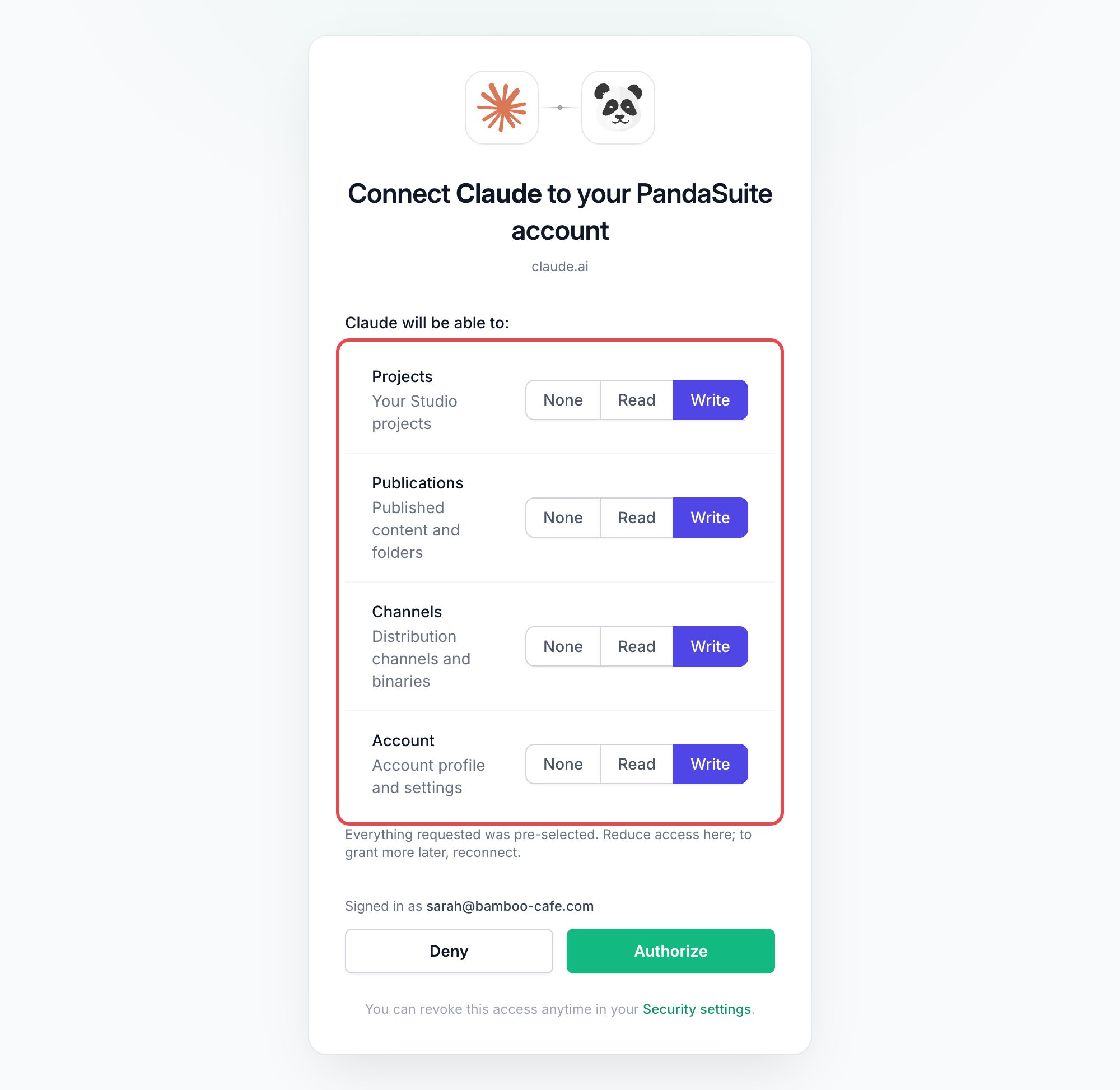
The connection starts from the third-party app: when you add PandaSuite to it, it sends you to PandaSuite. Sign in if needed. A Connect [app] to your PandaSuite account page then opens.
- Check the address under the title: it shows where the request comes from.
- Under [app] will be able to:, review the access requested for each resource: Projects, Publications, Channels, and Account. Everything requested is pre-selected. To reduce it, choose Read or None for a resource. To grant more later, connect the app again.
- Check the account shown in Signed in as.
- Click Authorize. To refuse, click Deny.
If the page shows This authorization request is no longer valid, start the connection again from the third-party app.
See and revoke your connected apps
- In the dashboard, click your name at the bottom left, then Account, and open the Security tab.
- Go to Connected Apps. Each app shows its number of Permissions (hover over it to see them), the date access was Granted, and its Last Used date.
- To remove the access of an app, click Revoke, then Revoke in the Revoke access window.
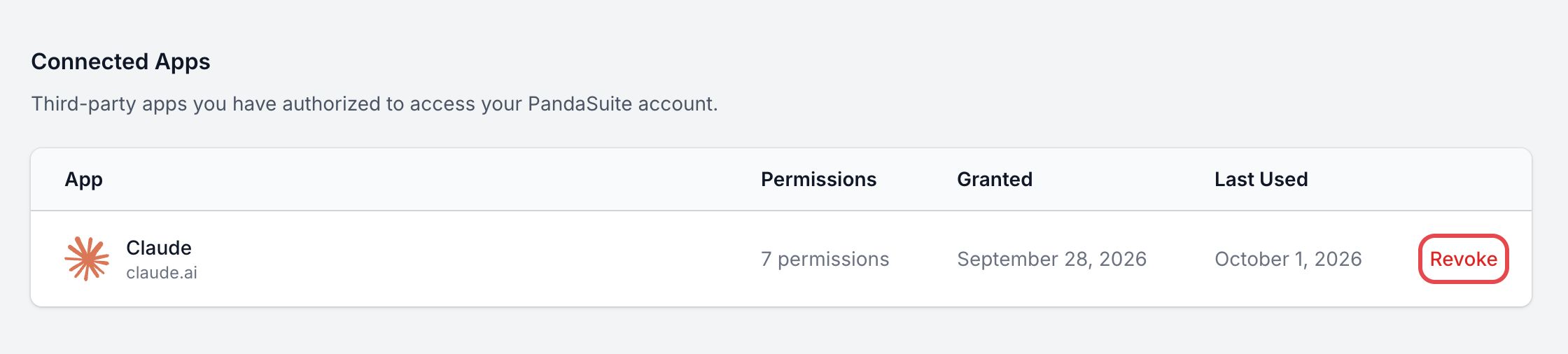
The app loses access immediately. To use it again with PandaSuite, connect it again from the app.
If two-step authentication is on, PandaSuite asks you to verify your identity before it shows your connected apps: click Verify, then confirm with one of your methods.