

Intro to the dashboard
The dashboard is your control center in PandaSuite. It is where you manage your projects and apps, find helpful resources, and adjust your account settings.
In this article, we guide you through the main areas of the PandaSuite dashboard.
Accessing the dashboard
Log in to your PandaSuite account: you land on the dashboard automatically. You can also open it from PandaSuite Studio.
Here is the dashboard URL: https://pandasuite.com/dashboard/
Exploring the dashboard
The menu on the left gives access to the main sections:
- Projects: all your projects, active or archived.
- Apps: the apps that publish your projects on the web, on mobile, and on desktop. Below it, a quick-access list shows a few apps: the one you are in, the ones you pin with Pin, and your most recent ones. Use its search field to reach any other app.
At the bottom of the menu, two menus group the resources:
- Learning: Templates, Video Tutorials, and Documentation.
- Stay in touch: Blog, What’s New, Showcase, and Contact Us.
With a free account, a Go Pro box appears just above your name: Discover Pro opens the subscription to the Pro account, and Compare plans shows what it adds to the free account. You can hide this box with its cross: a Become Pro entry then takes its place.
At the bottom left, click your name to open the account menu: Account, Billing, Appearance (light or dark theme), Language, and Log out.
Managing your projects
Here is the URL to the Projects section: https://pandasuite.com/dashboard/create
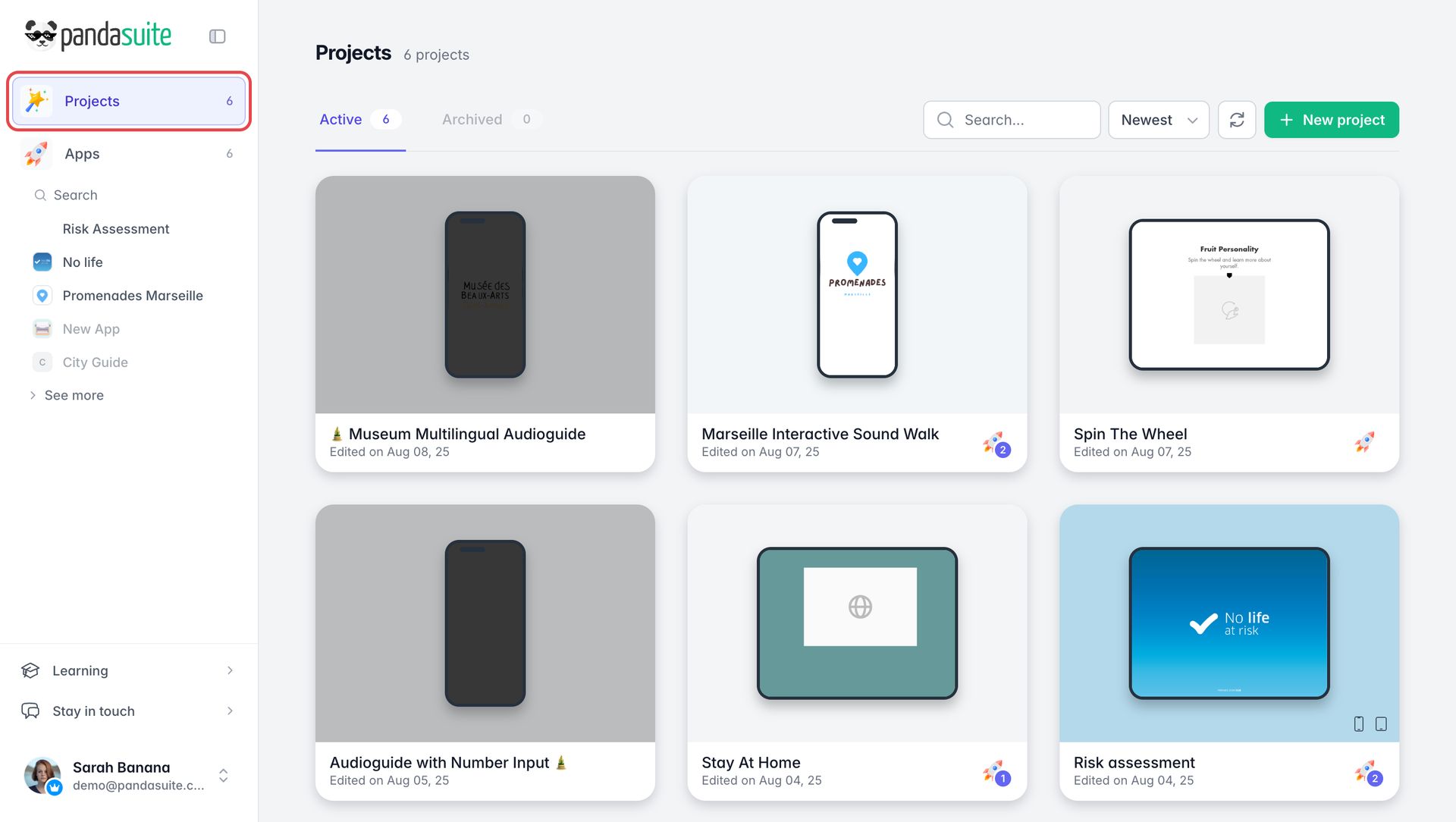
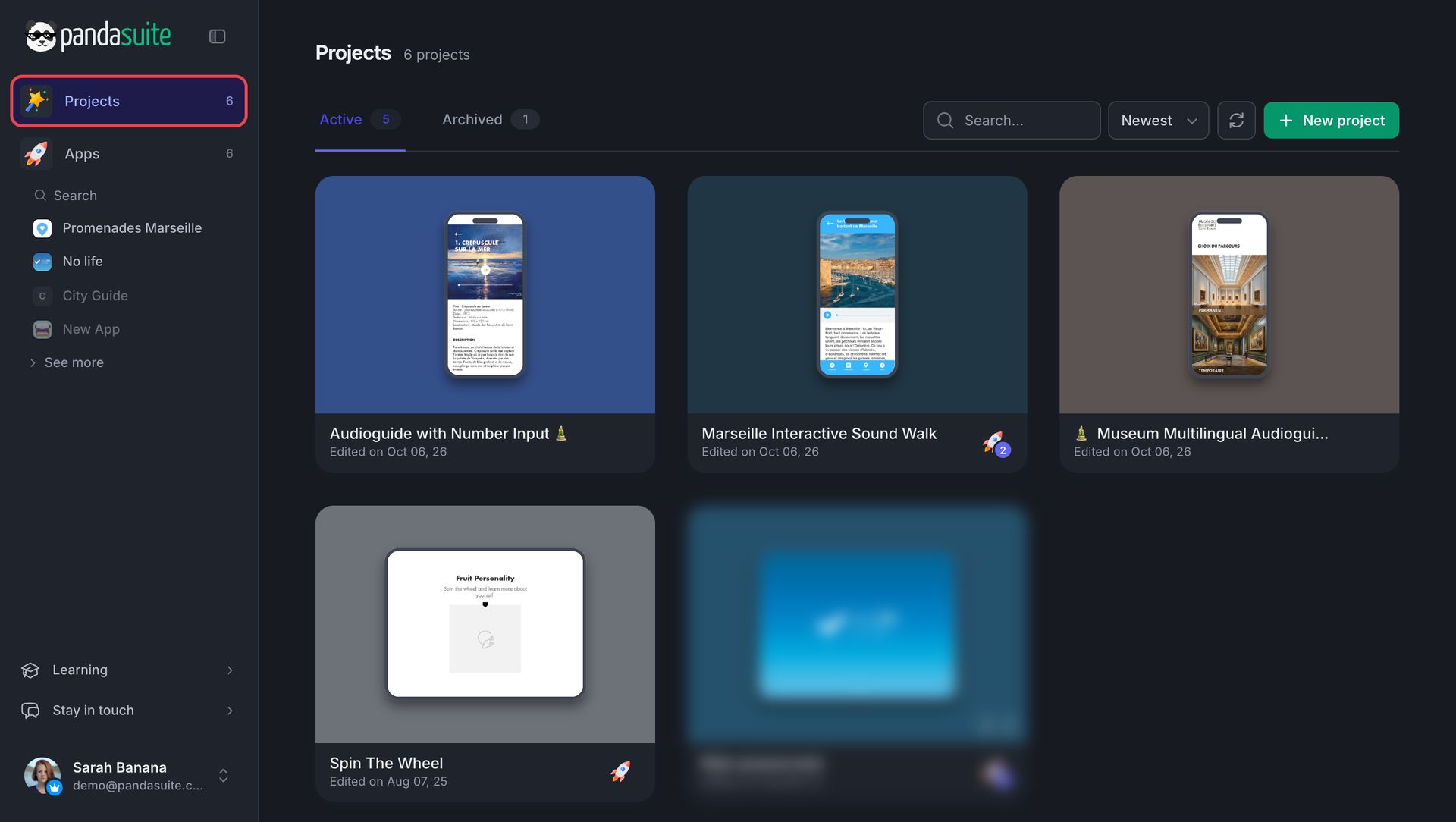
The Projects section lists your projects in two tabs, Active and Archived. Type in the Search… field to find a project. Click New project to create one.
Hover over a project and click ··· to open its menu:
- Open in Studio: opens the project in PandaSuite Studio.
- Preview: displays the project in a web preview.
- Publish…: adds the project to an app, or creates a new app for it.
- Settings…: changes the name of the project and its card: thumbnail, background color, and device.
- Share…: gives the preview link, its QR code, and the code to embed the project in a website.
- Template…: offers the project as a template through a link.
- Security…: protects the sharing link with a password.
- Duplicate / Transfer: creates a copy of the project or hands it over to another account.
- Archive: moves the project to the Archived tab.
- Delete: deletes the project. Be careful: deletion is permanent.
The Publish…, Settings…, Share…, Template…, and Security… entries open the project settings on the matching tab: Publishing, Information, Sharing, Template, and Security. Two more tabs are there: Layouts, to create a new layout, and Advanced, to allow remote assistance, to duplicate or transfer the project under Duplicate or transfer, and to archive or delete it under Risk zone.
Managing your apps
Here is the URL to the Apps section: https://pandasuite.com/dashboard/publish
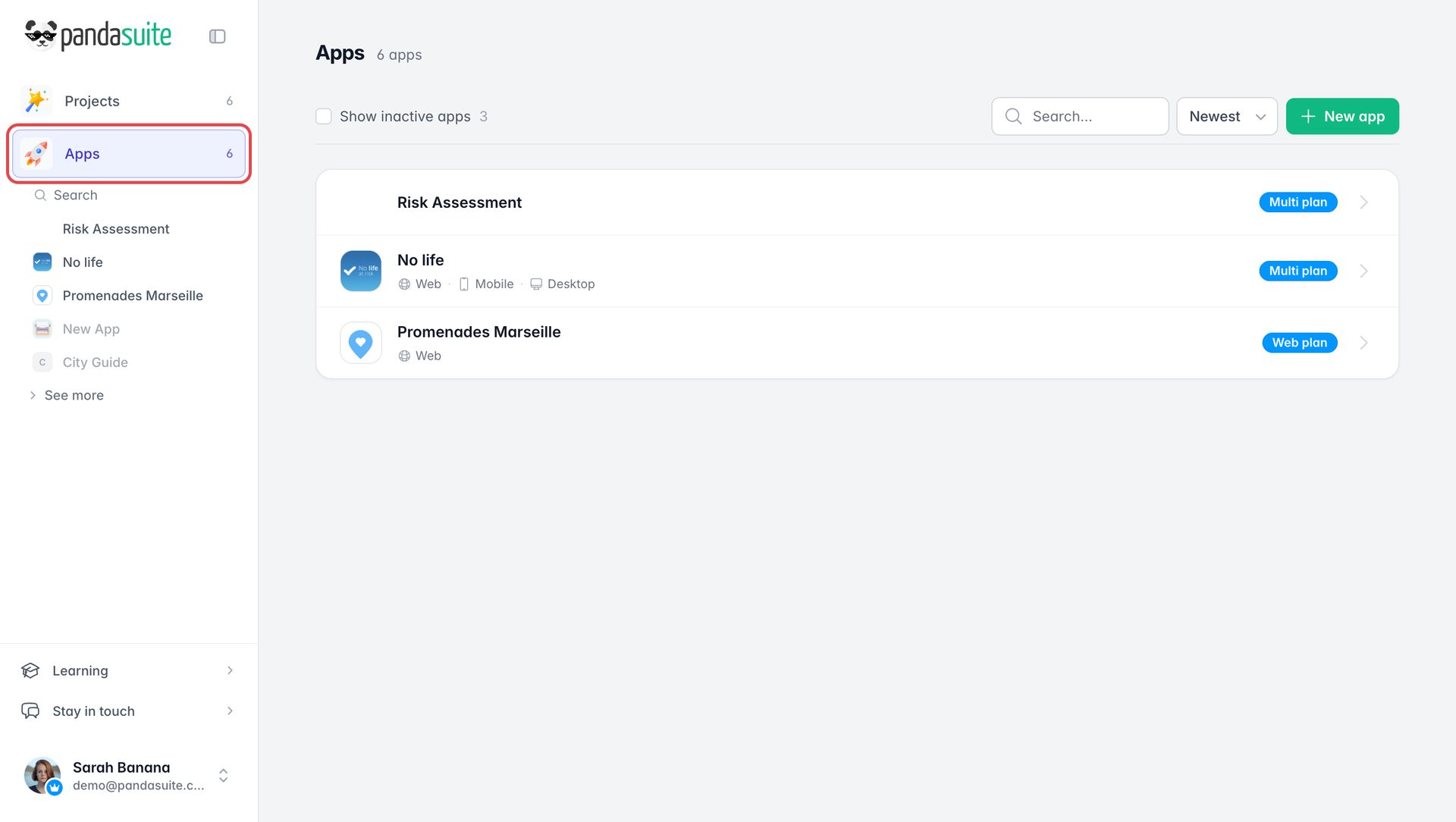
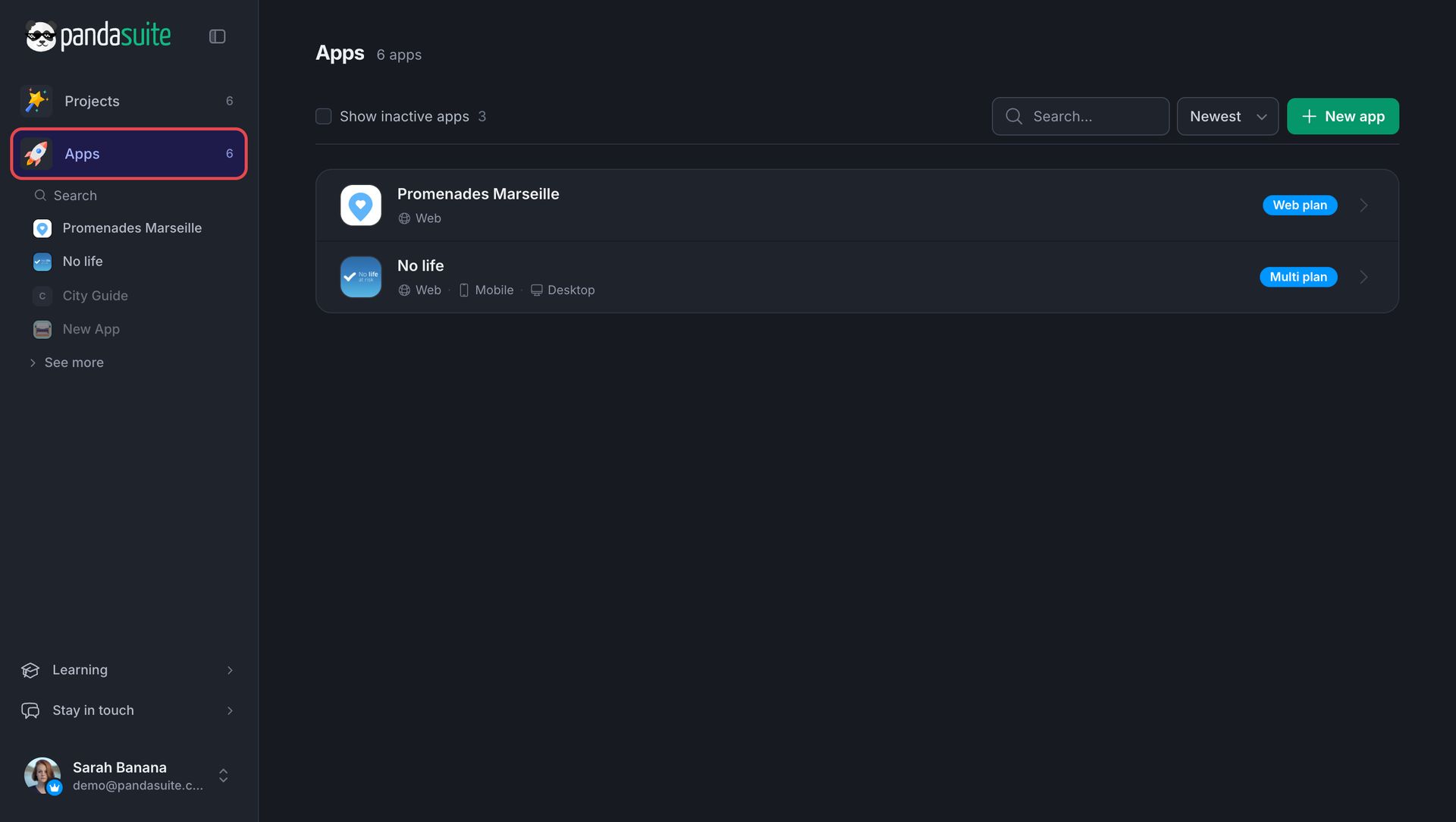
The Apps section lists your apps with their plan. Type in the Search… field to find an app. Check Show inactive apps to also see the apps whose plan has ended. An app without a project shows No project. Click New app to create one.
Click an app to open its page. From there, you generate the web, mobile, and desktop versions of your app, and you configure its services and settings. In its settings, you can also create access links to the app and transfer or delete the app.
Managing your account settings
Here is the URL to the Account section: https://pandasuite.com/dashboard/user/profile
You can also reach it from the account menu: click your name at the bottom left, then Account.
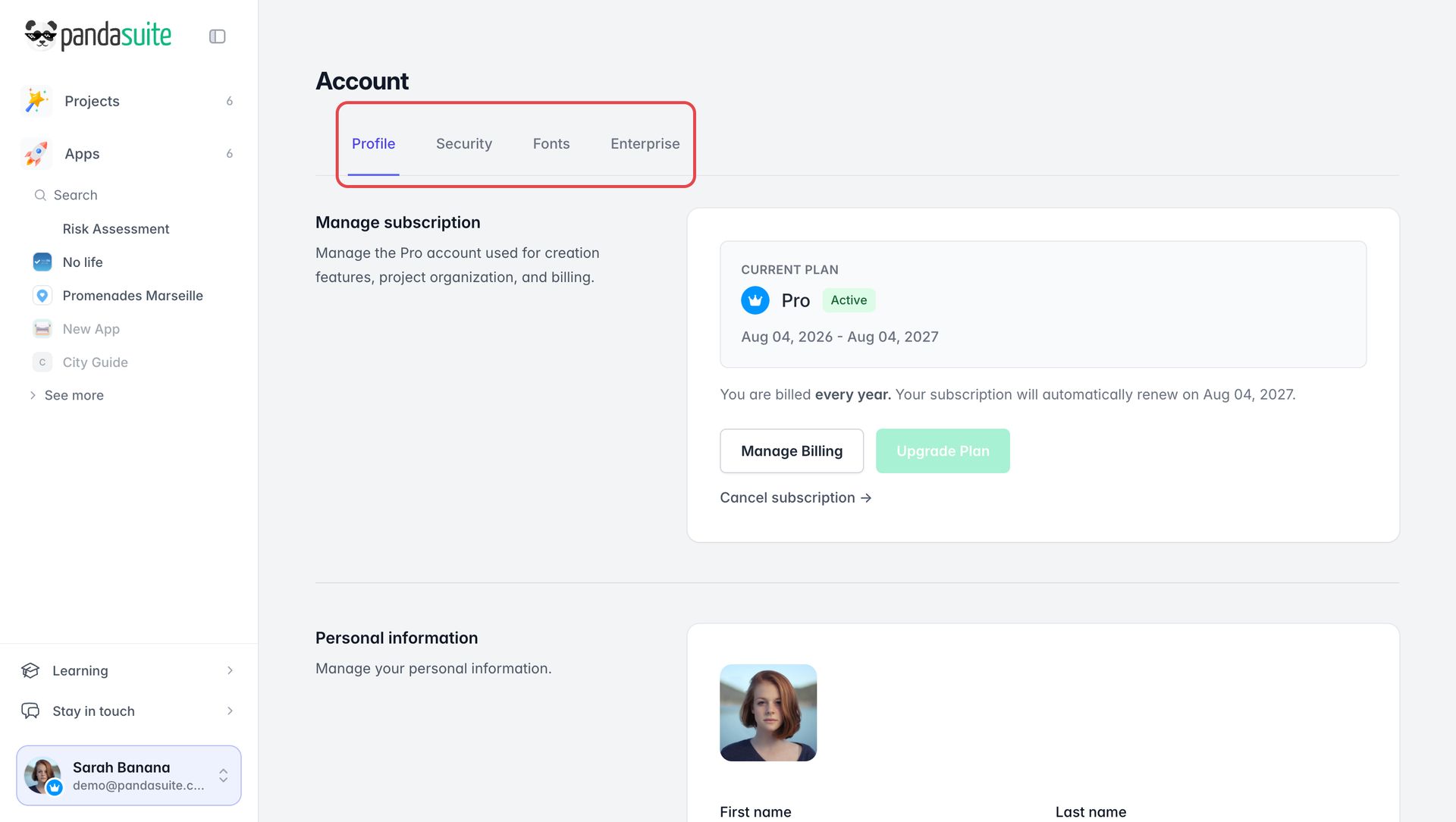
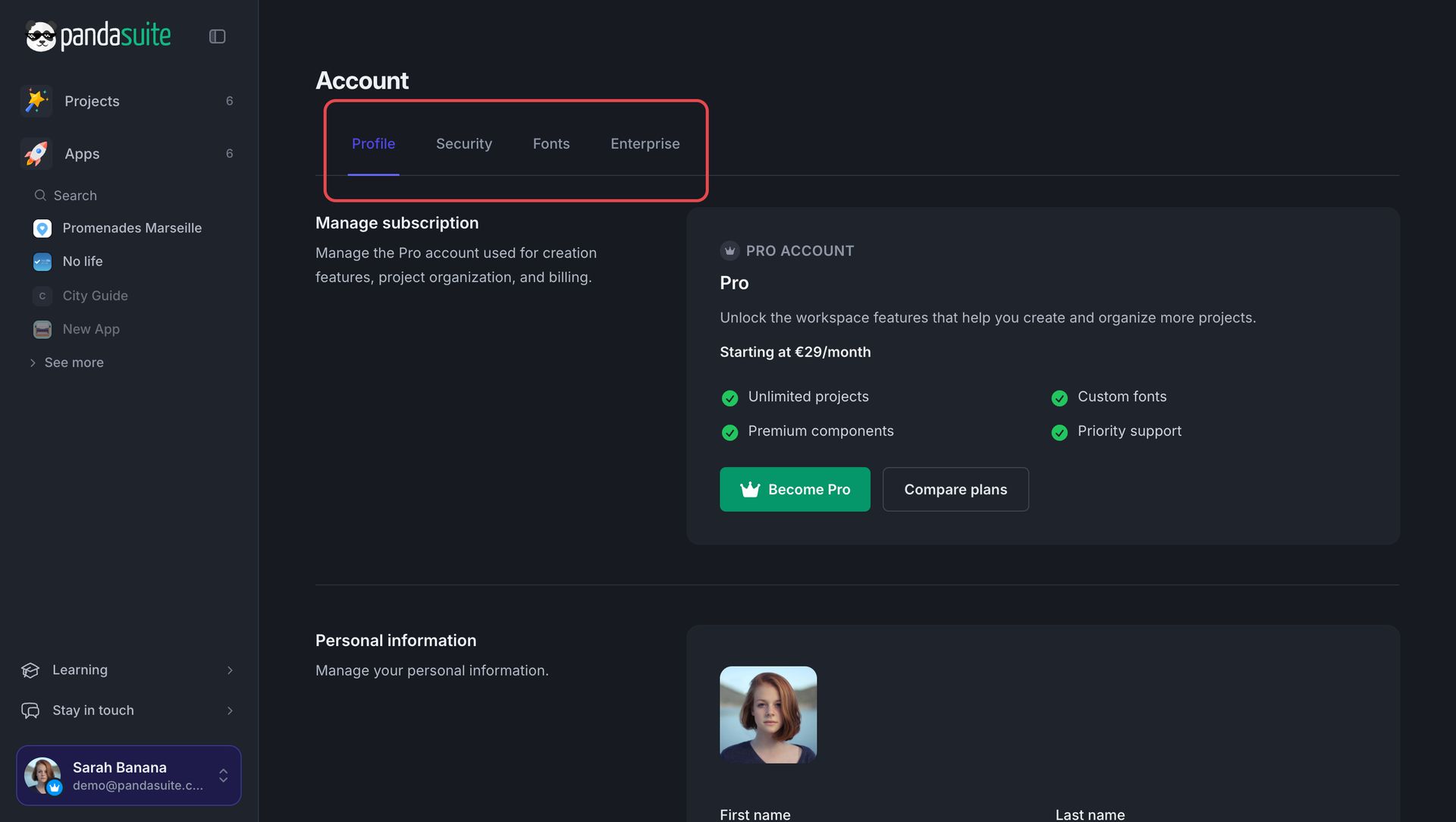
The Account section has four tabs:
- Profile: manage your subscription, edit your personal information (photo, name, email), change your password, manage your cookie preferences, or delete your account.
- Security: set up two-step authentication, manage your login sessions, create API keys, and manage the apps connected to your account.
- Fonts: import custom fonts for your projects.
- Enterprise: see the organizations you belong to, and manage the members and licenses of those you own. An organization can also pay for your apps with its licenses.
To find your invoices and update your payment methods, click Billing in the account menu. See the subscription and billing FAQ.