

Create a Firebase Project
Firebase is Google’s mobile application development platform that offers a multitude of services including authentication, push notifications on Android, analytics, and many others.
You need to create a Firebase project to take advantage of these services for your application: Authentication & Firebase session, push notifications for Android and Firebase analytics for iOS & Android.
Create a firebase project
Creating an account on Firebase is free up to a certain volume (details here). Firebase’s Spark plan is free and offers many features to get started. As your needs grow, you can then opt for the Blaze Plan.
Go to https://console.firebase.google.com/
Sign in with your Google account.
Create a new project: you need to create a new project for each application.

Choose a name. Follow the steps and confirm.

If you want to enable analytics, you need to select a Google Analytics account associated with your account.
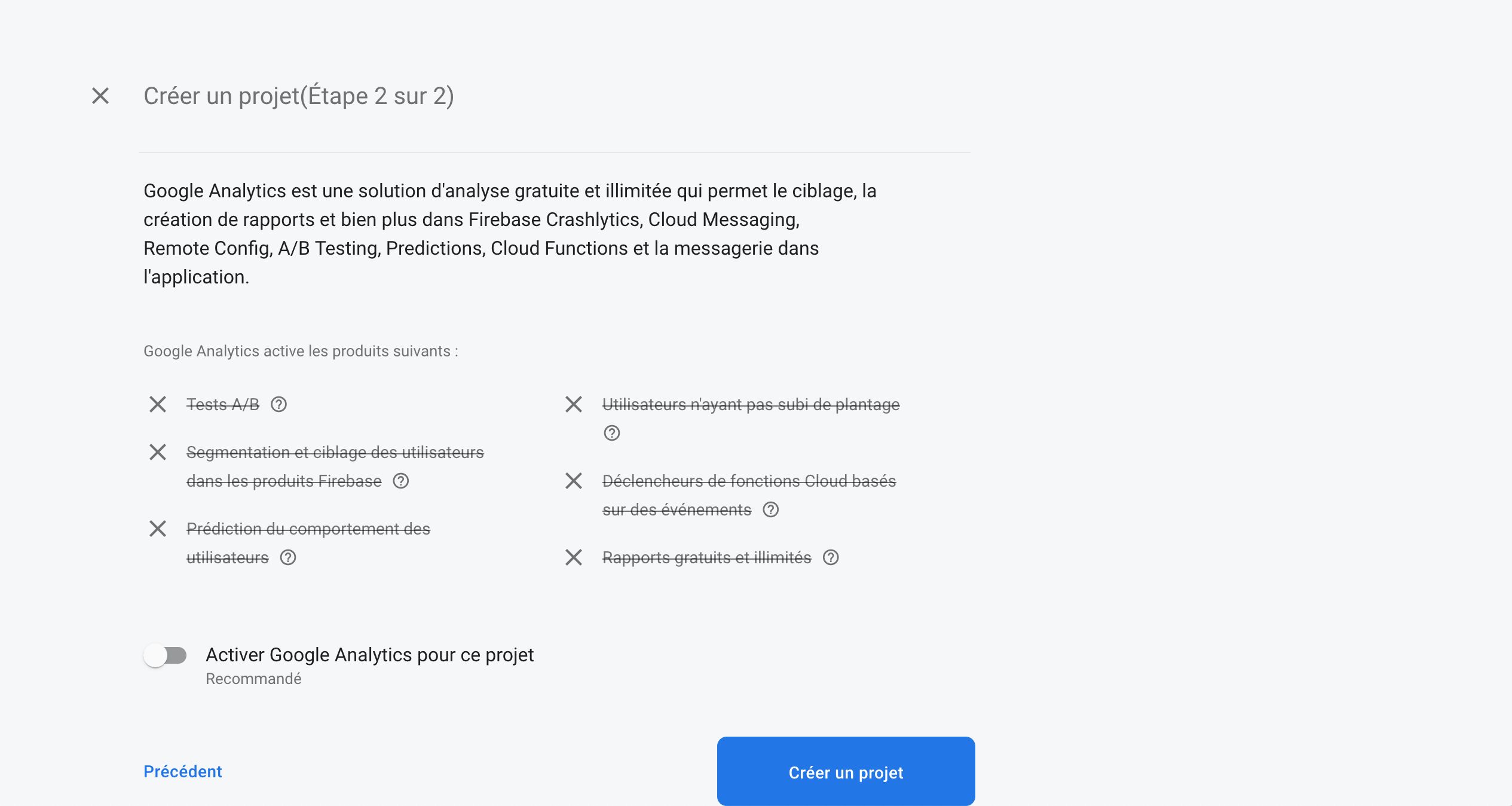
Once the project is created, you are redirected to the dashboard.
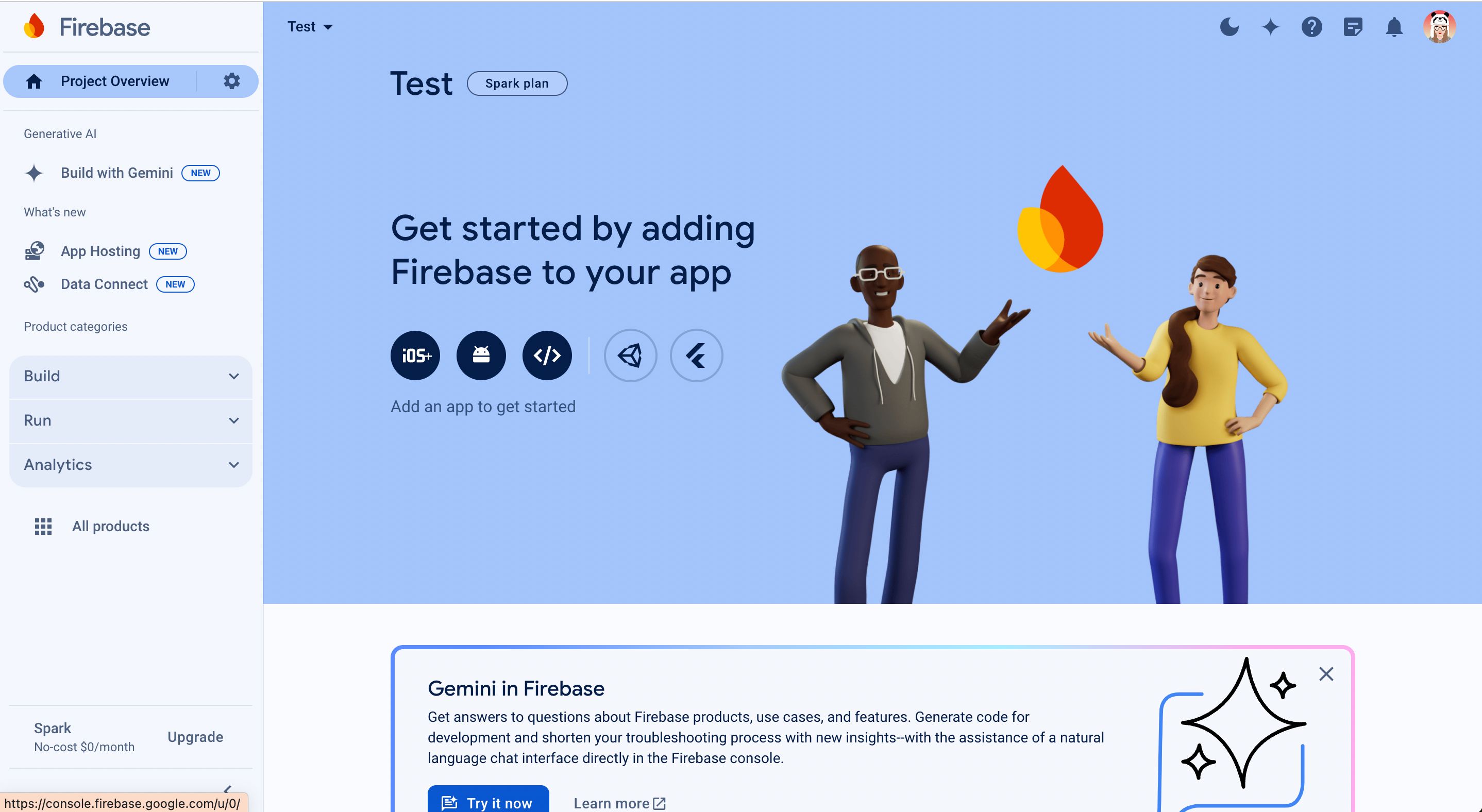
Add an iOS app
If your application is already published in an iOS and/or Android format and you want to benefit from analytics or push notifications, you also need to add your application in Firebase: iOS, Android, or both depending on your distribution.
Please make sure to start with the iOS app, then create the Android app afterward.
Here is how to add an existing iOS app to Firebase.
On the Firebase console, click on the iOS icon
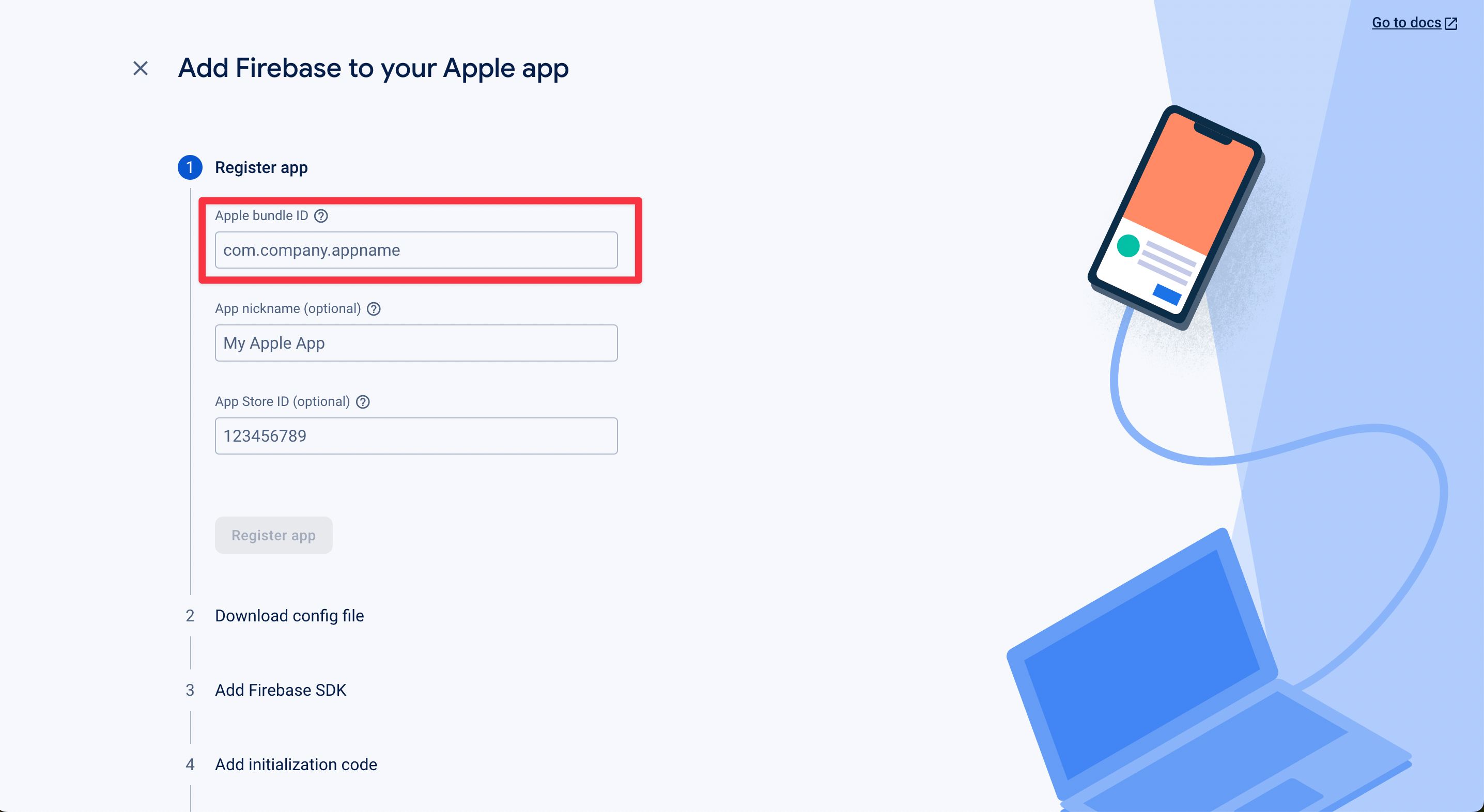
In the form, insert the Bundle ID of your application. The other fields are optional.
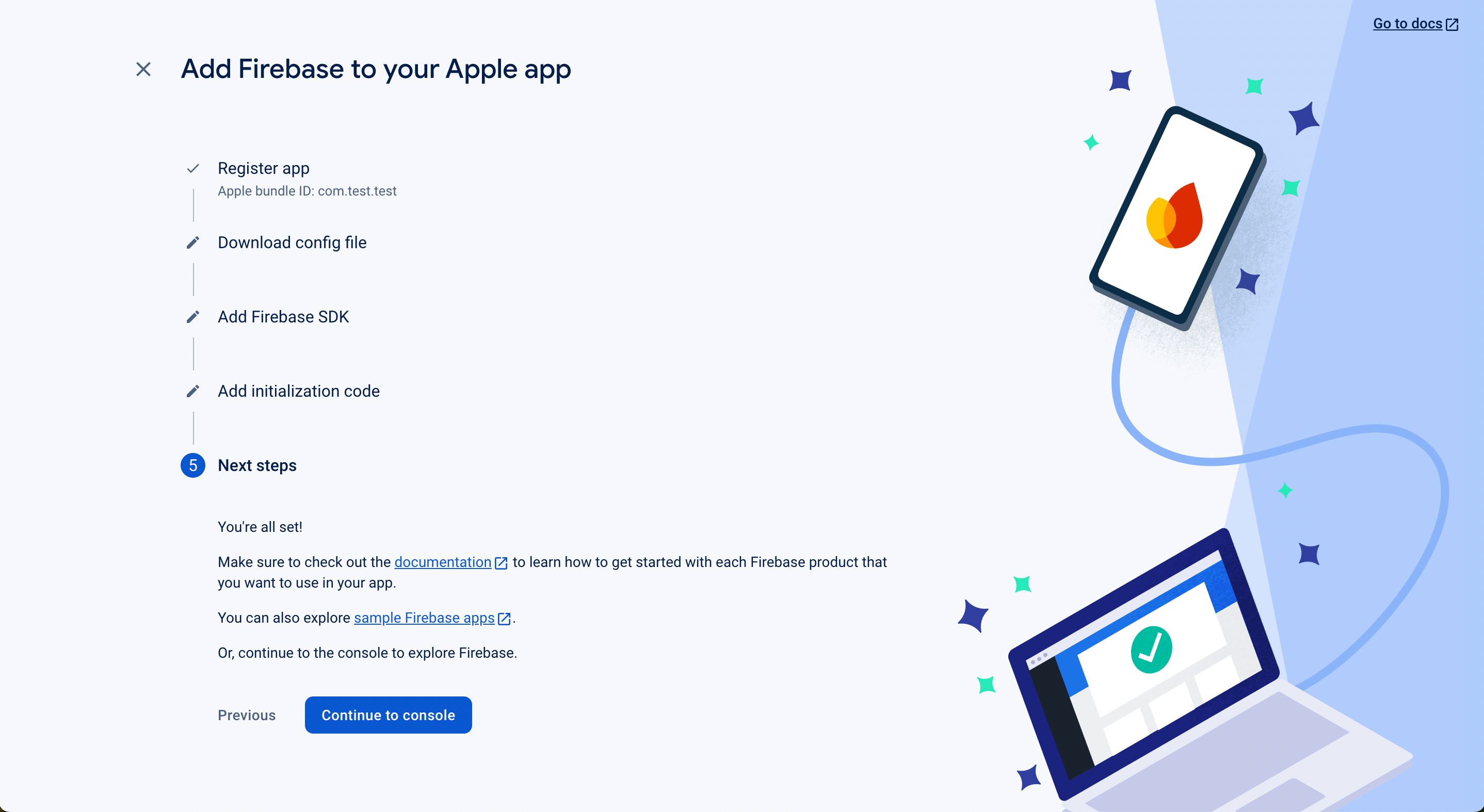
Click on the Download GoogleService-Info.plist button
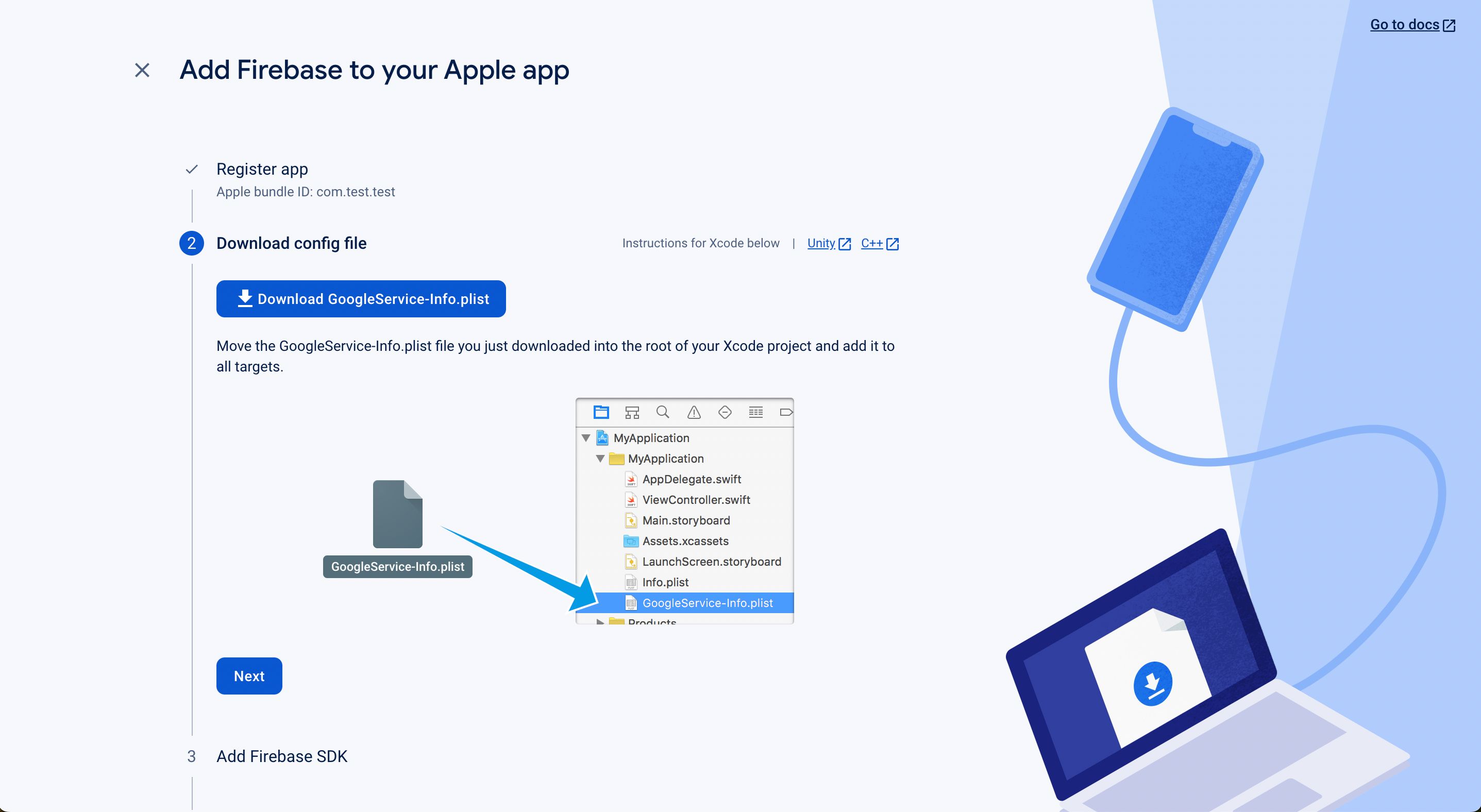
For the next steps, click Next and return to the console
Go to your PandaSuite dashboard in the Apps > Settings > Firebase Configuration section
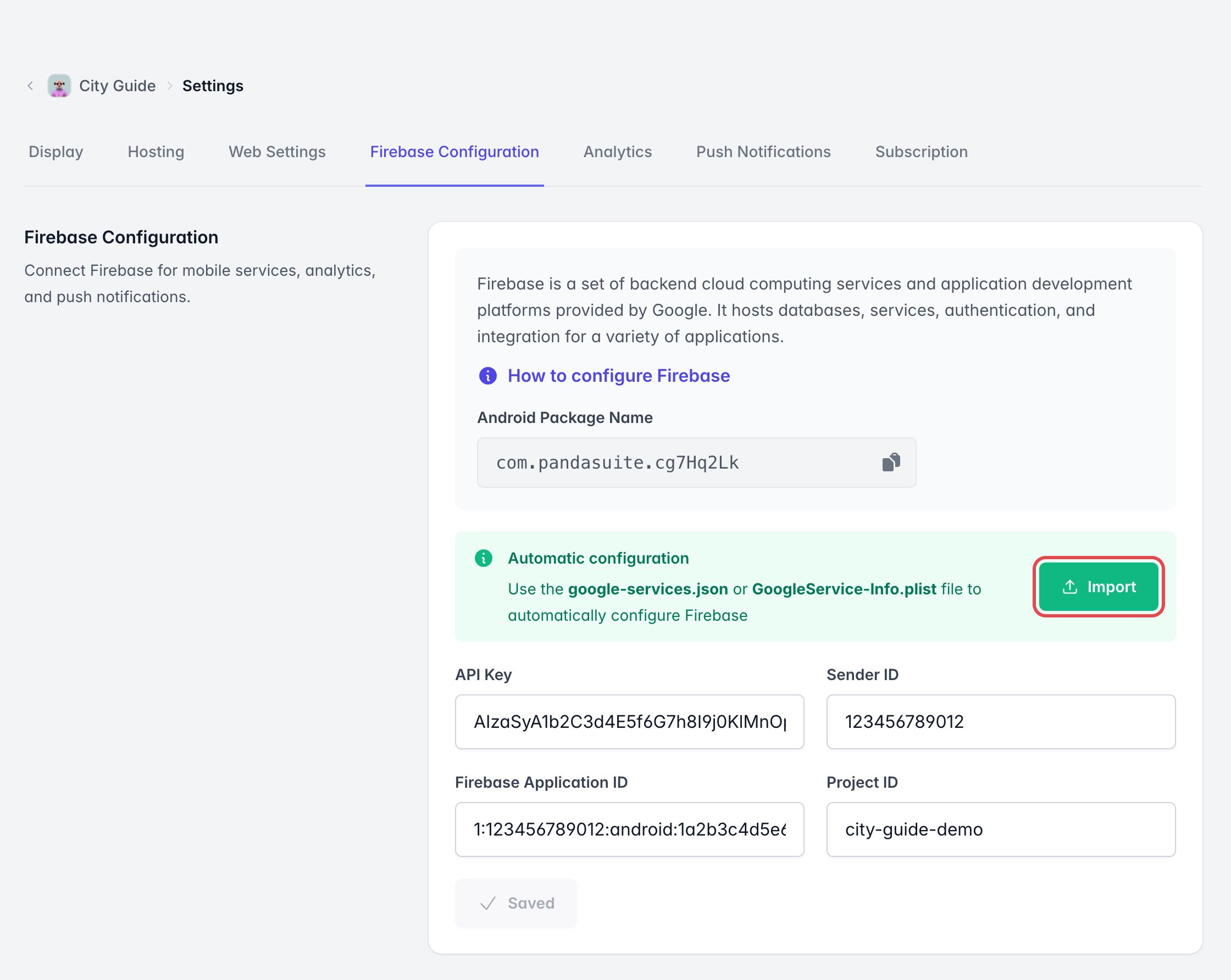
Import the .plist file; the fields are automatically filled in
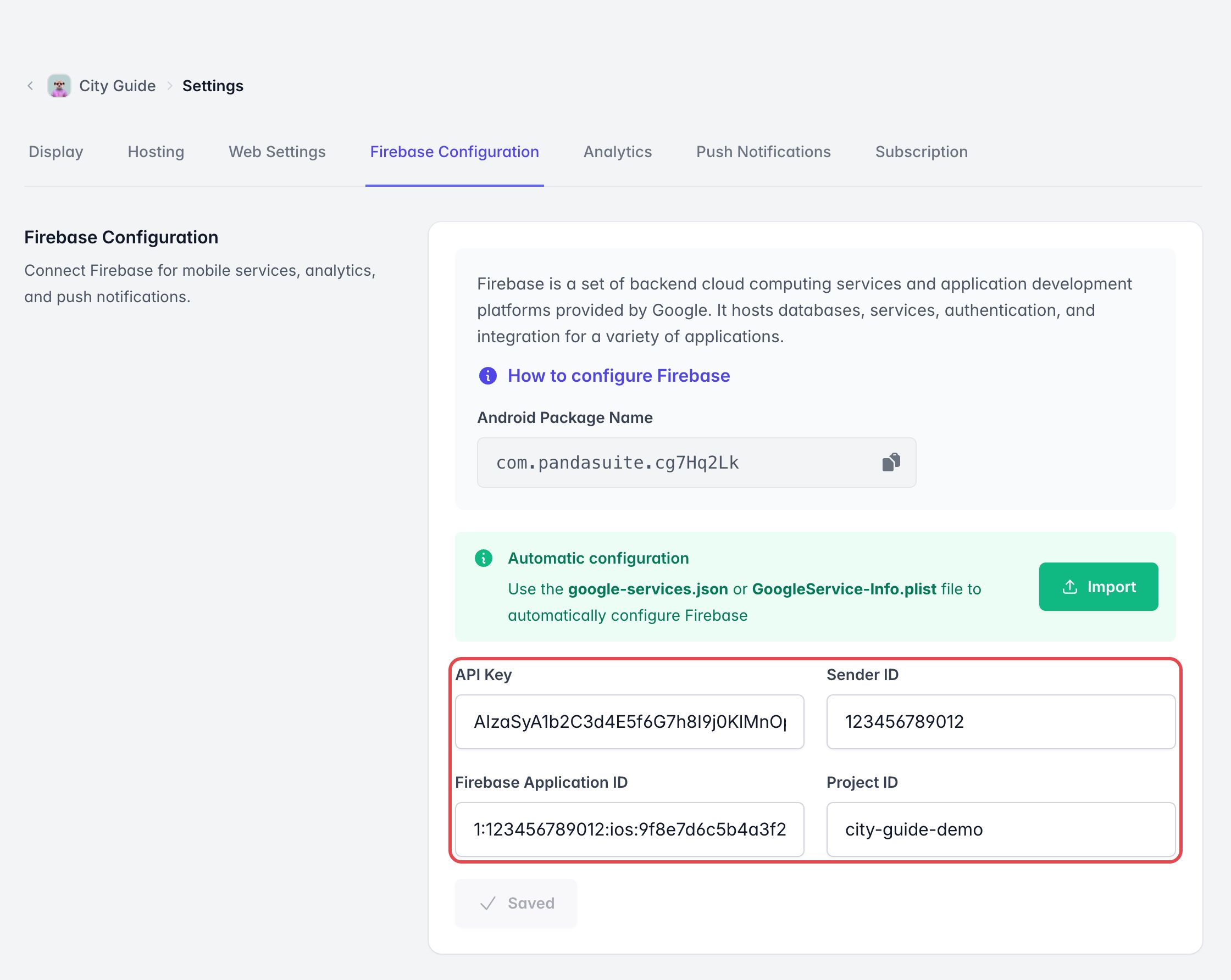
The import saves the Firebase configuration automatically. If you edit a field manually afterward, click Save Changes.
Add an Android app
Here is how to add an existing Android app
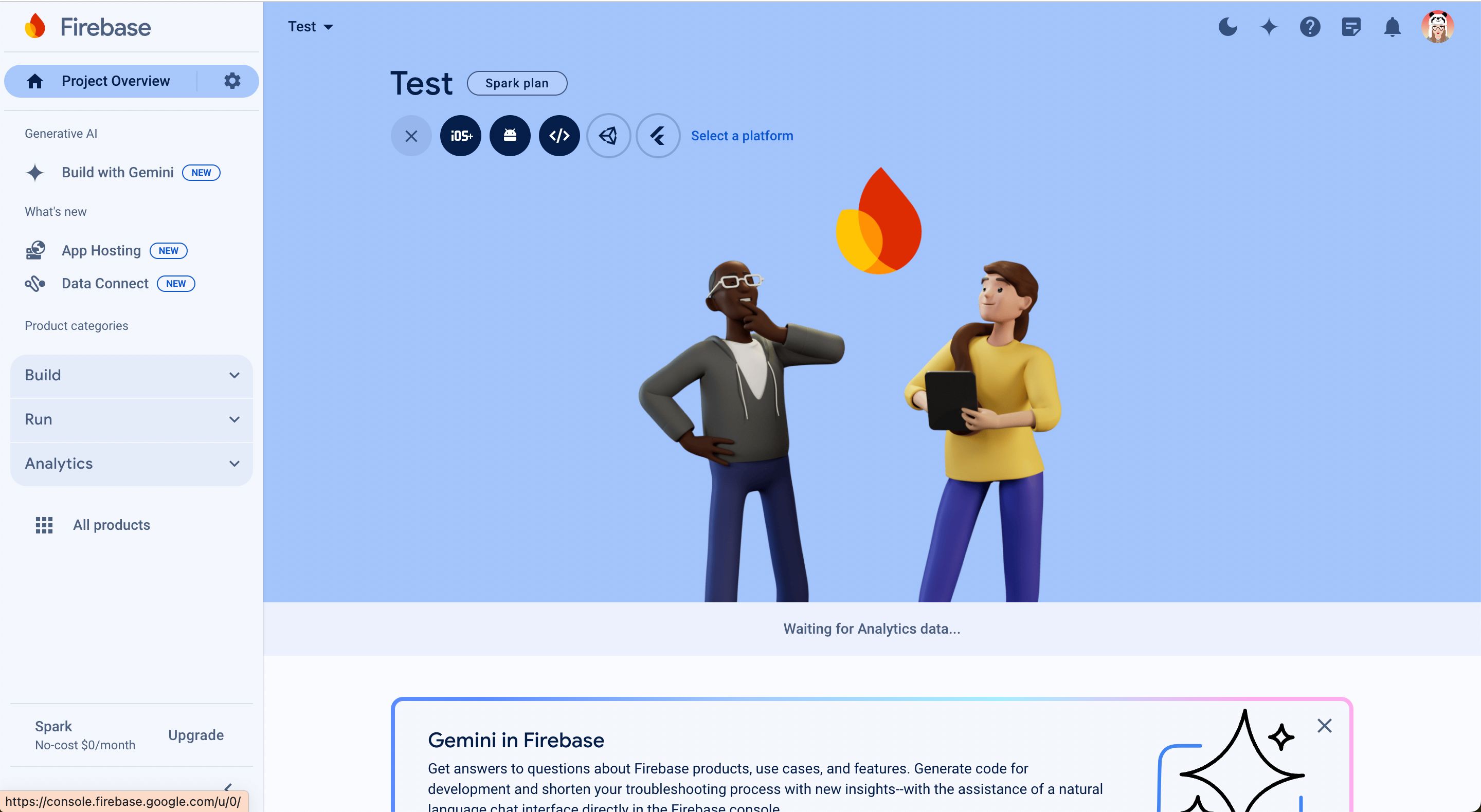
On the console, click Add an App and the Android icon
The Android Package Name identifies the Android app and looks like
com.company.app. The Firebase Application ID identifies the app inside
Firebase and looks like 1:1234567890:android:abcdef. These values are not
interchangeable.
In the Firebase form, enter the package name of your application. It must exactly match the Android Package Name shown for the latest APK in PandaSuite under Apps > Settings > Firebase Configuration. The other fields are optional.
Generate an Android build before importing the Firebase configuration so that PandaSuite can identify its Android Package Name. This lets the importer select the matching client when google-services.json contains several Android apps.
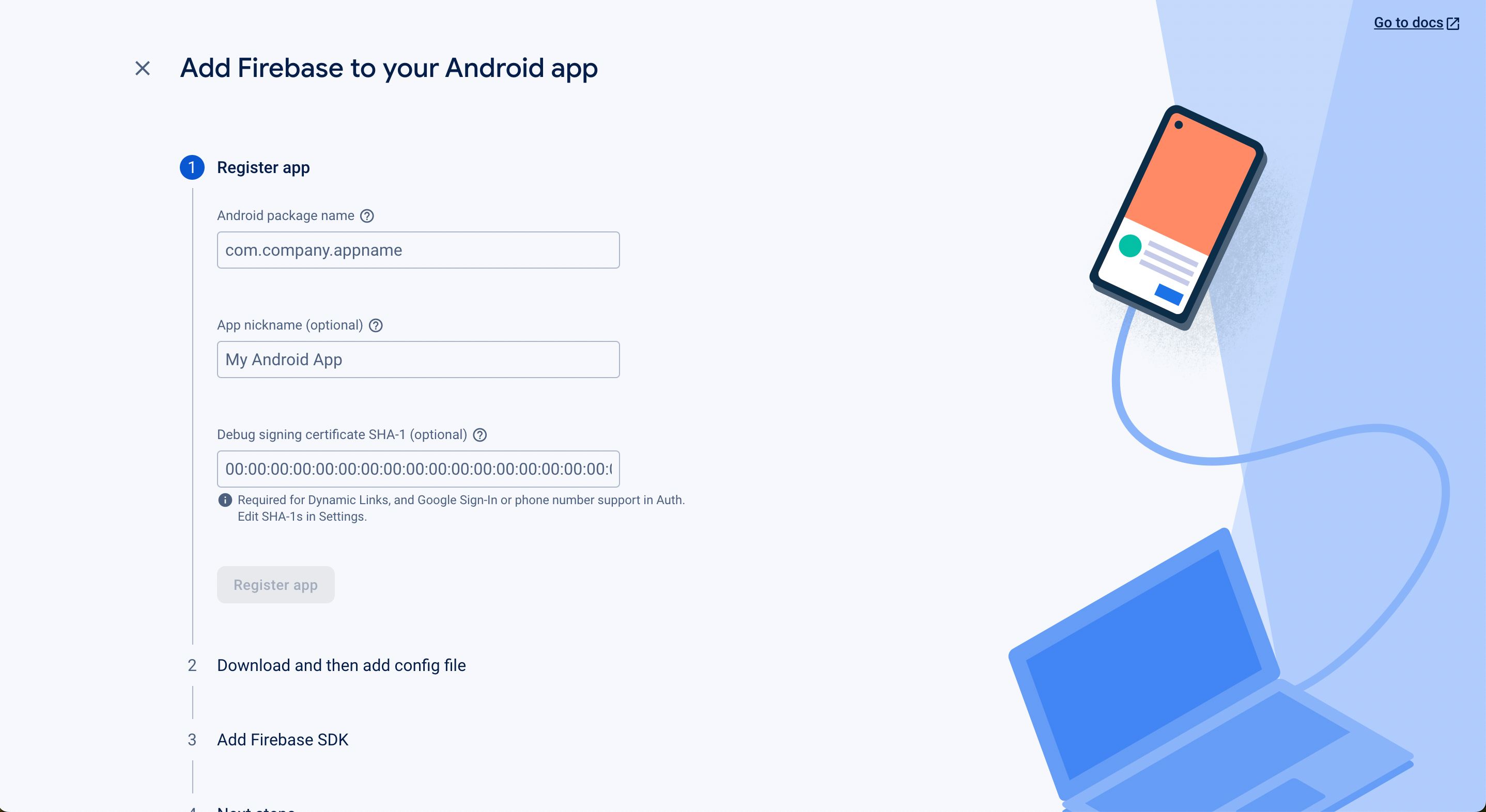
Click on the Download google-services.json button
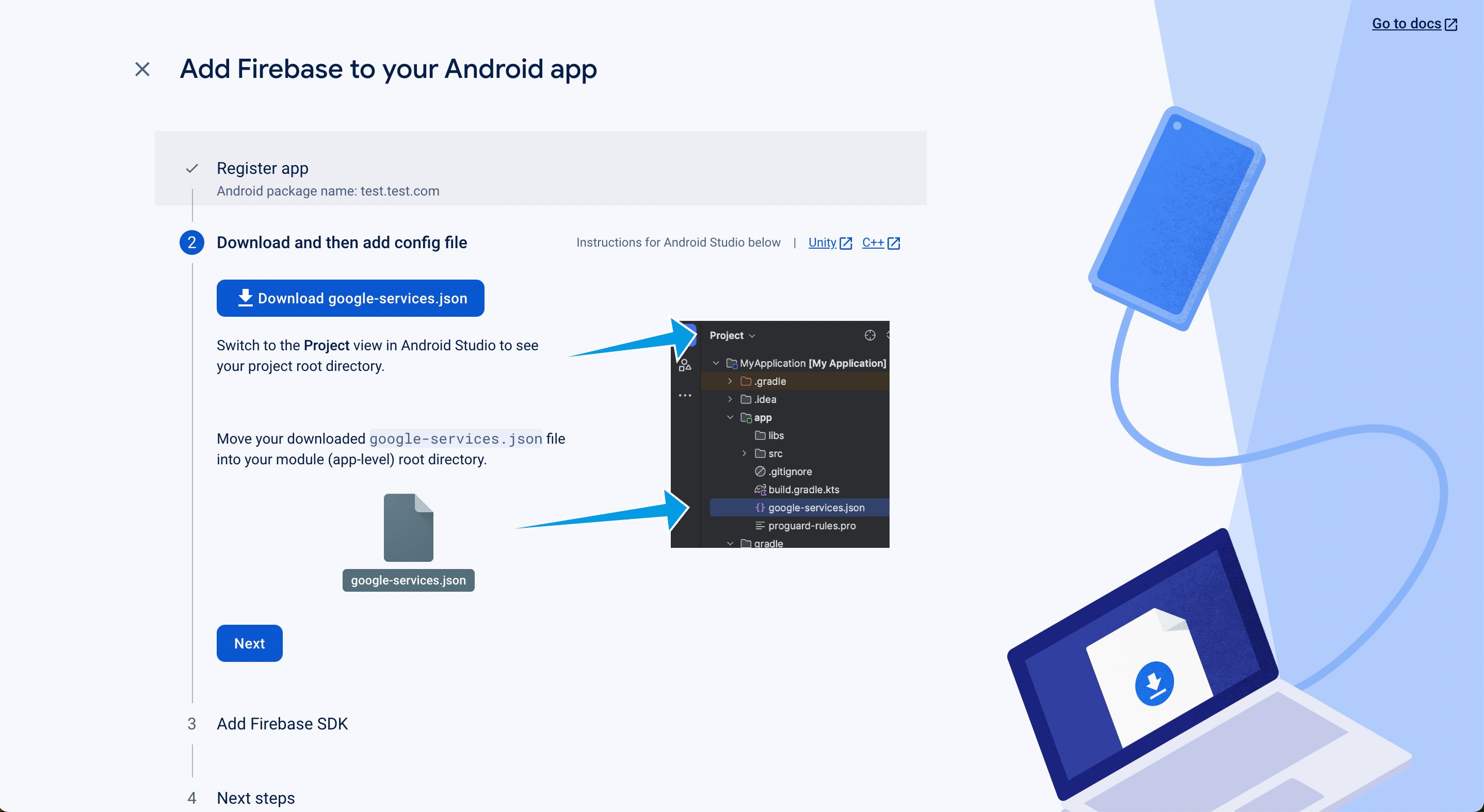
For the next steps, click Next and return to the console
Go to your PandaSuite dashboard in the Apps > Settings > Firebase Configuration section
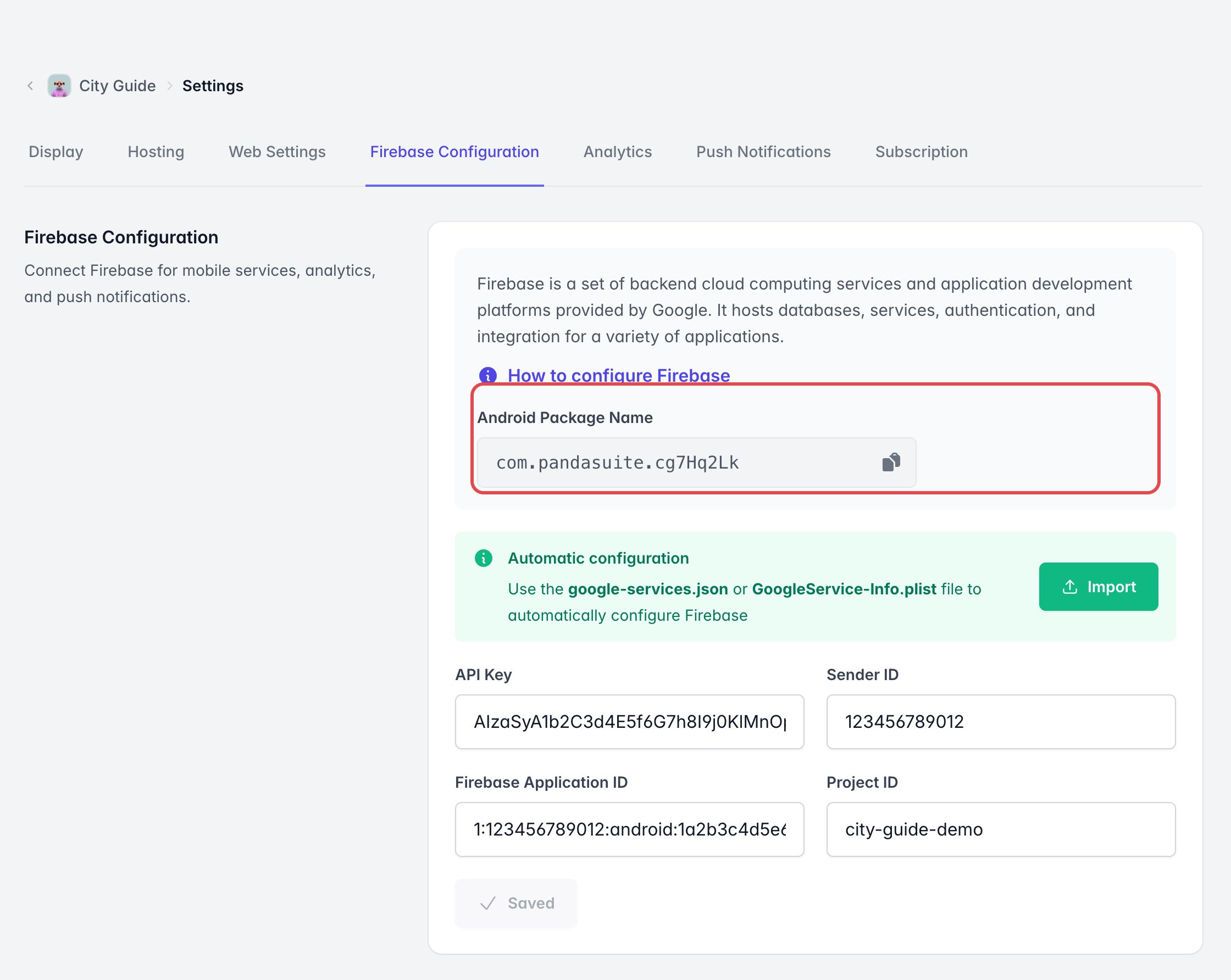
Import google-services.json; the fields are automatically filled in and saved. When an Android Package Name is available, PandaSuite selects the client whose client_info.android_client_info.package_name matches it, then fills Firebase Application ID with client_info.mobilesdk_app_id. Without an existing Android build, the importer uses the first client in the file.
After importing, check that:
- Android Package Name uses a package format such as
com.company.app. - Firebase Application ID uses the long format
1:…:android:….
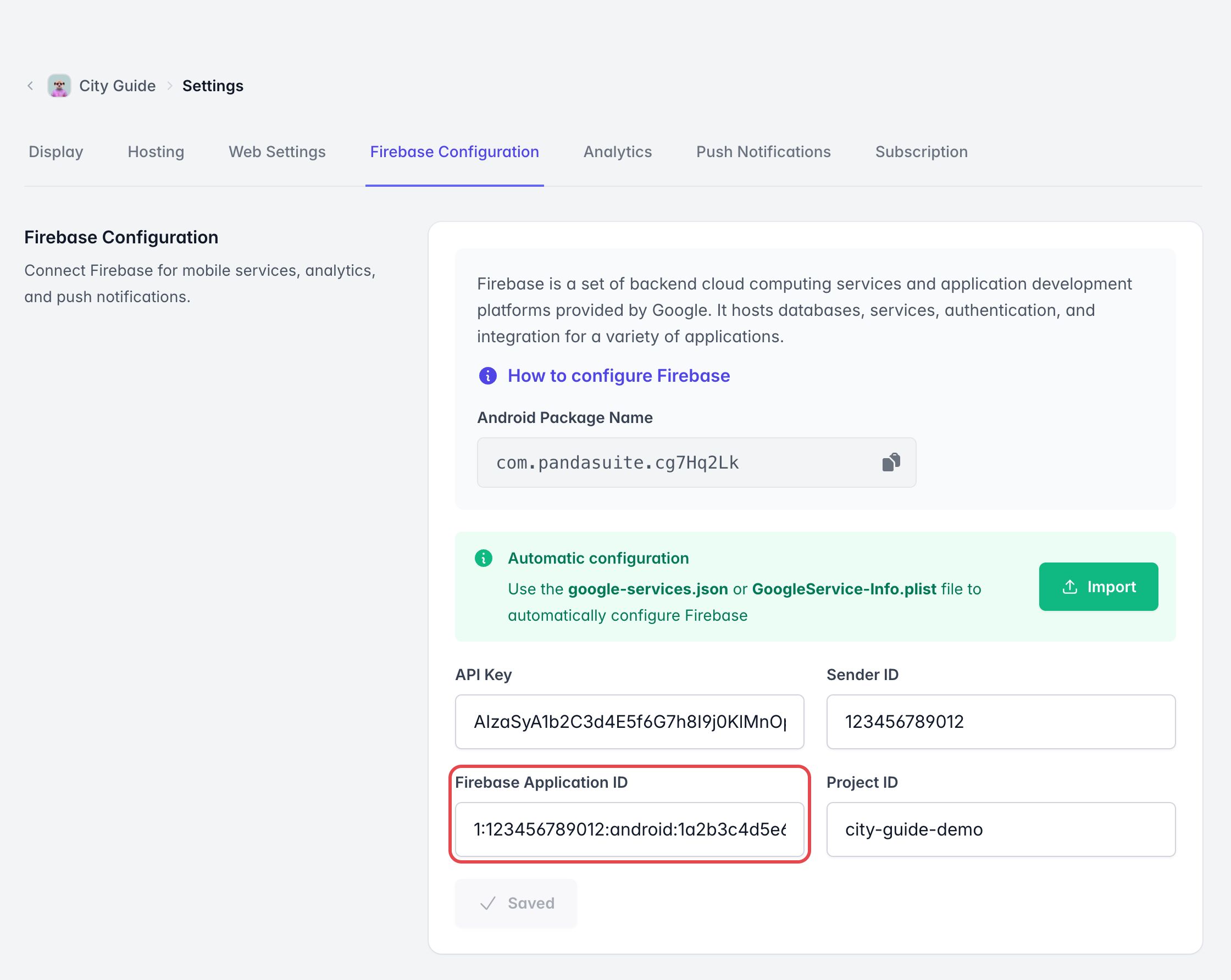
If you have already imported the .plist file corresponding to the iOS app in the interface, replace it with the .json file of the Android app.
Generate a new Android build. PandaSuite exposes the imported Firebase Application ID to Firebase as the Android google_app_id resource. If you edit a field manually after the import, click Save Changes before generating the build.