Full text search
Add a search that scans all the texts in your project (static texts). When clicking on the results, the user is redirected to the correct location.
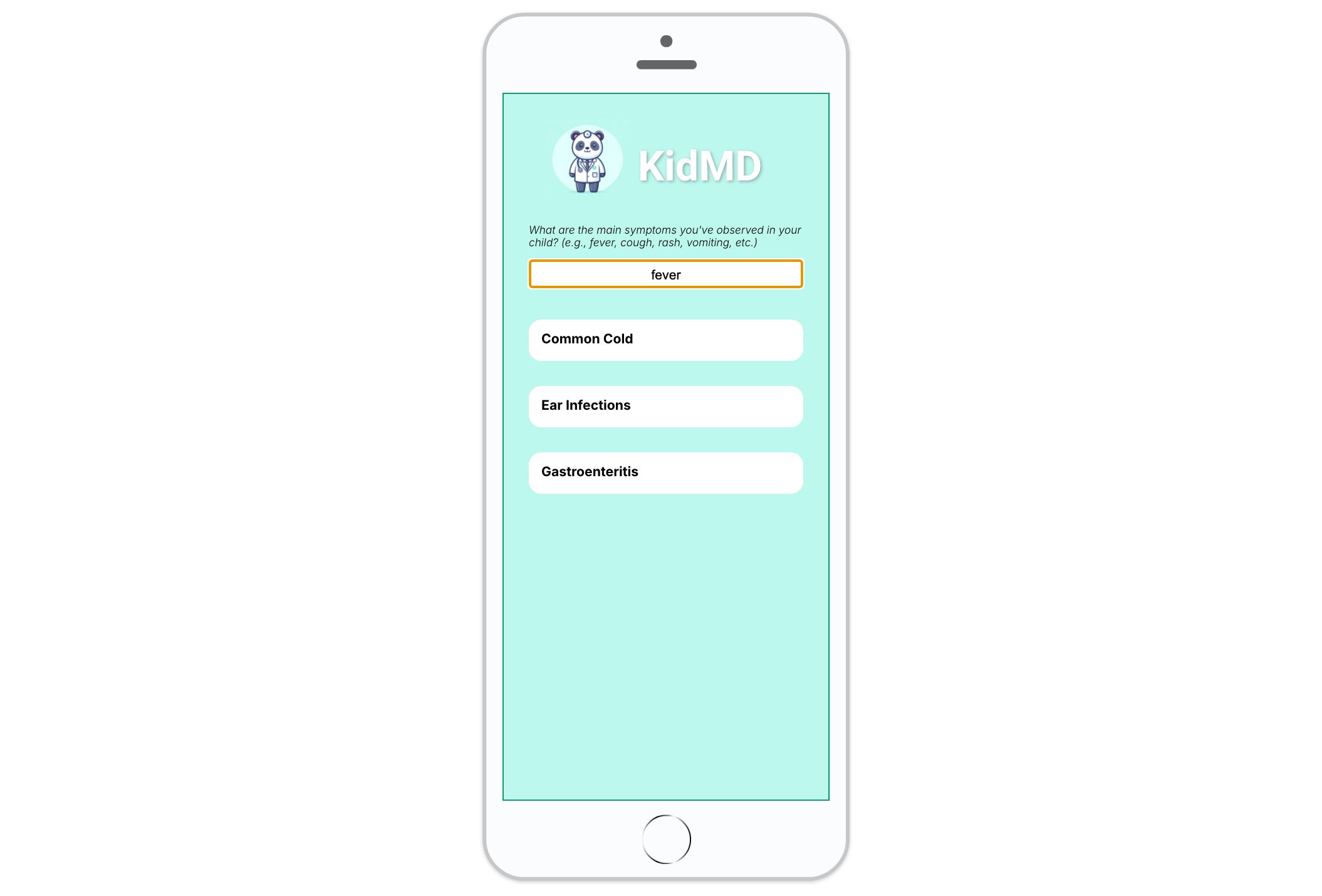
Search all texts
Add this template to your account in just a few clicks. Edit and customize it freely.
→ Add this template to your accountCreate the input field
Insert the Search component.
In the Properties, for the Source, choose From project > All texts.
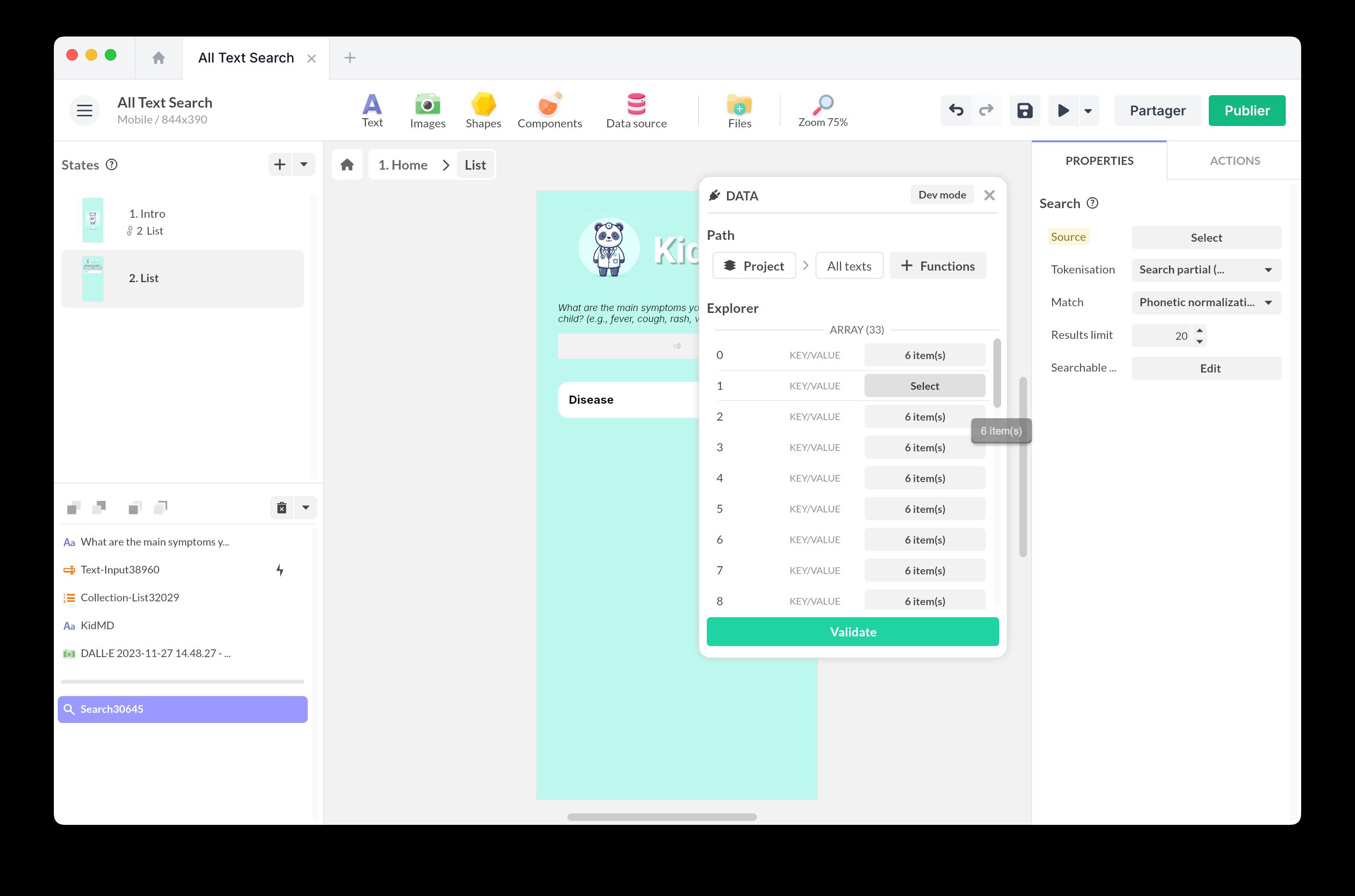
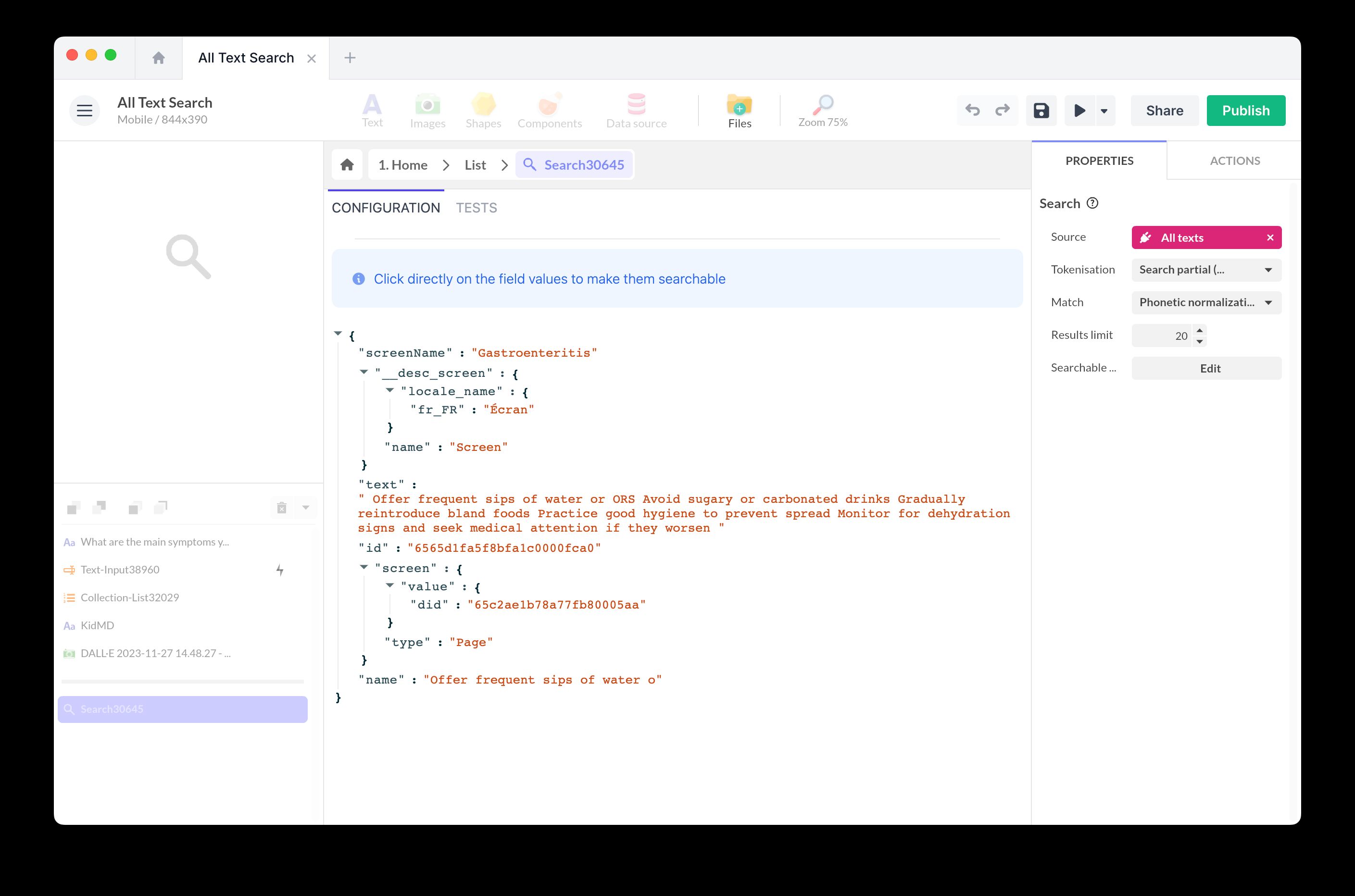
Double-click the component to enter inside and view the raw data. Click on the fields where the search will be performed, for example, the title.
Displaying the results
Now, let’s prepare the display of the list of results.
Insert a Collection component.
In the Properties of the component, fill in the Source: choose From a component > Search and Search Results.
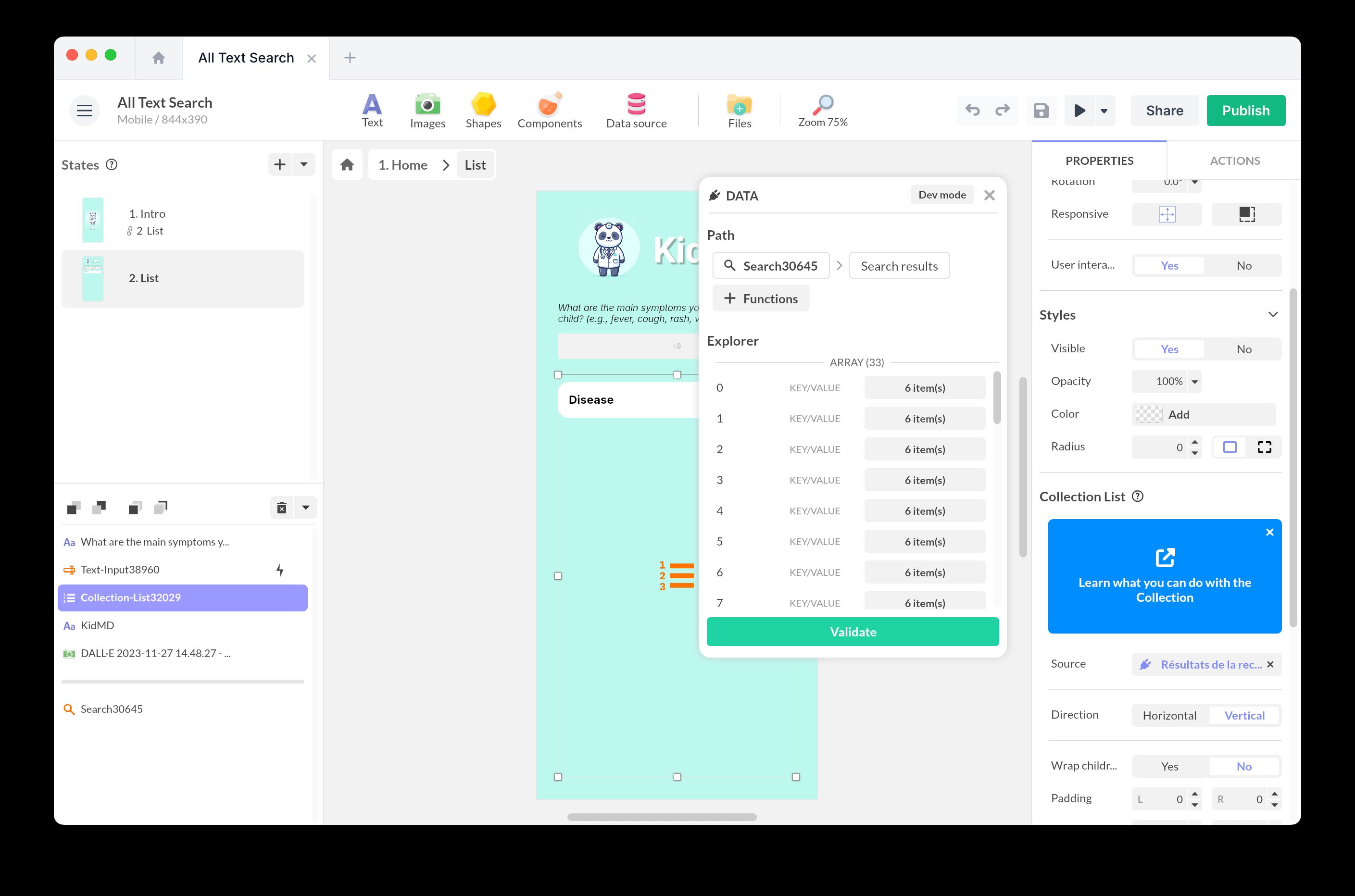
Inside the component, insert a result template that will be used to display the search results. This template will be duplicated from the query results.
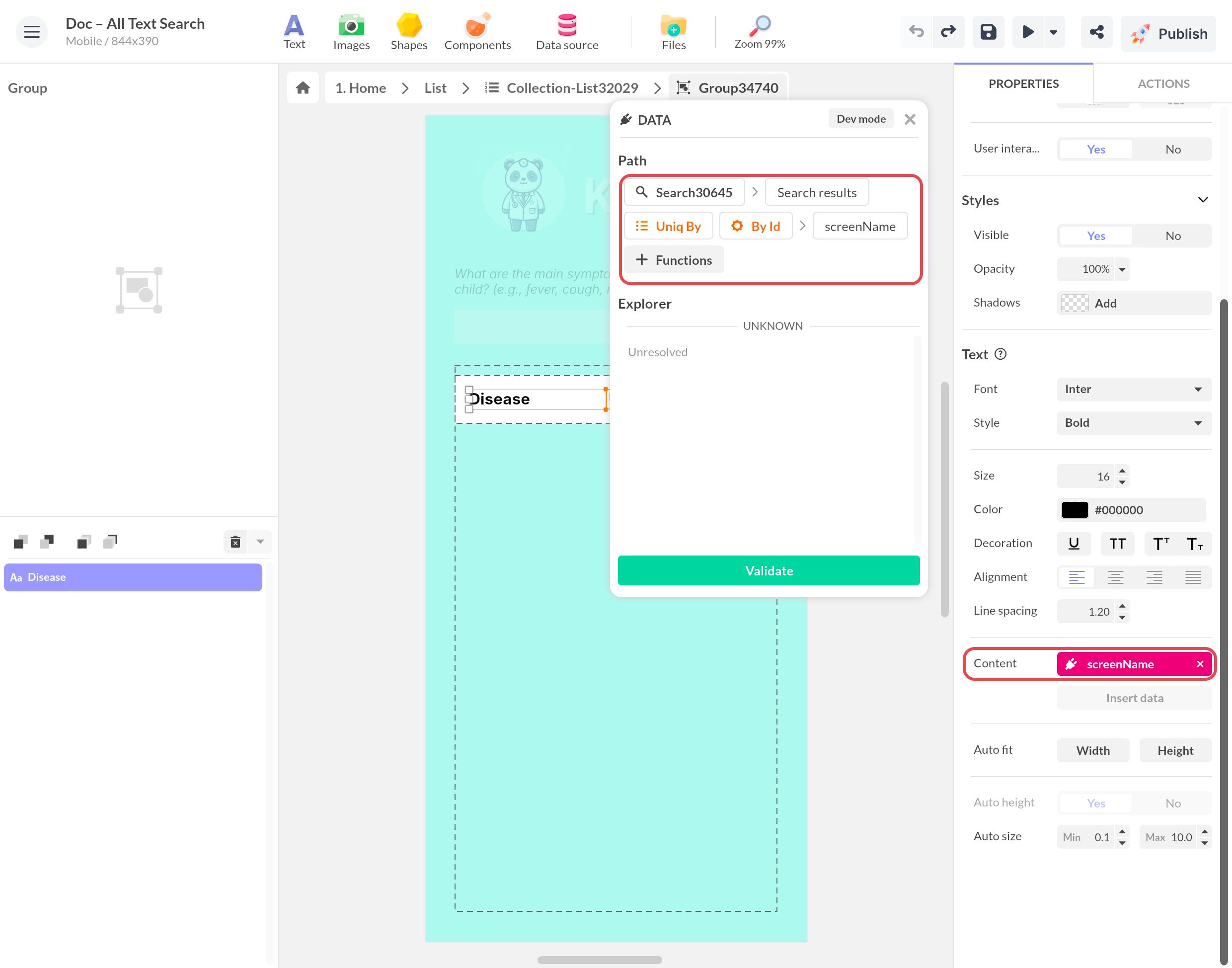
Select the text block that represents an example result. From Content, open the data window, choose your Search component and its Search results, then add the By Id function and finish with the field you wish to display (here screenName). The Uniq By function in the example keeps one result per screen.
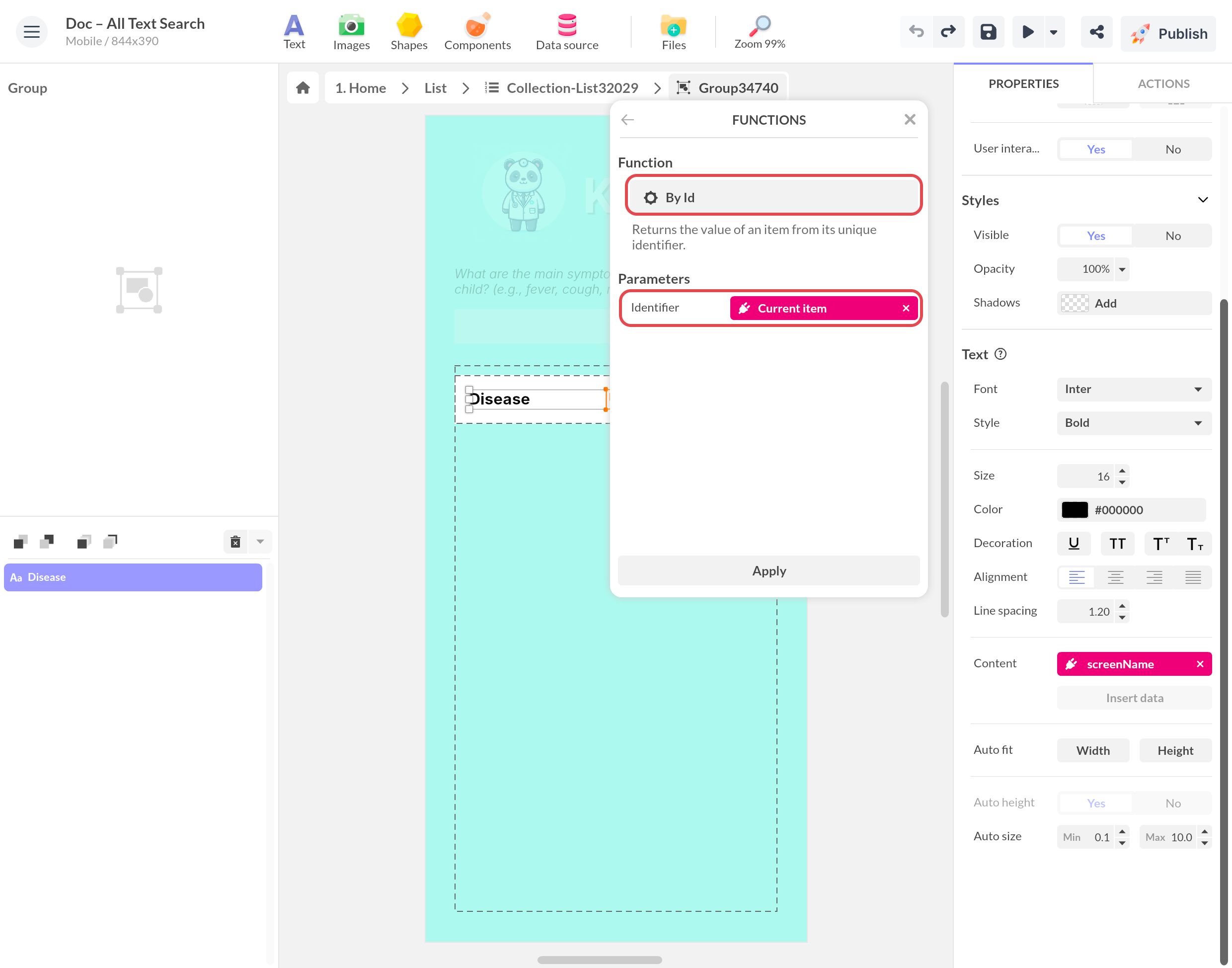
In By Id, set the Identifier to Current item: each copy of the template then displays its own result.
Use the Sort by (ascending order/descending order) and Filter by (a condition) options to customize the display of the collection.
Create a link to the screen
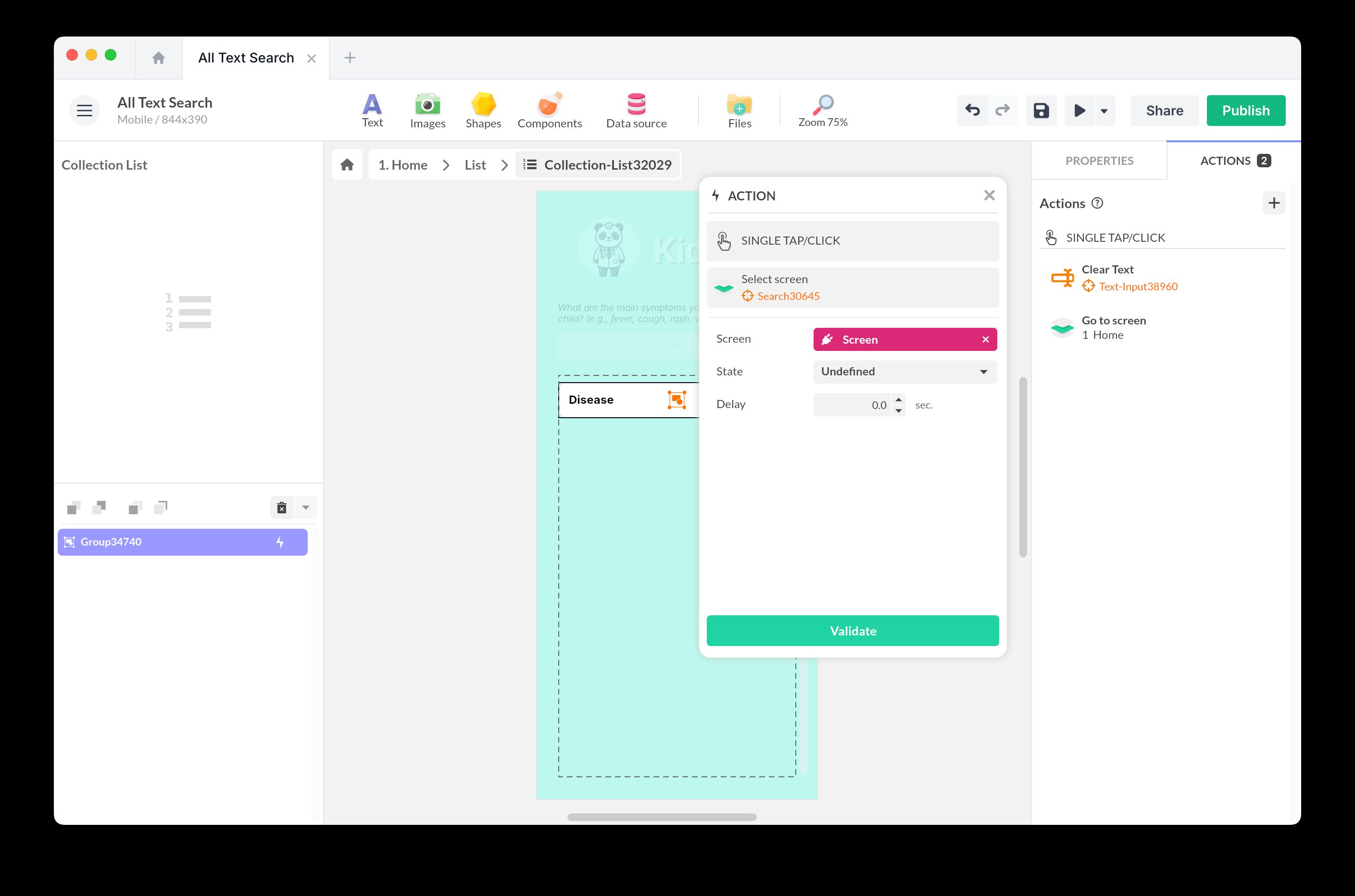
To create the link to the screen, select the result template and add an action to Tap/Click
Change Screen > Go to Screen
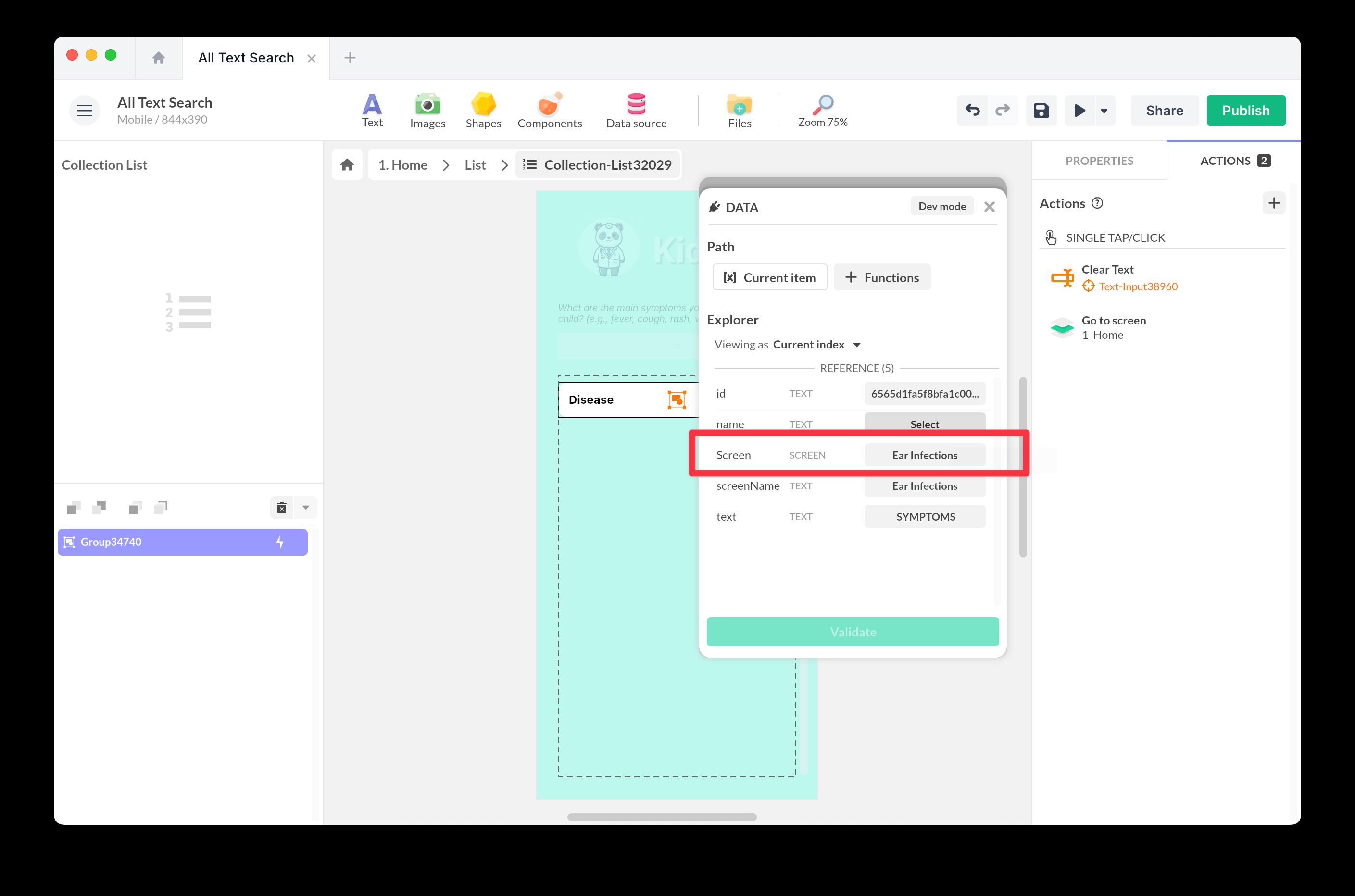
At the Screen level, add a data binding to go to the correct screen. Select Current Item and choose the Screen field. The same Screen value exposes name and index if you also want to display where each result comes from.