
Markers
Add targeted and specific context actions for your users with markers.
Markers in PandaSuite are a powerful way to trigger actions or indicate specific positions in your projects. They can be static or dynamic, offering incredible flexibility for your interactive creations.
What is a marker?
A marker is a reference point that you place in a component to trigger actions when the user reaches this point. For example, by scrolling through a page or reaching a specific moment in a video.
If a marker is created in a video, it’s possible, when the video reaches this marker, to trigger an animation or the display of textual content.
Create a marker
To create a marker, follow these steps:
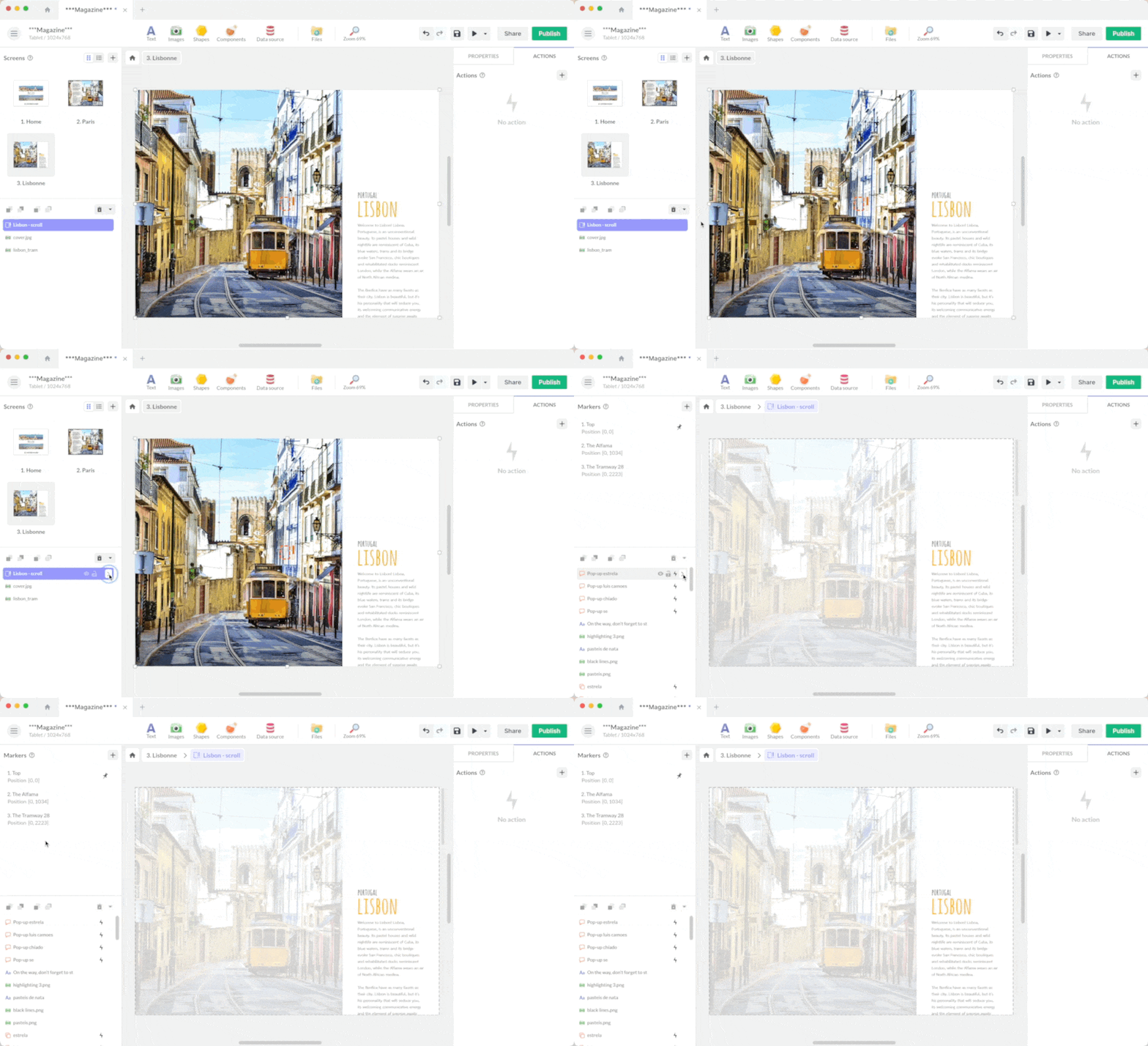
- Select a component from the object list
- Click on the arrow to enter edit mode
- Position your component at the desired location using your mouse or the player
- On the left, click on the + button.
- The newly created marker will be displayed in the list, offering options to edit or delete it.
Markers do not affect the “normal” behavior of your components. If no specific action has been assigned to markers, users can still interact with the component’s classic functionalities, such as zooming on an interactive image or scrolling through text.
Set a default marker
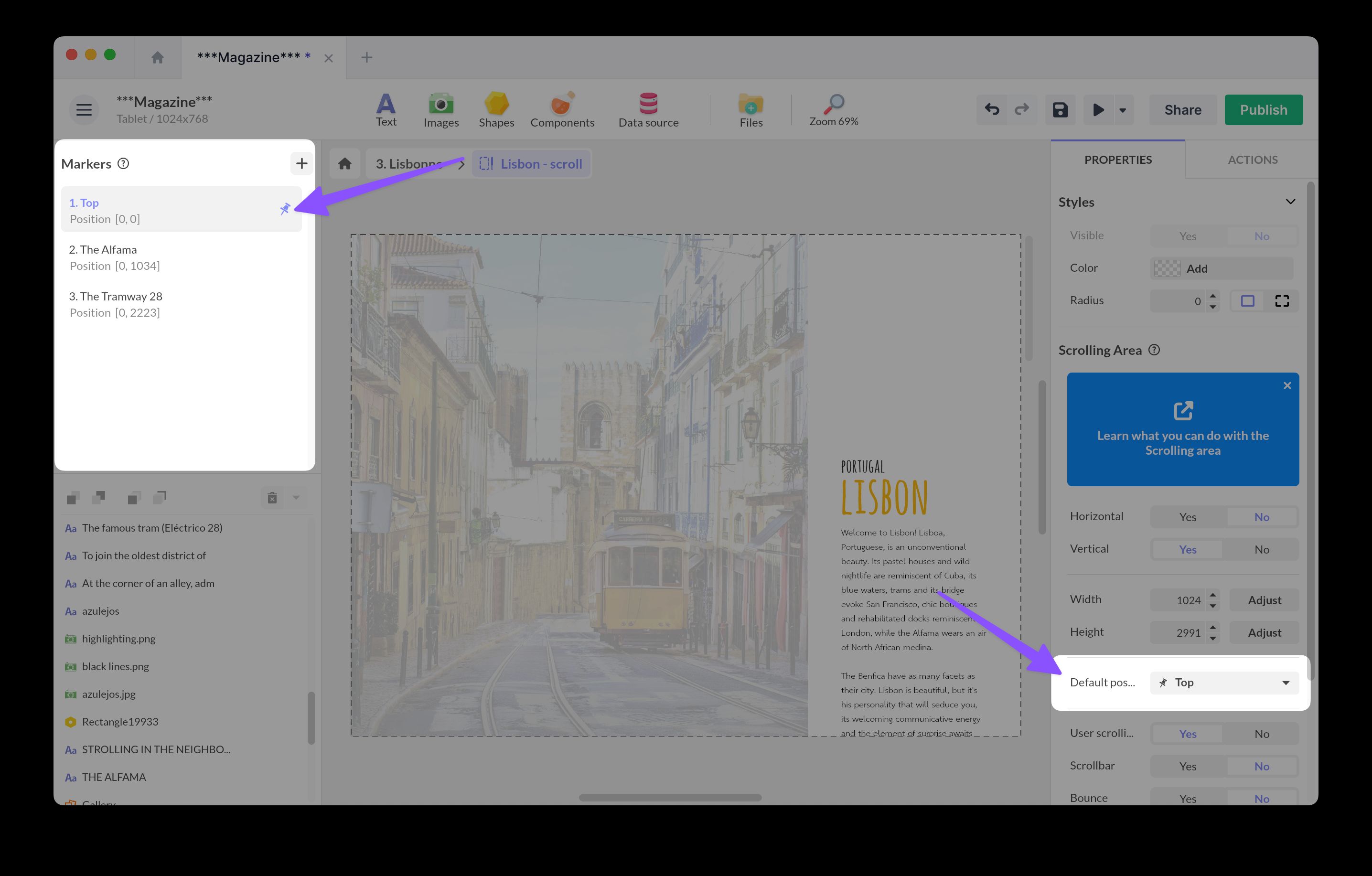
When you have created markers, it’s possible to select one that will always be activated by default when the component is loaded.
To set a default marker, choose it in the component properties or use the pin icon in the component’s marker list.
Trigger an action from a marker
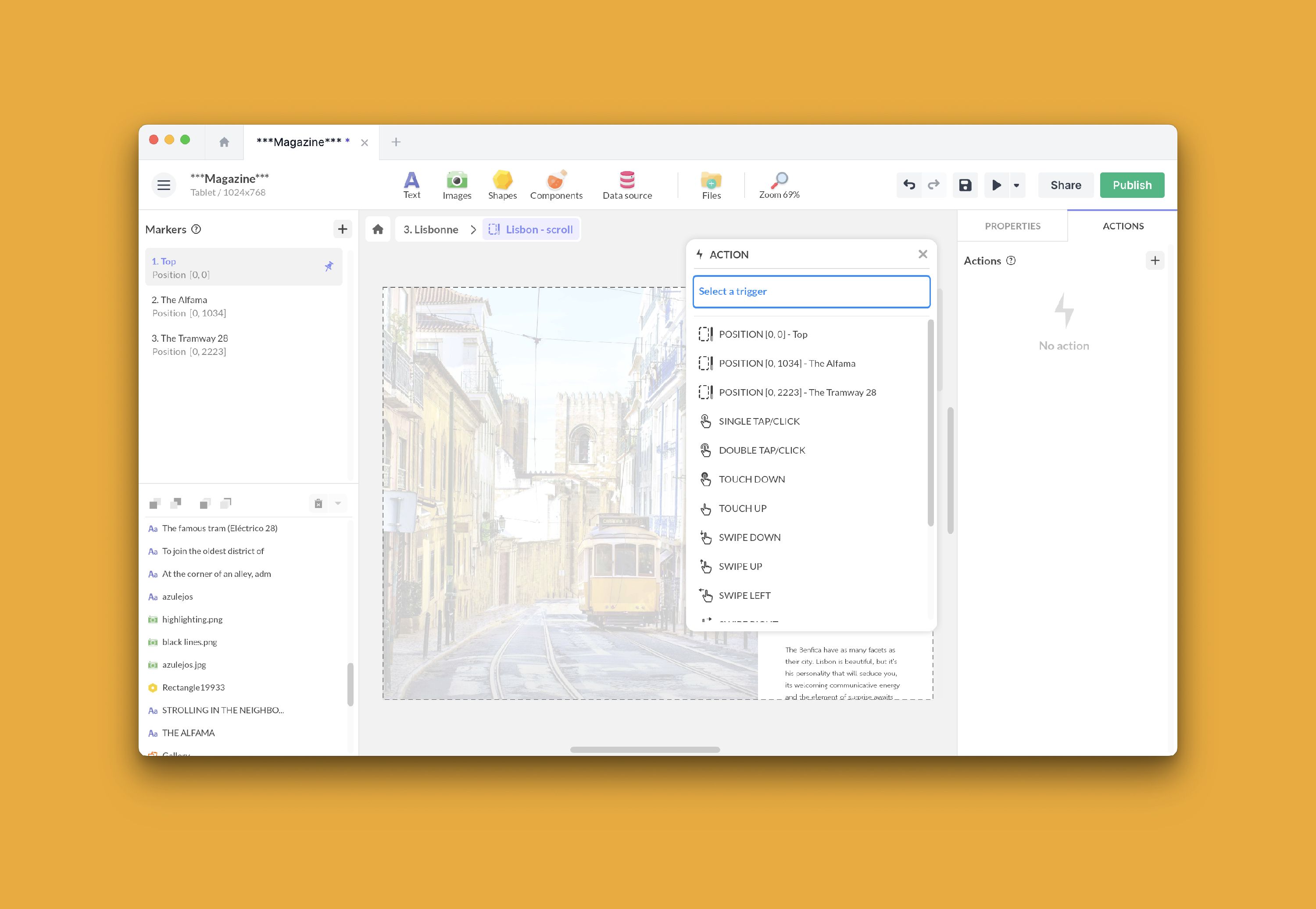
When a marker is created on a component, it can serve as a trigger, in addition to standard triggers.
To choose a marker as a trigger:
- Select the component and go to the Actions panel
- Add a new action: you will find your marker displayed at the top of the list
- Select the marker and associate an action defining what should happen when the marker is triggered.
Add an action related to a marker
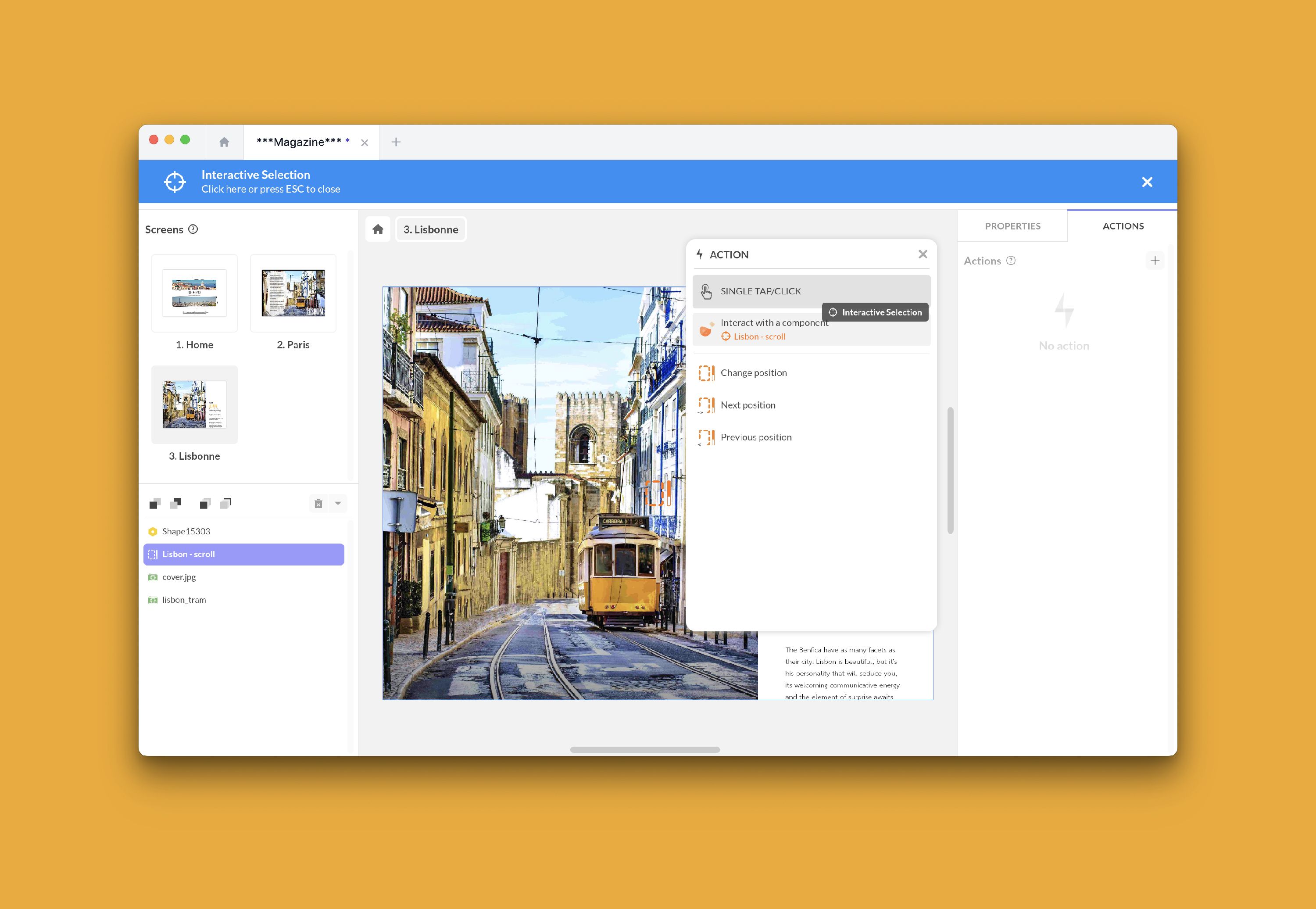
The marker can also become a possible action on your component.
For example, a marker on a scrolling area adds a Change position action, and a marker on a Flexbox adds a Scroll to marker action that aligns the target item to the position you defined.
To add an action related to a marker:
- Choose a trigger
- Choose the action Interact with a component.
- Select the component
- You will see new options appear!
Create dynamic markers
It’s also possible to create markers dynamically from a data source.
This video explains how to create dynamic markers on an interactive map:
Use dynamic markers on numeric components
Use this approach when your marker positions come from structured data and you want to keep them easy to update.
- Timer, Audio, and Video Player use a numeric Time value expressed in seconds.
- Image Sequence uses a numeric Frame value.
To set it up:
- In the component editor, create one marker with the + button.
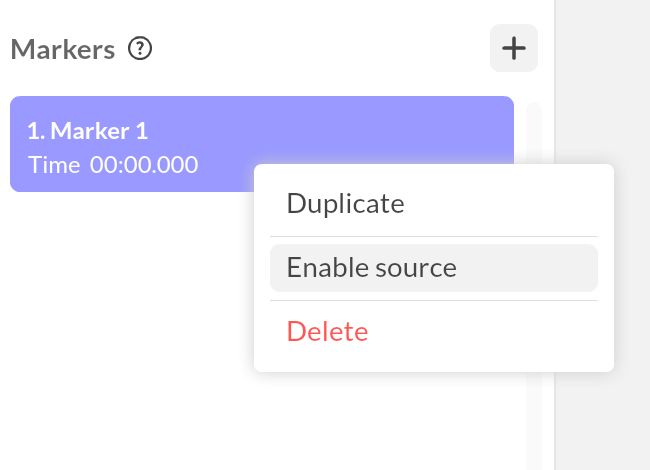
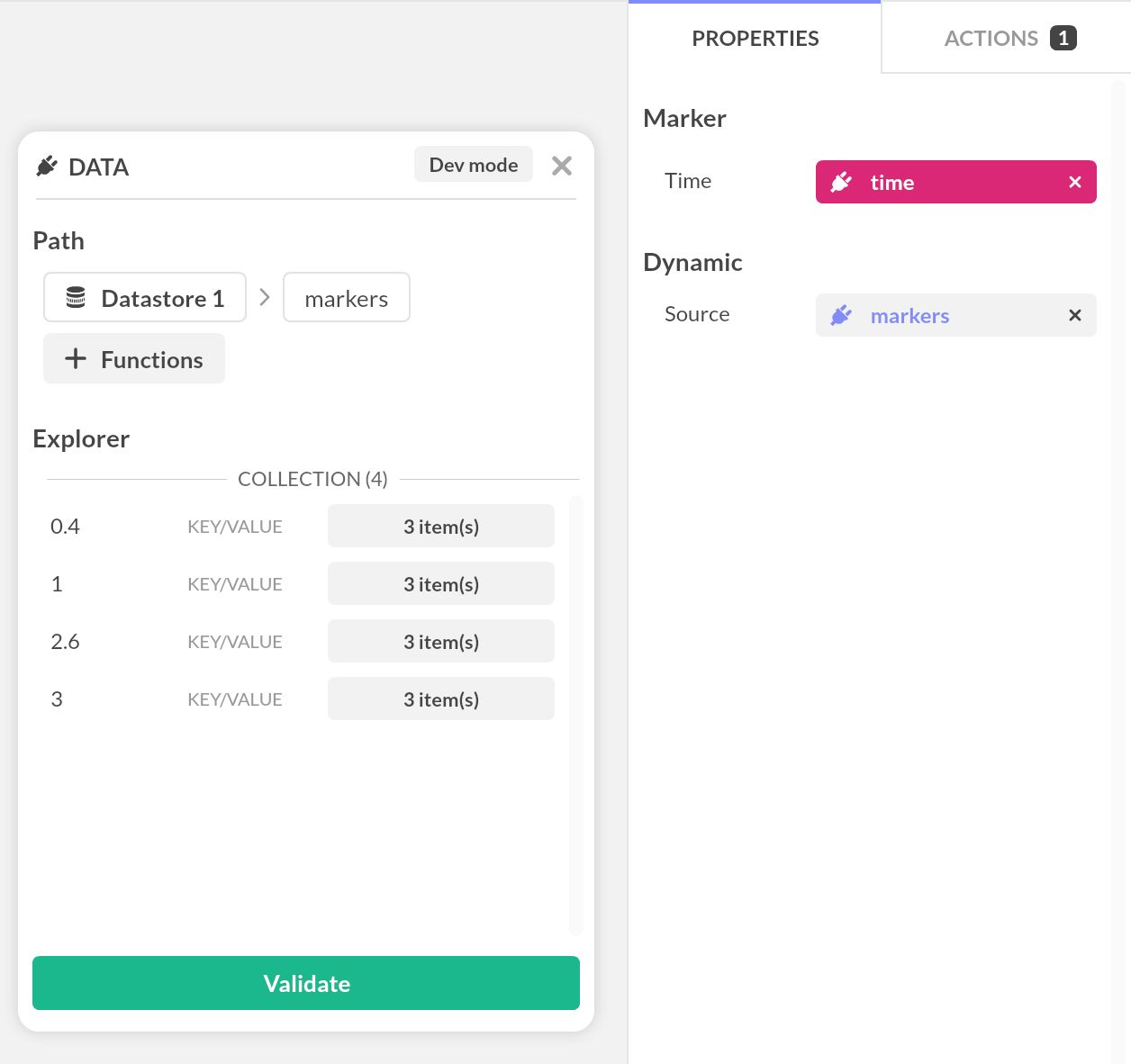
- Select the marker, choose Enable source, then fill in the Source field with your collection or other data source.
- Add a data binding on Time (Timer, Audio, Video Player) or Frame (Image Sequence) and map it to the matching numeric field in your source.
- Configure the marker with the same triggers or actions as a static marker. The generated markers then follow the values coming from your data.
If two rows resolve to the same time or frame, PandaSuite treats them as the same logical marker.