

Interactive image (hotspots)
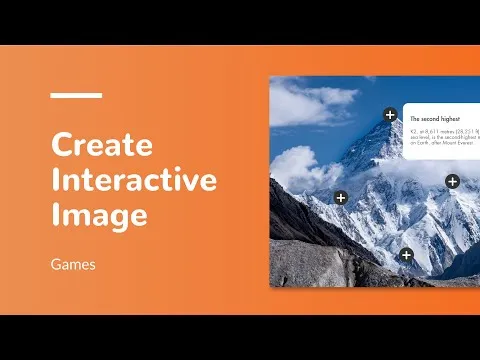
Interactive image allows you to display lots of information in a visual and engaging way. By clicking on hotspots, users access additional content: text, images, videos, links…
Use Cases
Interactive images with hotspots are particularly useful for:
- Digital magazines: annotate photos, add contextual information on products
- E-learning: create interactive diagrams, annotate technical schematics
- Presentations: enrich visuals with details accessible on demand
- Product catalogs: showcase detailed features on an image
- Interactive maps: map locations with information for each area
Prerequisites
Before you start, make sure you have:
- A high-quality background image
- The content to display in each popover (text, images, etc.)
- Basic understanding of the Multi-state component
Step 1: Add the Background Image
- Import your image into the screen
- Use Stretch and Alignment options to make it fullscreen
Step 2: Create Hotspot Buttons
- Import an existing image, or
- Create your own button using vector shapes (e.g., PLUS icon with a circle and rectangles)
Use explicit names to facilitate interaction management.
Step 3: Design the Popovers
Choose the format:
- Popover: short content displayed above the image (recommended)
- Fullscreen pop-up: for longer content
Step 4: Manage Display with Multi-state
For each popover, create a Multi-state component with two states:
- Hidden state: opacity at zero
- Displayed state: normal opacity
Quick method (recommended):
- Select the popover
- Layout menu → Convert to Multi-state
- In the first state, set Opacity to zero
- Create a Linked State with normal opacity
Create one Multi-state component per popover for independent management.
Step 5: Add Interactions
- Select the hotspot button
- Add an action: 1 Single tap / Click→2 Interact with a component
- Select the corresponding Multi-state
- Choose Next state
- Enable Loop mode
Repeat for each hotspot.
Add a visible close button in each popover for better UX.
Additional resources
- Multi-state Component - Complete documentation
- Pop-up Component - Alternative for longer content
- Interactive Zone - Custom clickable areas
- Interactive Actions - Interactions guide
Video
Playing this video loads the YouTube player (Google Ireland Ltd), which stores data on your device to run the player and measure viewing, as described in Google's privacy policy. You can also watch it on YouTube.