
Connect to Firebase Analytics
Connect your app to Firebase to collect usage data on your iOS and/or Android application.
Connecting your application to Firebase will allow you to collect precise and actionable data on the usage of your application. You can obtain information on active users, key events, user journeys, and even define conversion goals.
You need to have created a Firebase project for your application. Follow this tutorial to create a new project, then follow the instructions below.
Add a Firebase Tracker
It is necessary to add a tracker for each version of your application: iOS and Android. If your application is published on both iOS and Android, you must add a tracker for iOS and another for Android to collect data from each platform.
Go to your PandaSuite dashboard in the Apps > Settings > Firebase Configuration section.
Retrieve the Application ID for Android.
Go to the Analytics section and click on Add a tracker.
Choose Firebase for Android and paste the Application ID.
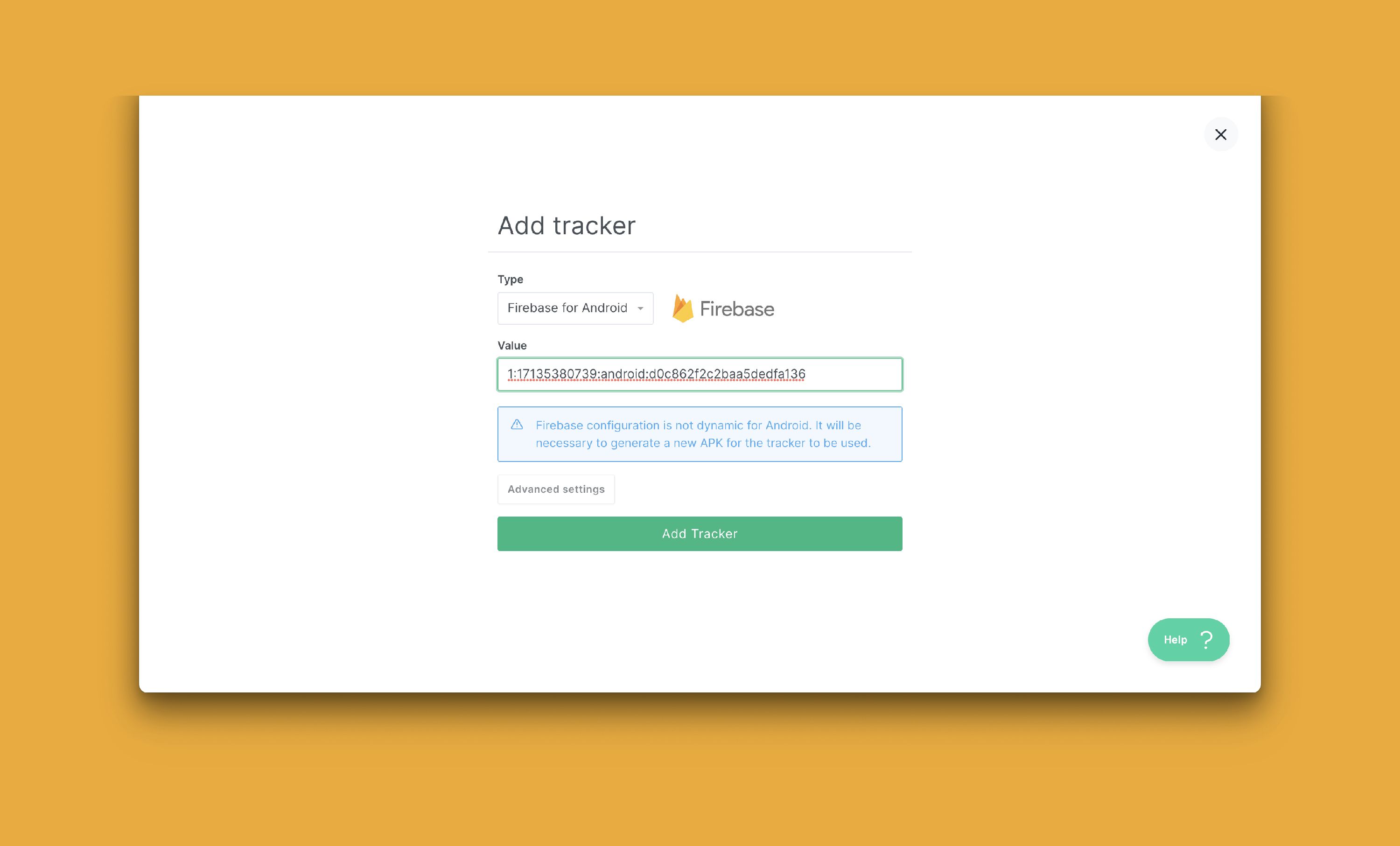
Your Android app is now connected.
Firebase links analytics events to the Android app registered in your
Firebase project by using its package name. Before importing
google-services.json, compare the package name registered in Firebase with
the Android Application ID shown in PandaSuite in Apps >
Settings > Firebase Configuration. If these identifiers do not match,
Firebase Analytics will not associate the events from your installed build
with the expected Android app.
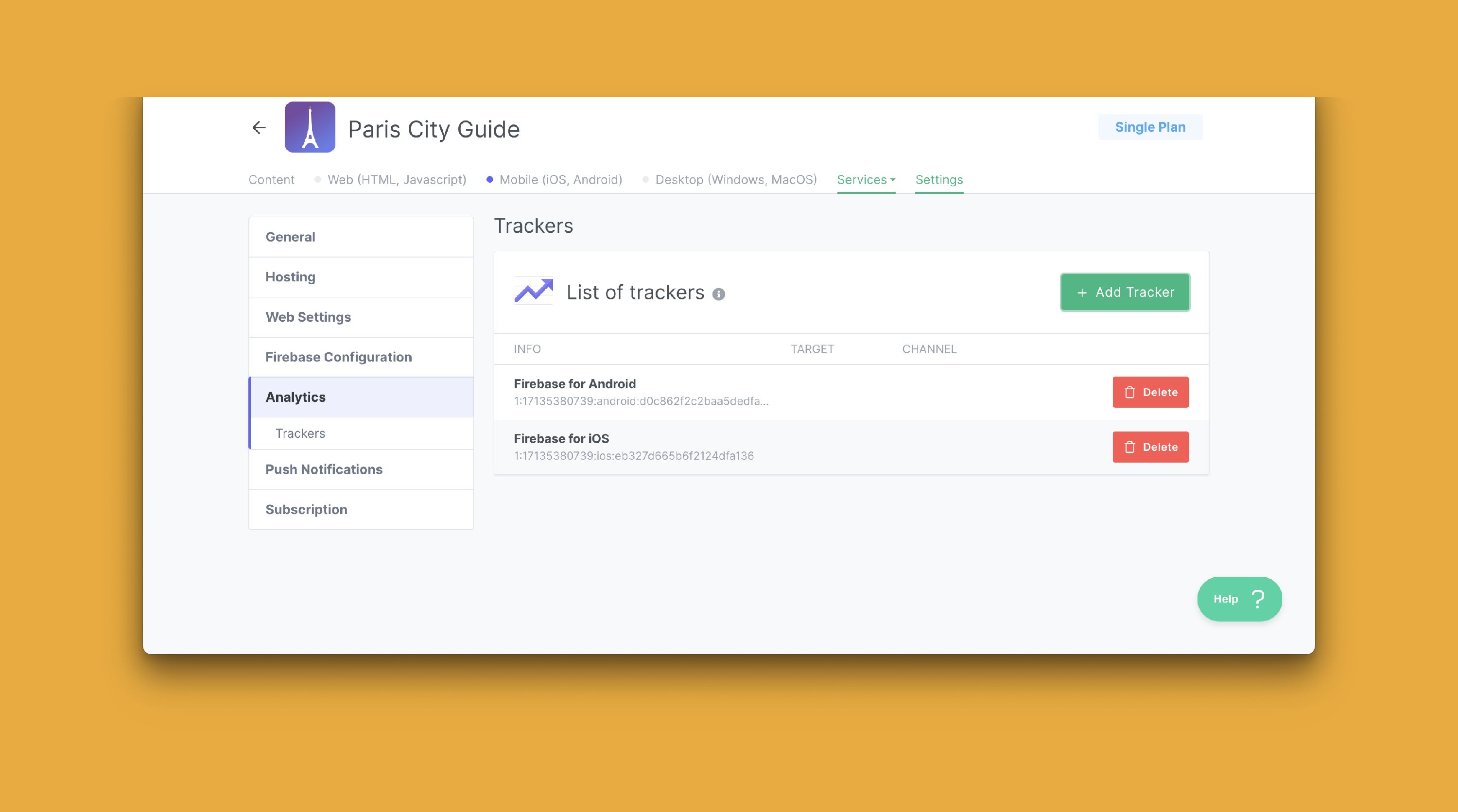
The procedure is the same for iOS.
Go to your PandaSuite dashboard in the Apps > Settings > Firebase Configuration section.
Retrieve the Application ID for iOS.
Choose Firebase for iOS and paste the Application ID.
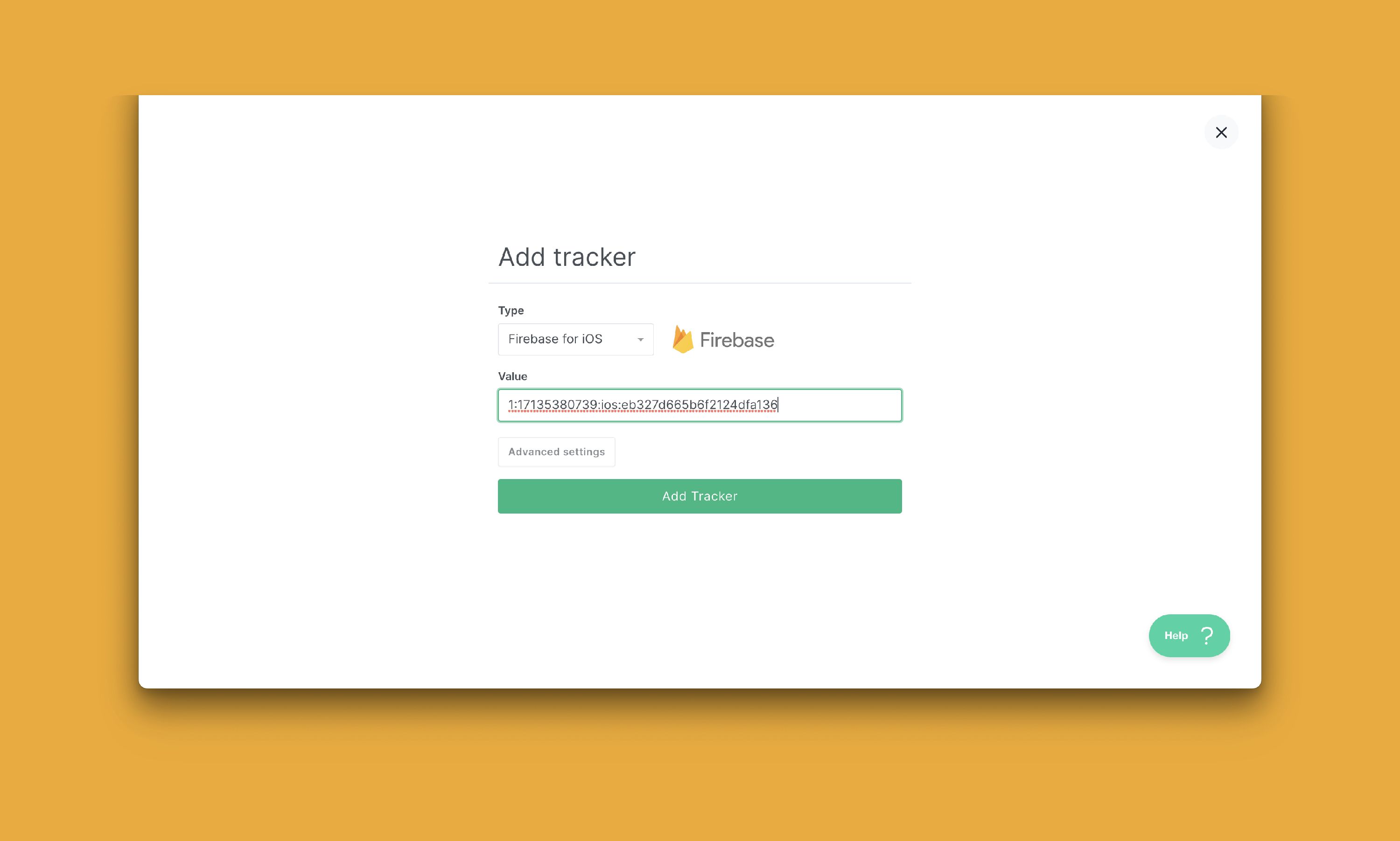
If no Android data appears in Firebase
If your Android tracker is configured but you still do not see activity in Firebase, check the Android identifier used on both sides.
- In Firebase, open the Android app settings or the downloaded
google-services.jsonfile and note the package name. - In PandaSuite, open Apps > Settings > Firebase Configuration and note the Android Application ID.
- Compare the two values.
If the values are different, use one of these fixes:
- Add another Android app to the same Firebase project with the exact Application ID used by PandaSuite, then download the new
google-services.jsonfile and import it again in PandaSuite. - Or export the Android app with your own Android certificate and keep the same identifier in PandaSuite and Firebase.
After updating the configuration, install a fresh Android build and launch it again. To verify the setup faster, check Realtime or DebugView in Firebase before waiting for the standard analytics reports.
View the Data
Go to the Analytics section of your Firebase console to access the data.
Understand reporting delays
Some delay between app usage and visible reports is normal with Firebase Analytics.
- On mobile apps, Firebase Analytics batches events before uploading them. This helps reduce battery and network usage, so you should not expect every event to appear instantly in standard reports.
- In Google Analytics 4, Realtime data is typically available within a few minutes, but standard intraday reports for standard properties can take 2 to 6 hours to refresh and full processing can take 24 to 48 hours.
- The Realtime report only shows activity from the last 30 minutes and Google describes it as a best effort report. An empty or partial Realtime view does not automatically mean the integration is broken.
If you need to confirm quickly that Firebase is receiving events, use DebugView on a development device. In Firebase debug mode, events are uploaded with minimal delay, which makes it more reliable than standard reports for setup validation.