Create a new layout
By default, your project is created with a single layout. If you activate the responsive, it will adapt automatically to every screen but you won’t be able to change content or orientation between devices.
If you want to adapt to the constraints of another type of device (for example, orientation), you need a new layout. For example, if your application was created for tablets (landscape mode) and you want to offer a portrait version for smartphones.
The management of layouts is also called an adaptive design.

Here is an example of an application made with PandaSuite that is built using two layouts. Louvrissime was first created for tablets before being adapted for smartphones.

It’s magic: when broadcasting, the project automatically displays the right layout according to the type of screen on which it is displayed!
Create new layout
You create new layouts from your dashboard.
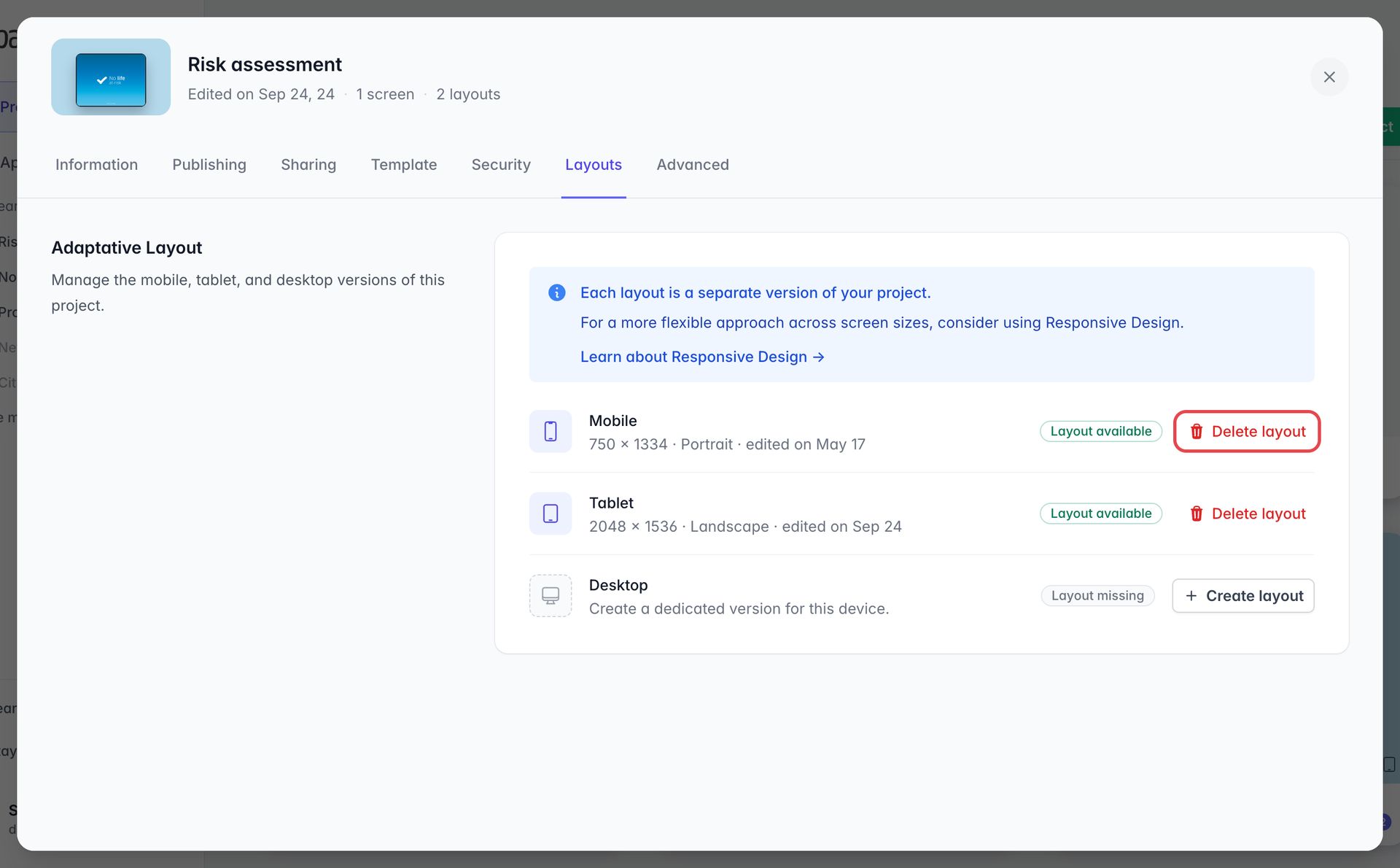
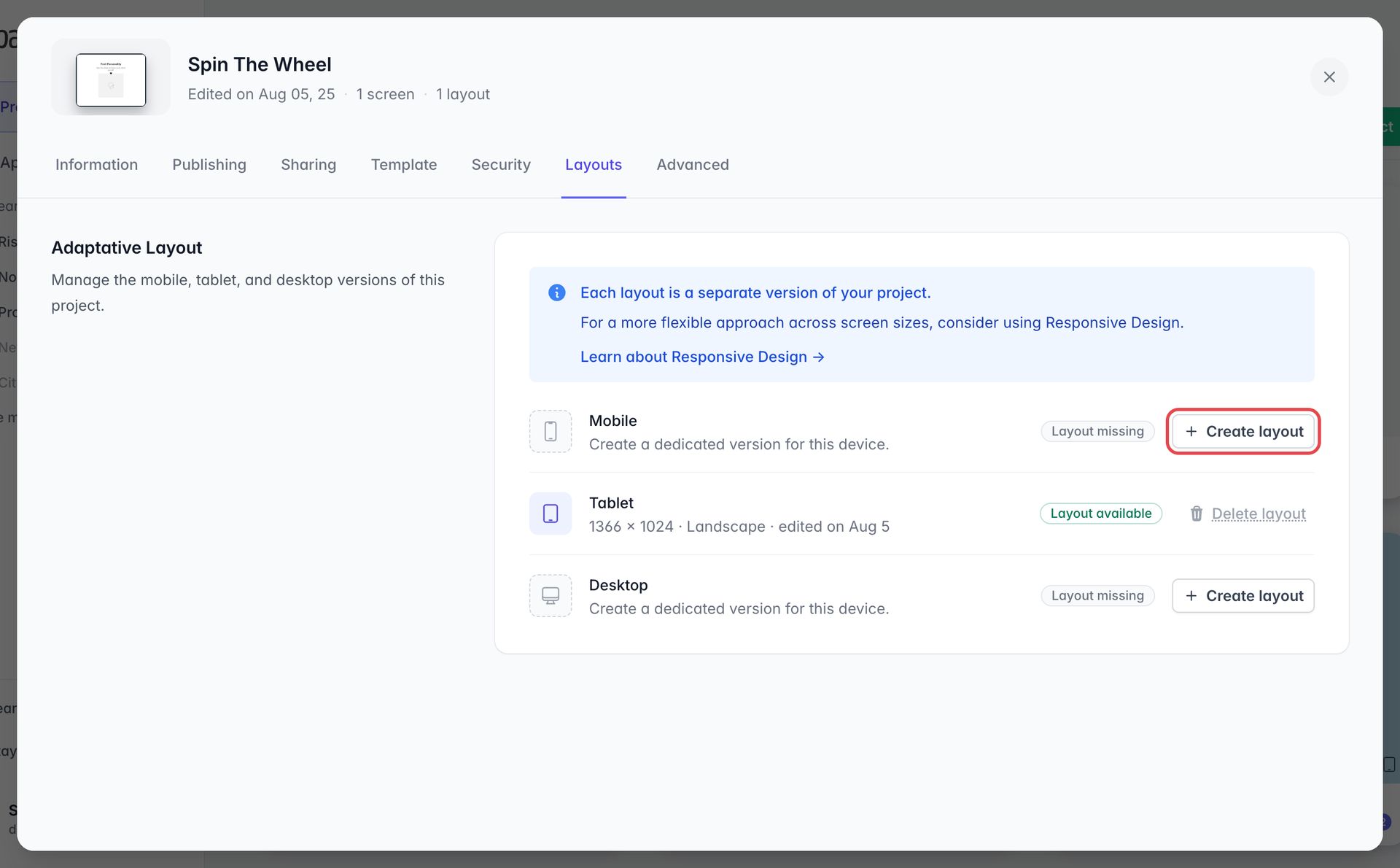
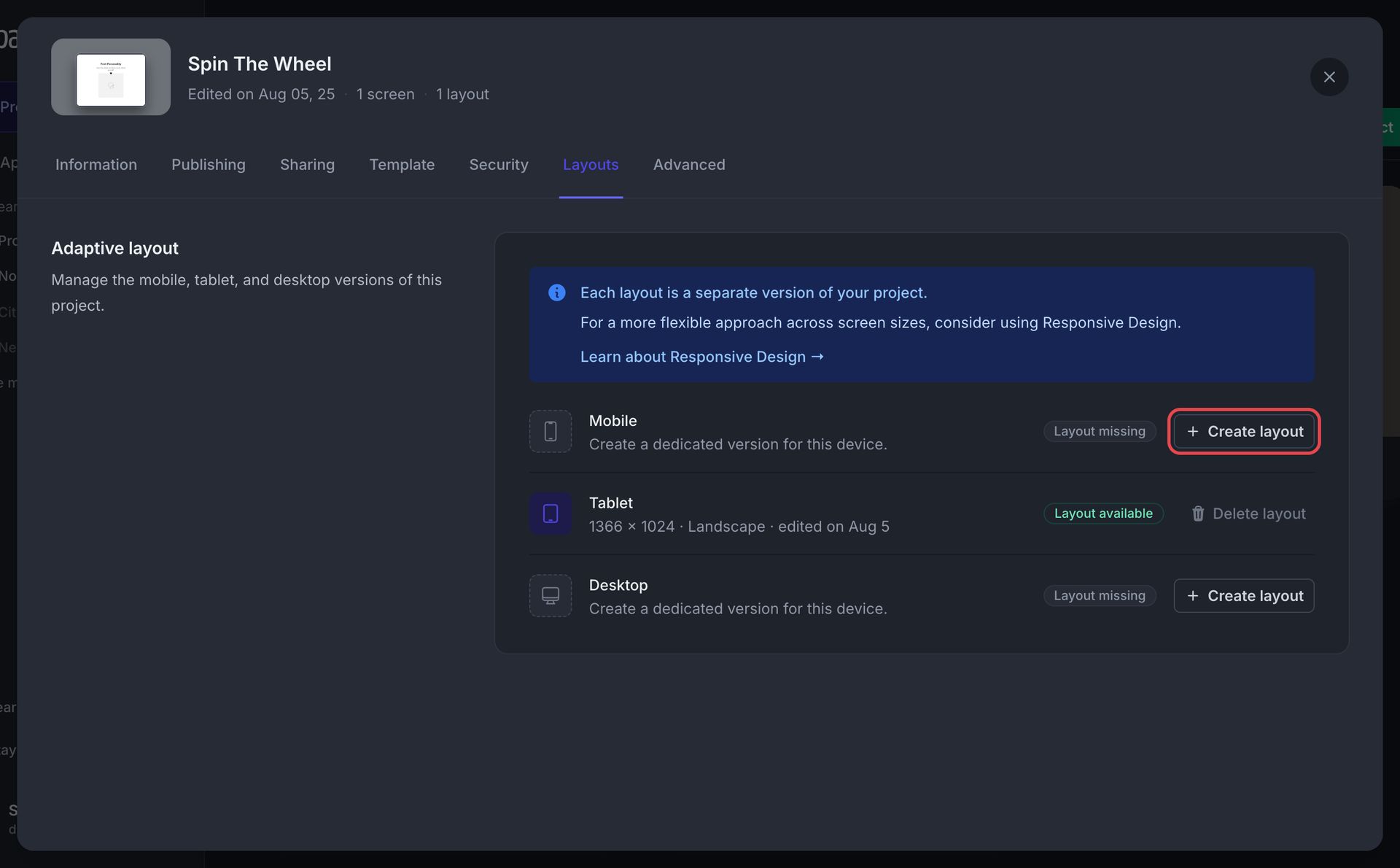
Go to your dashboard, hover over your project, click ···, then Settings…, and open the Layouts tab.
Next to the device you want (Mobile, Tablet or Desktop), click Create layout.
In the window that opens, choose Use an existing layout as a starting point or Start with an empty layout. Set the Reference size and the Orientation, then click Add Layout.
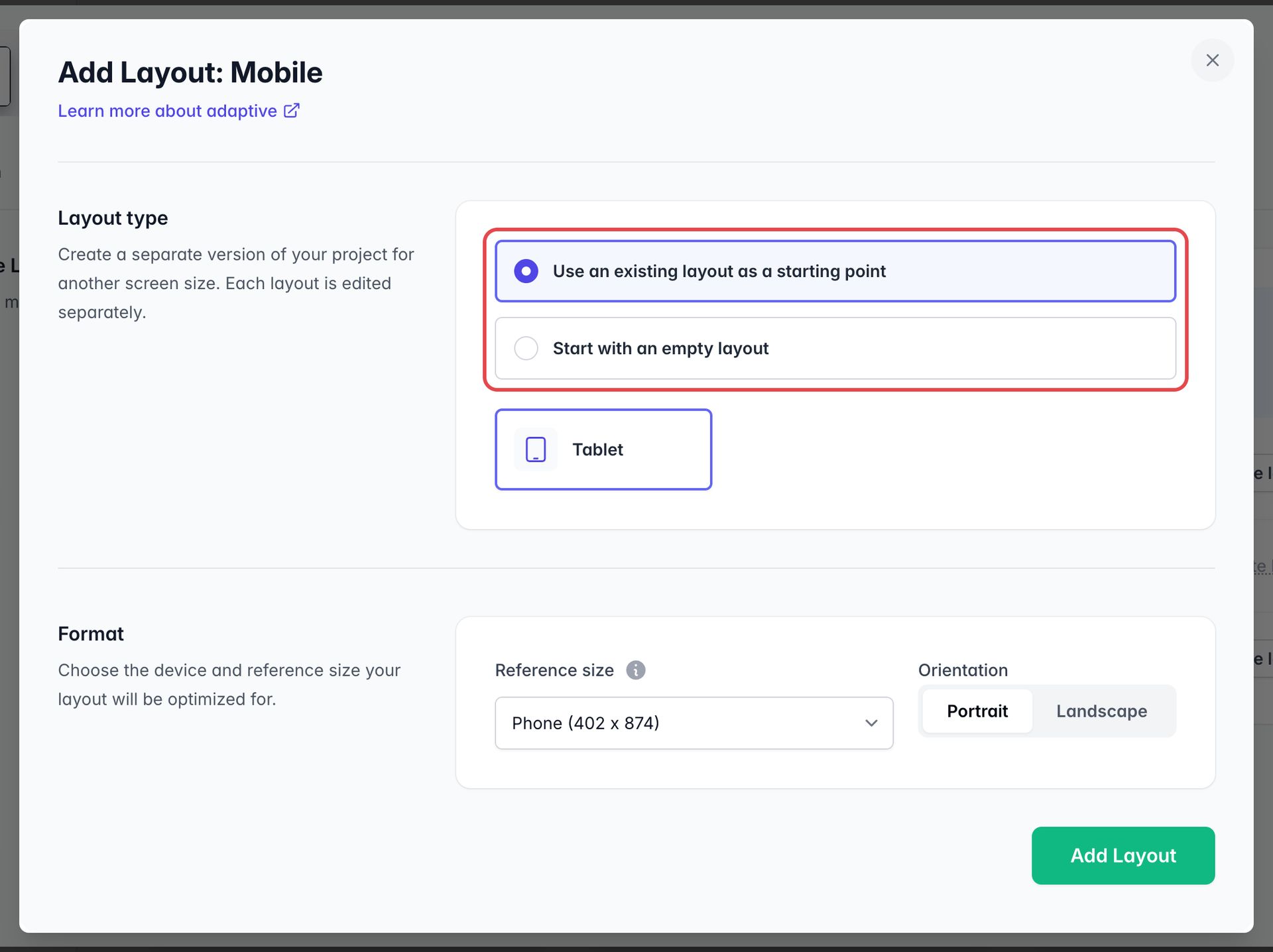
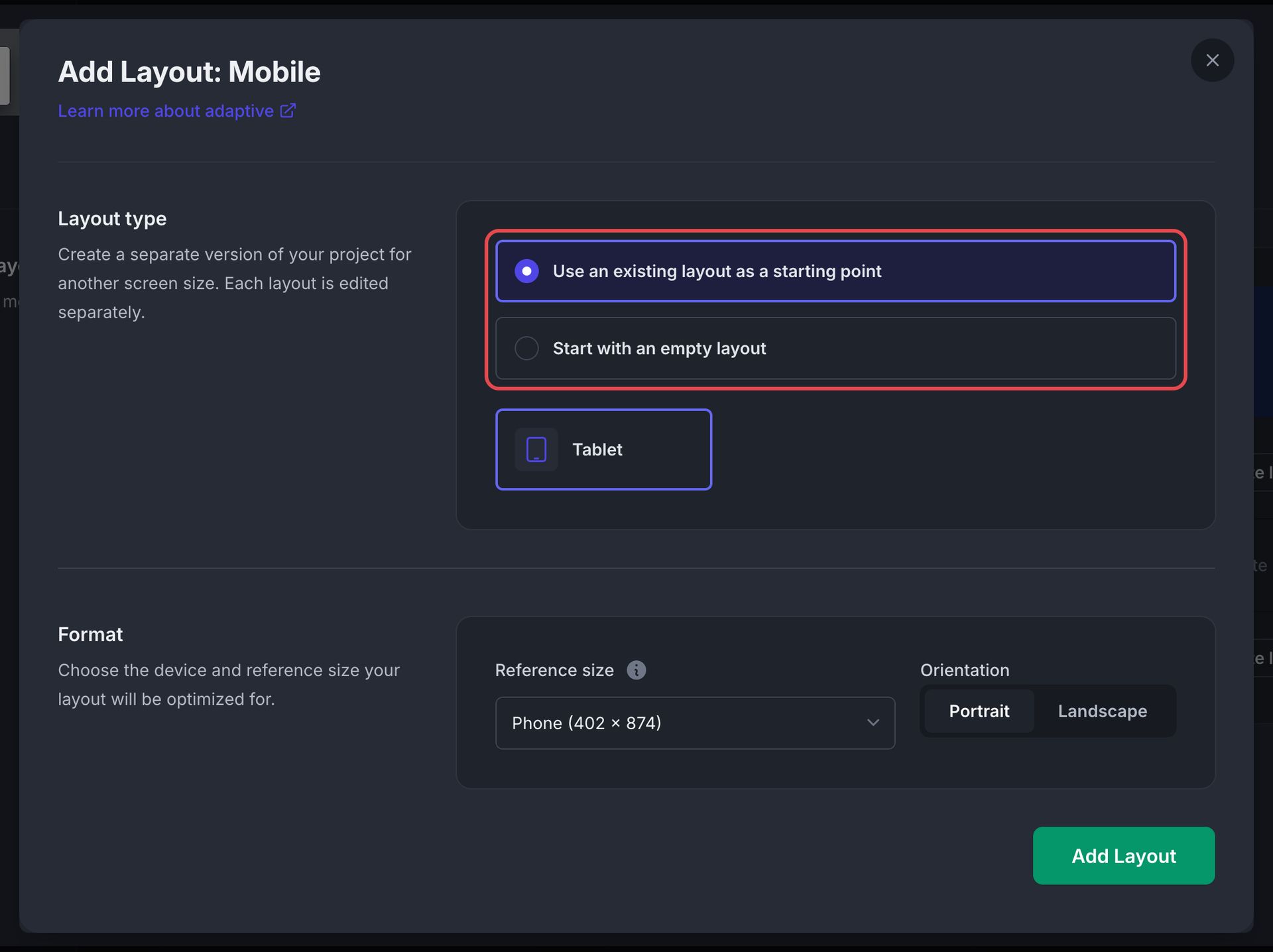
When you start from an existing layout, you just have to put the objects in the right place. You can also copy and paste your objects from an existing project.
Open a layout
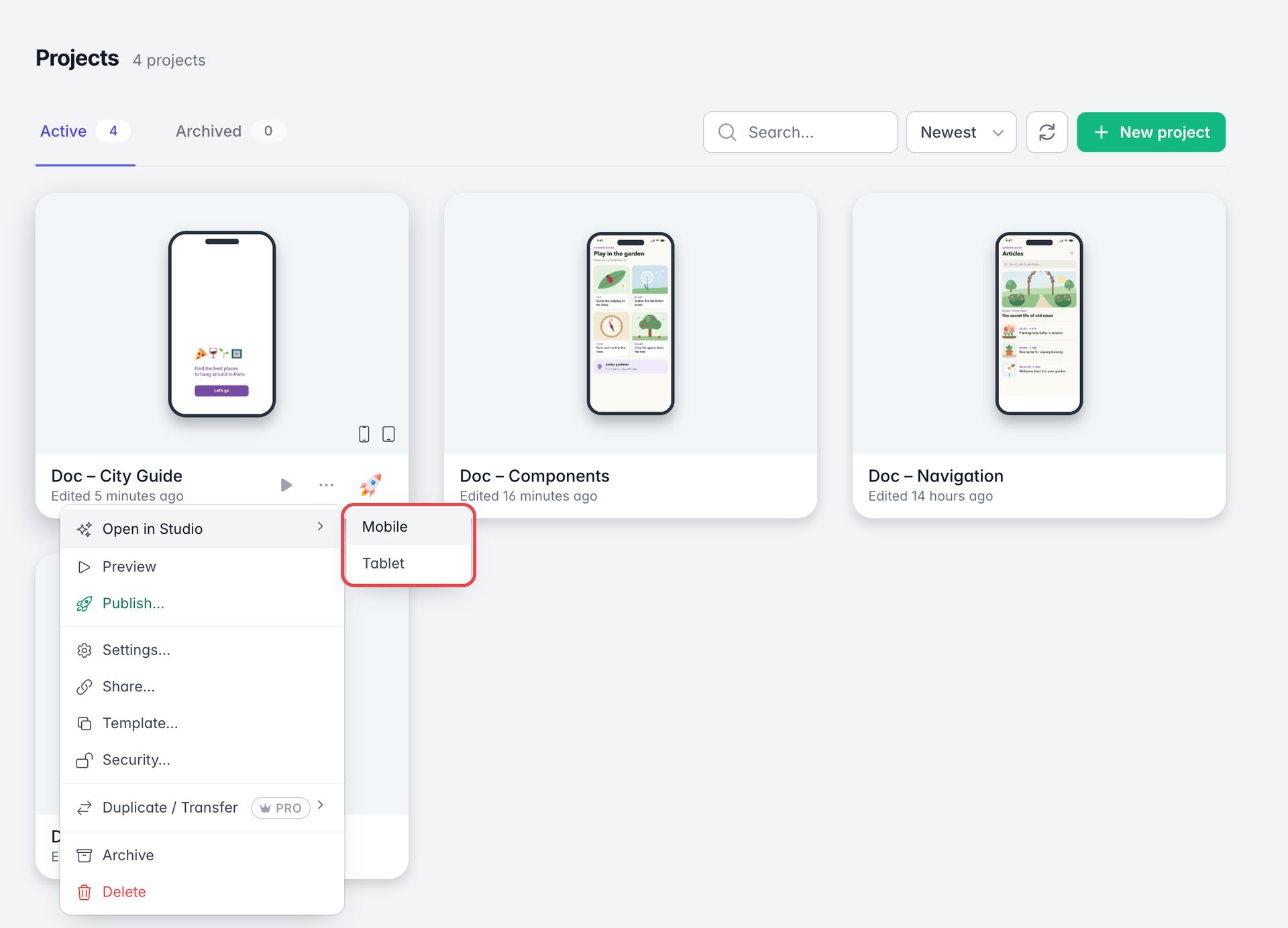
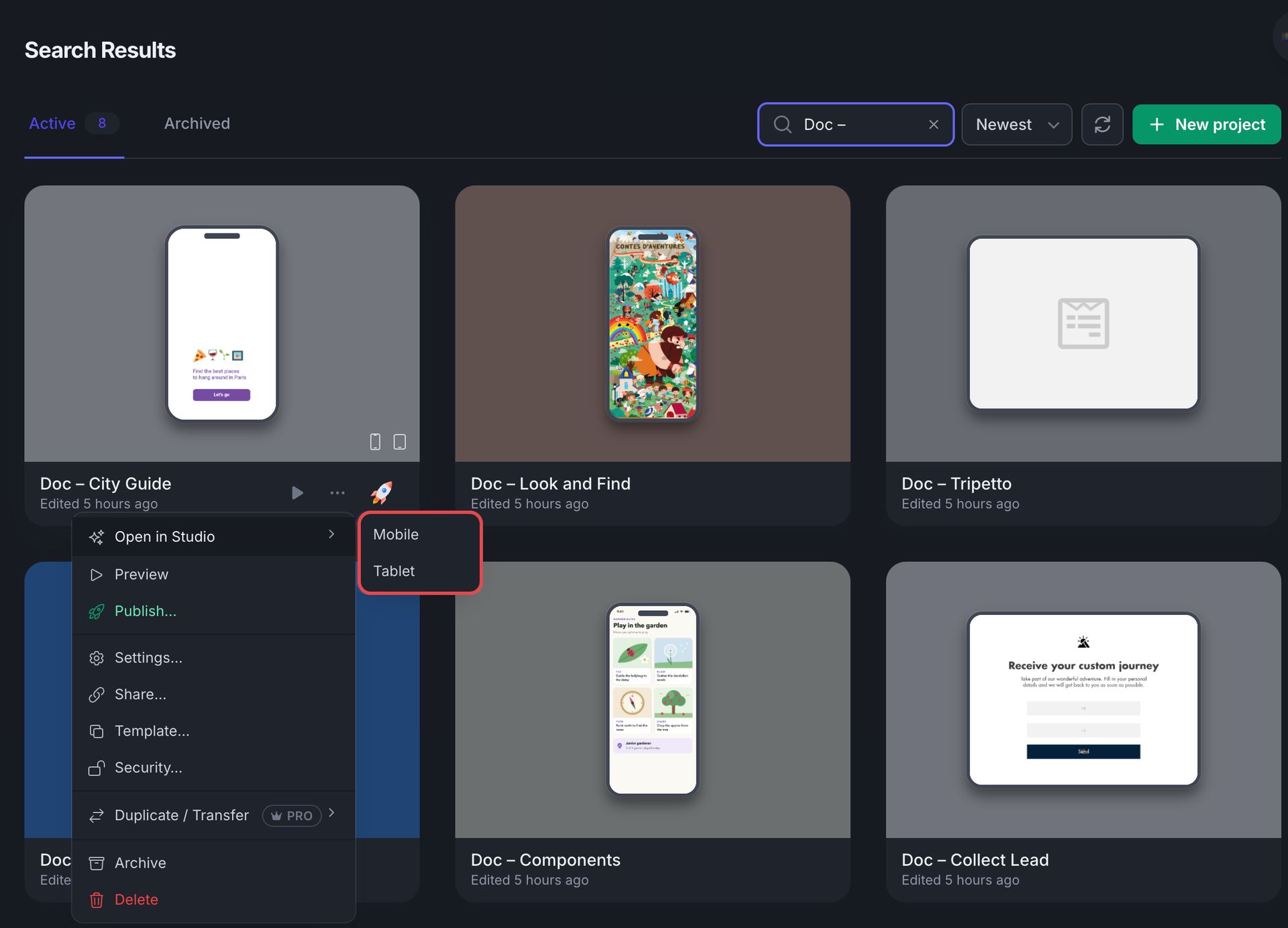
When a project has multiple layouts, you choose which one to open from your dashboard: hover over your project, click ···, point to Open in Studio, then choose the layout.
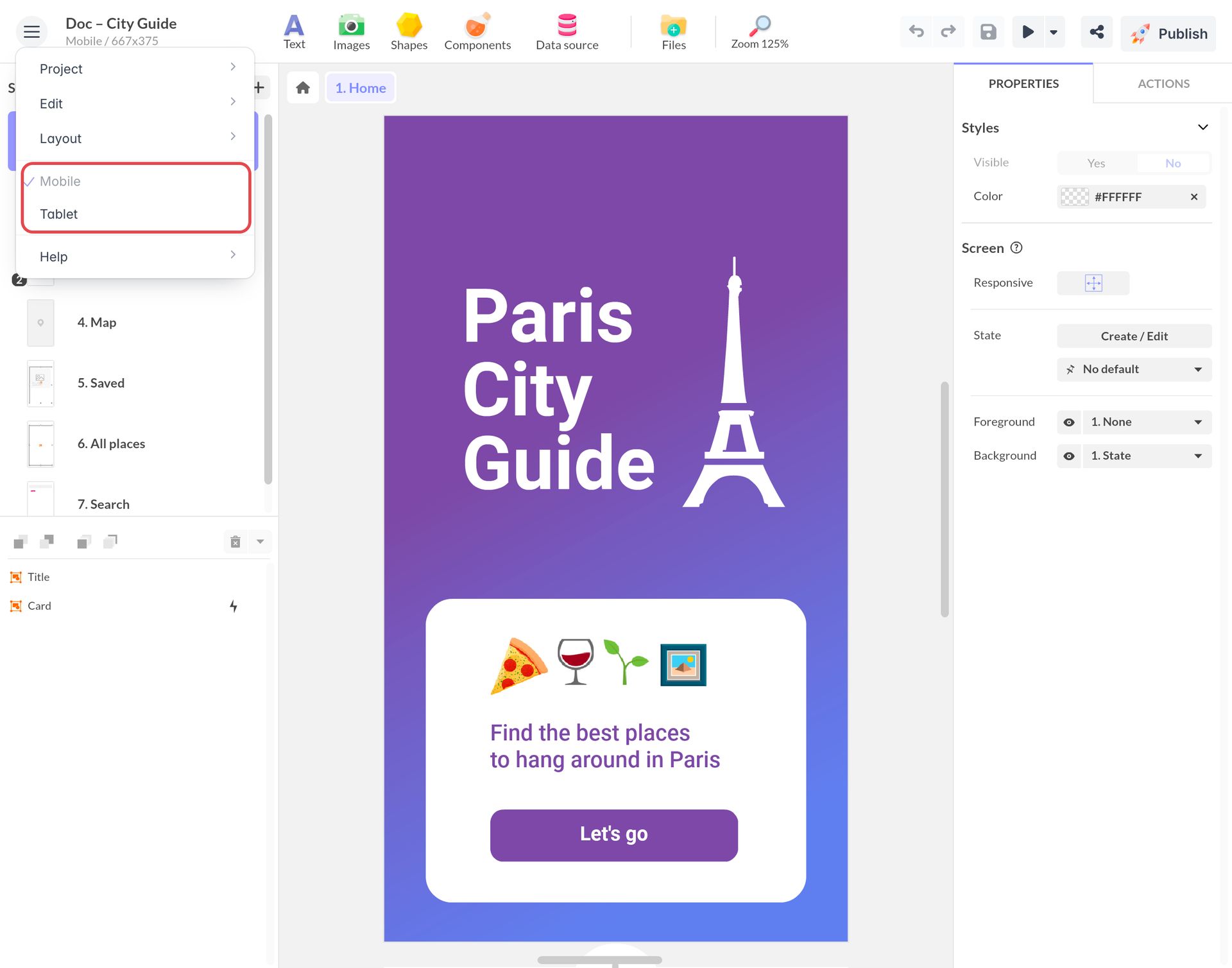
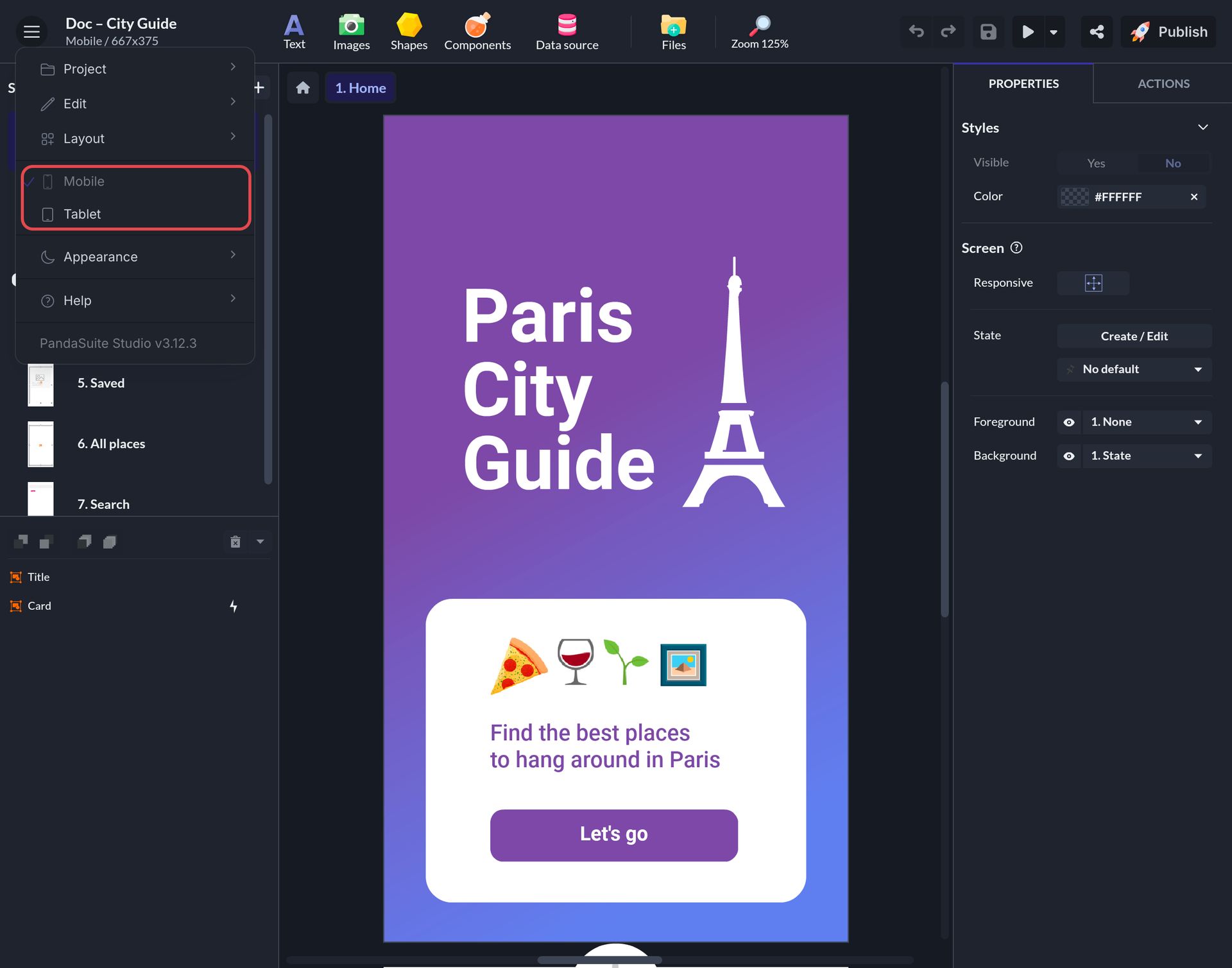
You can also change the layout when your project is open in the Studio. Click the menu icon at the top left, next to the project name, then choose the layout. A check mark shows the one that is open, and its name also appears under the project name.
Preview another layout using PandaSuite Viewer.
You can switch between layouts on PandaSuite Viewer. Hold your finger on the project icon and choose the layout to be displayed from the menu that appears.

Delete a layout
In the Layouts tab of the project settings, click Delete layout next to the layout to remove. A project keeps at least one layout.