

Custom domain
Connect your application or publication to a custom domain.
The domain name is the unique address by which your content is accessible on the internet.
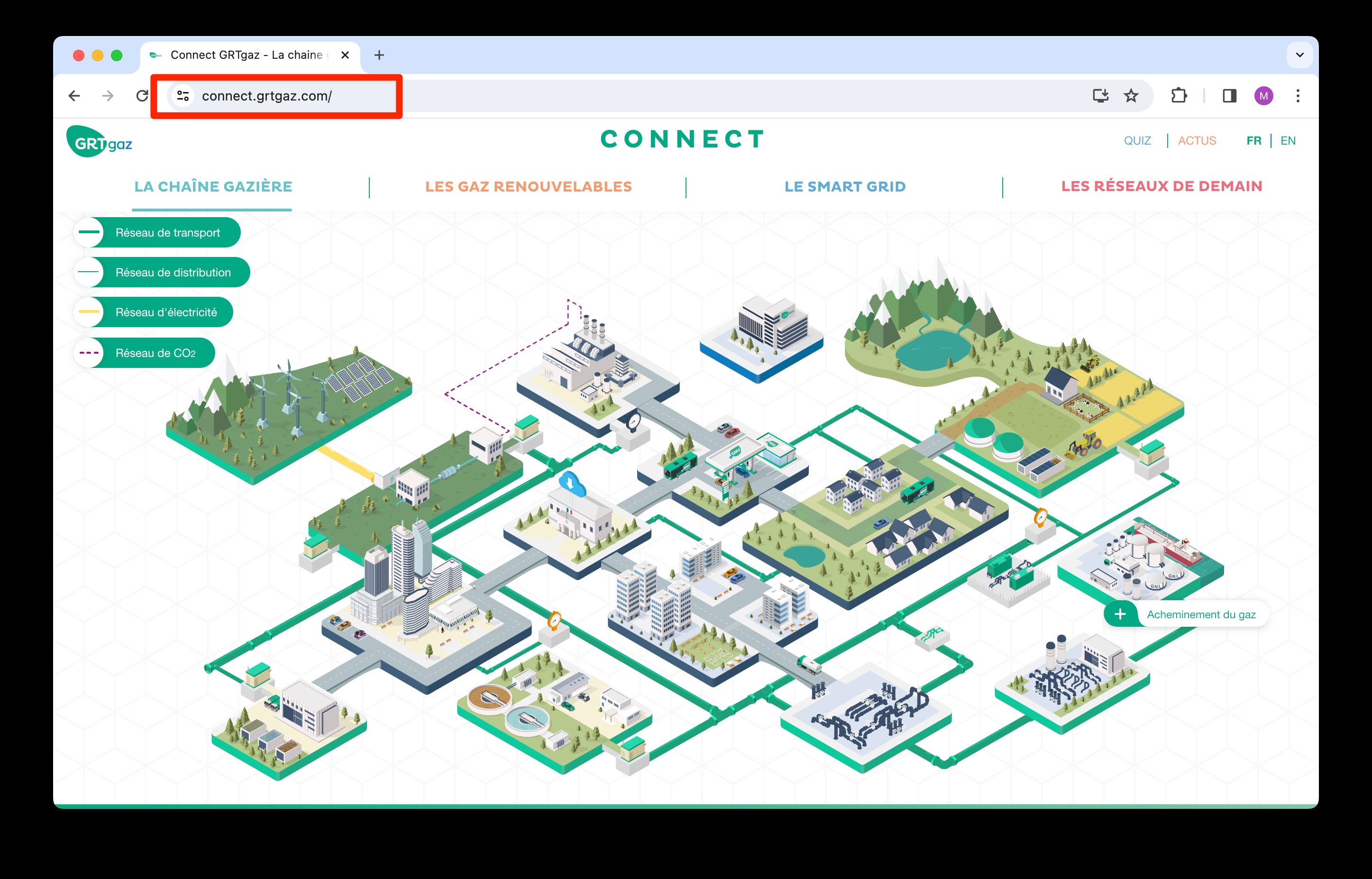
By default, any project published on the web with PandaSuite is accessible via its subdomain (for example https://app.pandasuite.com/dEGVcGh89). A custom domain name reflects your identity or that of your organization online, offering a recognizable and professional brand to your users.
Https certificate
To provide a secure, reliable, and professional online experience to your users, it is necessary to have an HTTPS certificate as well.
An HTTPS certificate is a digital file that enables a secure connection between the user’s web browser and your website. This certificate is essential for encrypting the data exchanged, ensuring the confidentiality and integrity of the information transmitted.
PandaSuite offers two ways to obtain an HTTPS certificate.
Certificates managed by PandaSuite
Certificates managed by PandaSuite are offered to all projects published with PandaSuite for free.
If you add a custom domain, we will automatically provision a certificate with Let’s Encrypt, activating HTTPS on your domain. Certificates are generated and renewed automatically as needed.
After Validate Domain succeeds, the browser may still display an HTTPS or SSL warning while the certificate is being activated. Wait a few minutes, then reload the URL.
Custom certificates
It is also possible to use a custom certificate.
Custom certificates allow you to provide a certificate that meets your specifications, such as a wildcard certificate or an extended validation (EV) certificate. If you wish to provide your own custom certificate, you can install it.
To install a certificate, you will need:
- the certificate in X.509 PEM format (a
.cerfile) - the private key you used to request the certificate (a
.keyfile) - the full certificate chain: your certificate followed by the intermediate certificates of your certification authority (CA), in a
.pemfile
To install it, add the custom domain first, then:
- On your app page, in Services, click Security.
- In the Custom SSL Certificate section, upload the Private Key, the Certificate, and the Fullchain Certificate.
- Click Update.
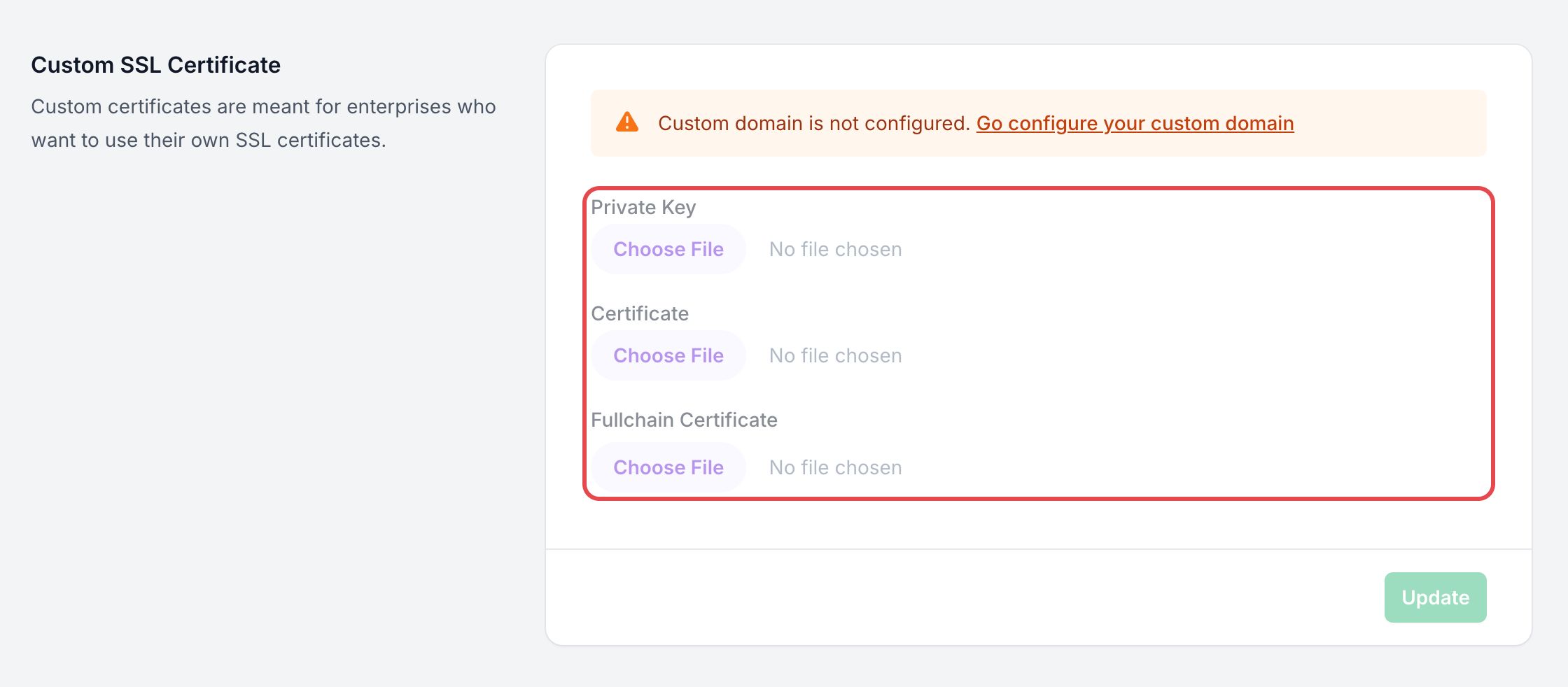
As long as the app has no custom domain, the section shows Custom domain is not configured. and its fields are unavailable, as in the image above.
PandaSuite checks that the private key and the certificates are valid files, then installs your certificate for the custom domain already configured on the app. It does not check that the certificate covers this domain: make sure it was issued for it. The section then shows the installed certificate, its issuer, and its expiry date. To go back to the certificate managed by PandaSuite, click Restore default certificate, then Restore.
Configure the CNAME record for your custom domain
In order to associate a custom domain with your web application, it is necessary to create a CNAME (Canonical Name) record with your DNS hosting provider. The CNAME record allows you to redirect a subdomain to a target domain.
Your web application must be accessible online before proceeding with the DNS configuration.
Choose your subdomain
- For a new domain: after purchasing a domain, you can use the subdomain
wwwto facilitate access to your site (for example,www.your-domain.com). - For an existing domain: you can also choose a specific subdomain, like
app.your-domain.com, to direct to your application.
Important: Custom domain names must be under 64 characters.
Configure the CNAME record
- Access your account with the DNS host (such as OVH, AWS, Google Domains, etc.) and locate the DNS management for your domain.
- Create a new CNAME record with the following settings:
- Name: the chosen subdomain (for example,
wwworapp). - Value:
custom.pandasuite.com.
- Name: the chosen subdomain (for example,
- Save the changes and wait for DNS propagation, which can take from a few minutes to 48 hours.
Assistance: If you encounter difficulties or are not familiar with the DNS configuration process, do not hesitate to contact the technical support of your hosting provider for help.
Adding the custom domain
After configuring the CNAME record, it is now necessary to add this custom domain name to your web application.
- Go to your PandaSuite dashboard, in the Apps section
- Select your application, click Settings and open the Hosting tab.
- In Custom Domain, copy and paste your custom domain.
- Click on Validate Domain: the connection is established, and your URL is updated on the Web card of your app
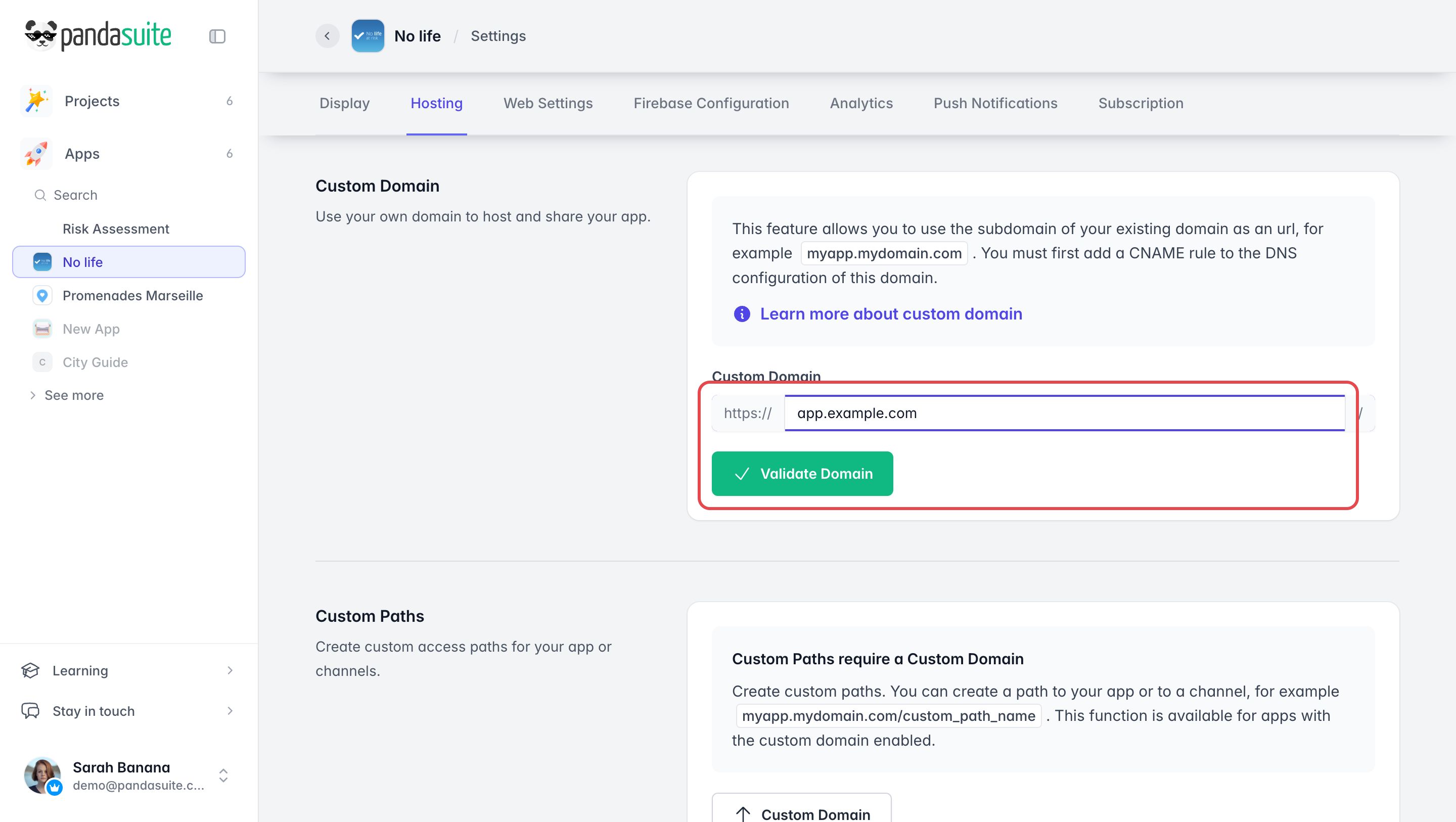
To disconnect the domain, click Remove Domain, then Delete: your app is no longer reachable at this address.
Create custom paths
Once the custom domain is validated, you can give your app, or one of its channels, its own path on this domain, for example app.your-domain.com/visit.
- In Settings, open the Hosting tab and go to Custom Paths.
- If your app has channels, choose one in Channel, or keep No Channel for the app itself.
- In Path, type the path that follows your domain.
- Click Save Changes.
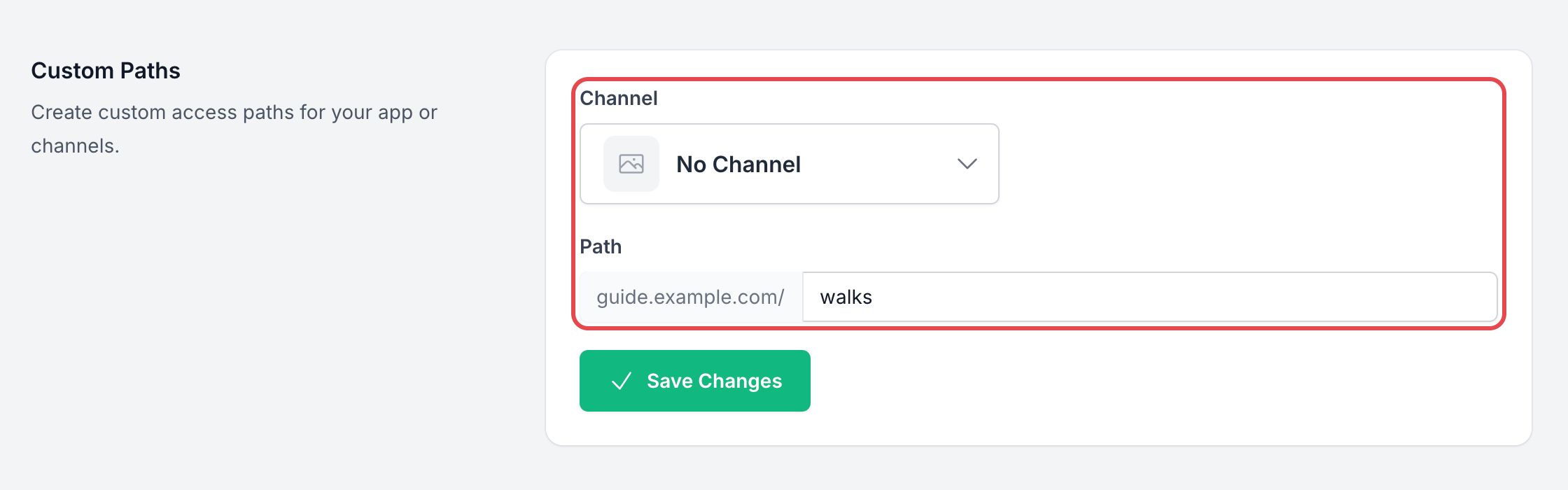
Without a custom domain, the section shows Custom Paths require a Custom Domain and a Custom Domain button that leads to the domain field.