
Export a Linux package
The Linux export is the final step before distributing your desktop application on Linux computers or dedicated Linux terminals.
You will:
- Choose the package format that matches the target Linux distribution.
- Configure the application name, icon, package metadata, offline packaging, and version information.
- Generate a Linux package from your PandaSuite dashboard and validate it on a representative Linux device.
Once the package is generated, you can download it from your PandaSuite dashboard.
Desktop export is available on Single, Multi, or Full plans.
What is a Linux package?
A Linux package is the native installation package used to distribute an application on Linux computers. PandaSuite lets you generate a package in DEB, RPM, or Arch Linux format depending on the Linux distribution family you target.
Use the Linux export when you want to distribute your PandaSuite application outside the browser on Linux desktops, kiosk devices, or managed Linux environments.
Prerequisites
- Desktop export is available on Single, Multi, or Full plans.
- Your project content is finalized and published.
- You know which Linux distribution family you need to support.
- Plan a validation pass on at least one representative Linux device before wider distribution.
- If you need a fully offline installation package, plan to enable Asset management (offline) during export. This option requires a Yearly or One-Time Payment plan and is available only if your application contains a single project.
Package format and device compatibility
| Item | Details |
|---|---|
| Supported devices | Linux desktop computers, kiosk devices, or managed Linux terminals |
| Package formats | DEB, RPM, or Arch Linux depending on the target Linux distribution |
| Architecture | Linux packages generated from the dashboard are built for x64 (64-bit) devices |
| Installation | The generated package is installed directly on the target Linux machine |
| Offline distribution | Available through Asset management (offline) when the app contains a single project |
Important points before distribution:
- Choose the package format that matches the Linux distribution family used on your target devices.
- Validate the package on Linux hardware representative of the devices you plan to use.
- If you distribute the same project on Windows, macOS, and Linux, generate one package per operating system. On Linux, generate one export per target package format when needed.
- If you enable Asset management (offline), the package includes all assets for offline installation. Any content update then requires exporting and reinstalling a new Linux package.
- Any code or feature update requires exporting and redistributing a new Linux package.
Export the Linux package
Access the dashboard
- Log in to your PandaSuite dashboard.
- In Apps, create or select the relevant application.
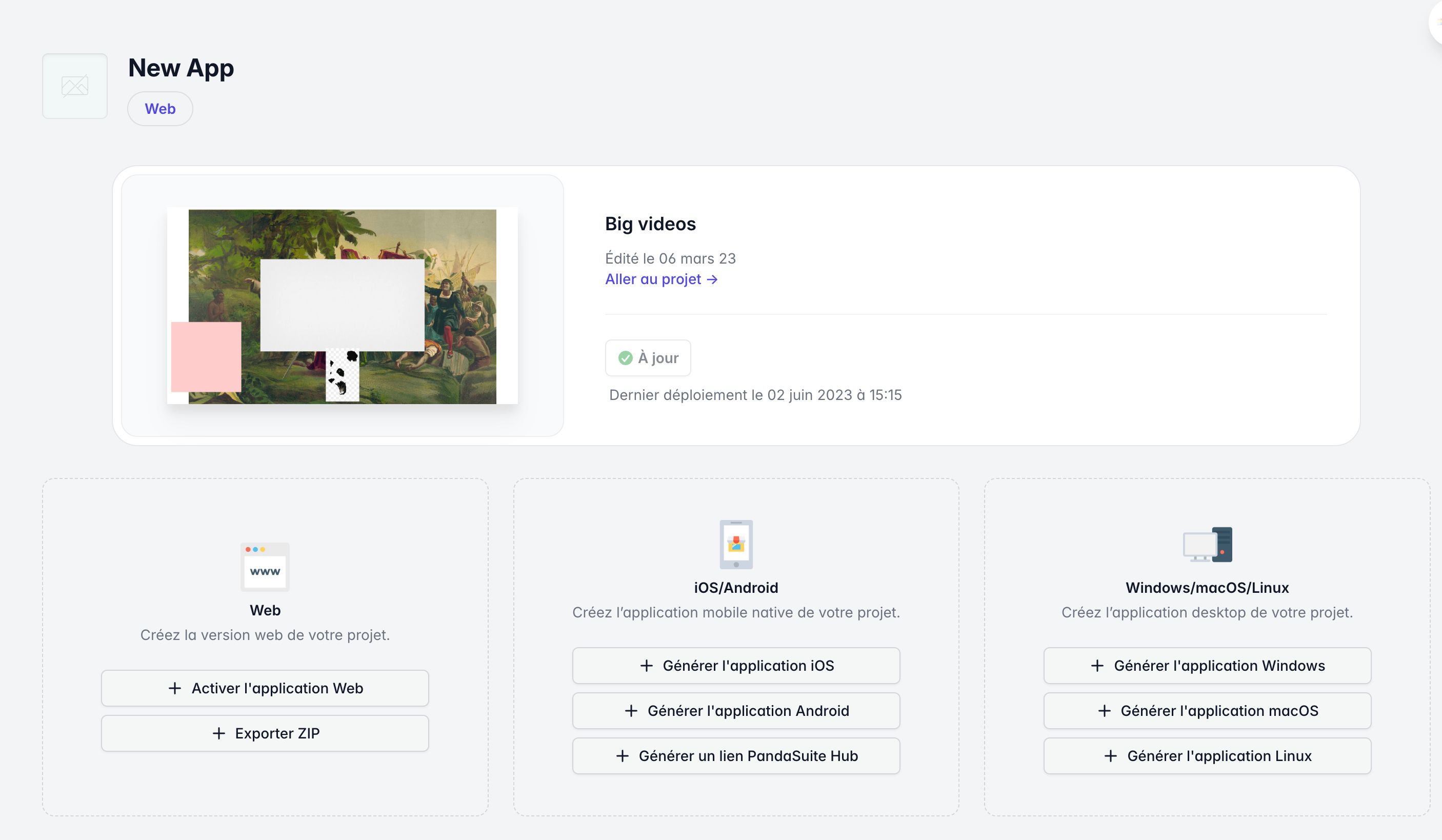
- Go to the Windows / macOS / Linux section.
- Click Generate Linux App.
Review the export form
Before launching the generation, confirm the key information shown in the form:
| Field | Description |
|---|---|
| Icon | The icon displayed for the application after installation on Linux. Use the final branded icon you want users to recognize in launchers, menus, or desktop shortcuts. |
| Name | The application name shown to Linux users. This is the visible name during installation and later in the system interface. |
| Package format | Choose the package family expected by the target Linux distribution: DEB, RPM, or Arch Linux. Export one package per target format if you support multiple Linux environments. |
| Publisher | The publisher or developer name shown in Linux package details. |
| Short description | A short text shown in Linux package details and software centers. |
| Website | The developer website URL shown in Linux package details. Use a valid http:// or https:// URL. |
| License | The license metadata included in the package. Available choices are Proprietary, MIT, Apache 2.0, GPL 3.0 or later, or Other. |
| Asset management (offline) | Bundles all assets inside the Linux package for a fully offline installation flow. This is useful for disconnected environments, but any later content update then requires exporting and reinstalling a new Linux package. Requires a Yearly or One-Time Payment plan and is available only if the application contains a single project. |
| Loading screen | Uses the loading screen configured in your app settings when Asset management (offline) is disabled. Review the icon and background color there if you want a more polished startup experience on Linux. |
| Launch method | Lets you enable Kiosk mode for a full-screen startup experience. Use it for dedicated devices only, and validate the behavior on the target Linux environment before wide deployment. |
| Version Number and Build | We recommend starting with 1.0.0 and 1, then incrementing both with each release. The version is the visible release number, while the build helps distinguish technical revisions of the same app. |
Review the Package format, Publisher, Short description, Website, License, Asset management (offline), and Version Number and Build carefully before validating. These fields most directly affect package metadata, compatibility, update workflows, and installation constraints on Linux devices.
Start the generation
Click Export.
The process takes place on our servers and can last from a few minutes to several hours depending on the load.
You will receive:
- A confirmation email;
- The download link in the Windows / macOS / Linux tab of your dashboard.
If you do not receive the email, check your spam folder or return to the Windows / macOS / Linux tab in your dashboard to monitor the generation status. Contact support if needed.
Validate the Linux package before wider rollout
Before distributing the package broadly, perform a short validation pass on at least one representative Linux machine:
- download the generated package from the dashboard;
- install it on a target Linux device that matches the selected package format;
- launch the application at least once;
- verify full-screen behavior if Kiosk mode is enabled;
- confirm the displayed name, icon, version, and package metadata are correct.
Download the generated package, test it on the target Linux environment, then share the correct package with your users or IT team. For the installation flow, follow Install your Linux package. For fully disconnected environments, see Standalone Linux package for offline installation. If you also distribute on other desktop operating systems, see Export an EXE File for Windows and Export a DMG file for macOS.
FAQ
Which package format should I choose between DEB, RPM, and Arch Linux?
Choose the format that matches the Linux distribution family used on the target devices: DEB for Debian or Ubuntu-based environments, RPM for Fedora, RHEL, or similar environments, and Arch Linux for Arch-based environments.
Can my Linux app work fully offline?
Yes. Enable Asset management (offline) to bundle the assets inside the package. This option is available only if your application contains a single project. In that case, updates require exporting and reinstalling a new Linux package.
Do I need to export a new Linux package after an update?
Yes. Any code or feature update requires generating and redistributing a new Linux package. If the app is exported in offline mode, you must also reinstall the updated package on the target devices.
Can I use the same PandaSuite app for Windows, macOS, and Linux?
Yes. You can generate separate desktop packages from the same app page, but you must export one file or package per operating system. On Linux, you may also need distinct exports for different package formats.