

Tab bar
A tab bar appears at the bottom of the application screen and allows you to quickly move from one section to another in the application. This is the most popular navigation structure for mobile applications. It usually contains between 4 and 5 tabs.

You can add secondary navigation to this main navigation, for example tabs in a section (at the top of the screen).
Create tab bar
As with any navigation element, it is best to use the foreground to create the tab bar. This way the tab bar is persistent throughout the application and you can use the states to represent the selection of each icon.
Go to the foreground.
Insert graphic elements
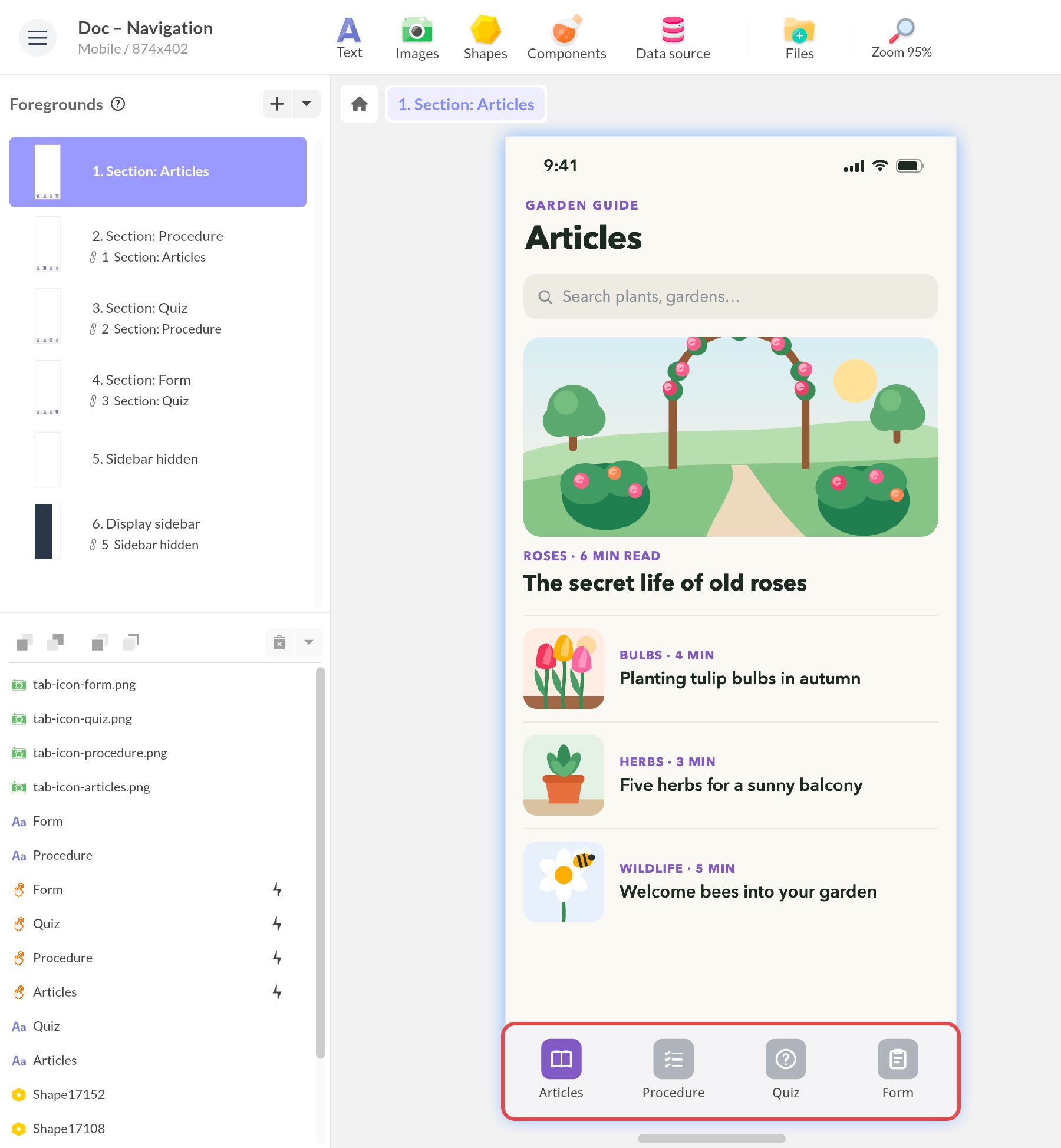
Import the graphic elements of your tab bar: the background bar and the icons. For the background bar, you can use a Shape. If you want to color your icons on selection, choose a .svg format or import your icon files in two colors. In the example below, white icons sit on colored shapes: only the shape color changes from one foreground to the next.
In the 1st foreground, represent your tab bar for the 1st section: here it is the “Articles” section. Visually make it easy for the user to know that the first icon has been selected. In this example, the selected icon is colored. (NB: if you want to create a home screen without a tab bar, you need to create a blank foreground.)
Create the link between each icon and its section
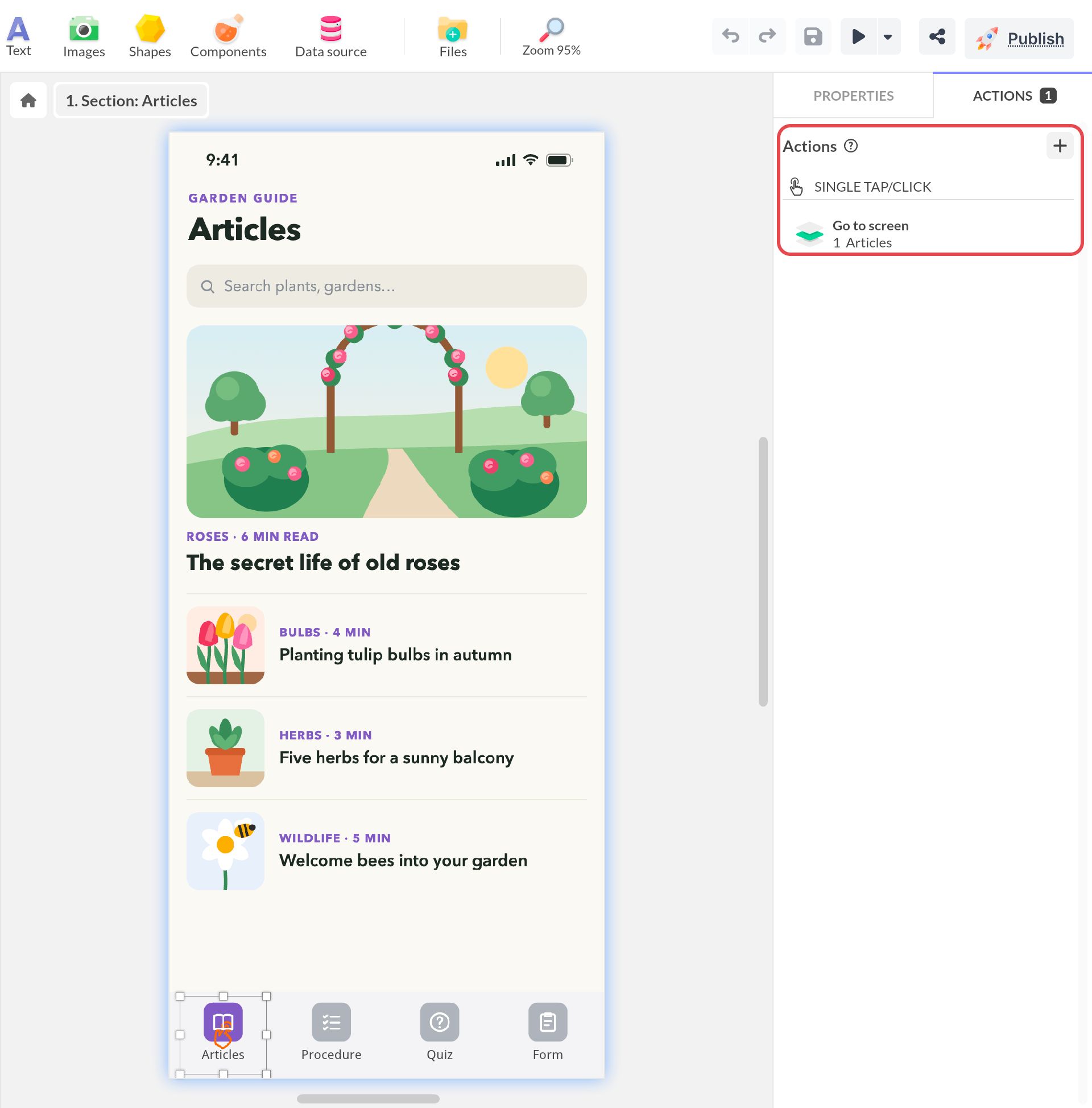
Above each icon, add an Interactive Area component, which allows you to expand the tap area. Link the Change screen action to the right screen.
Decline other states
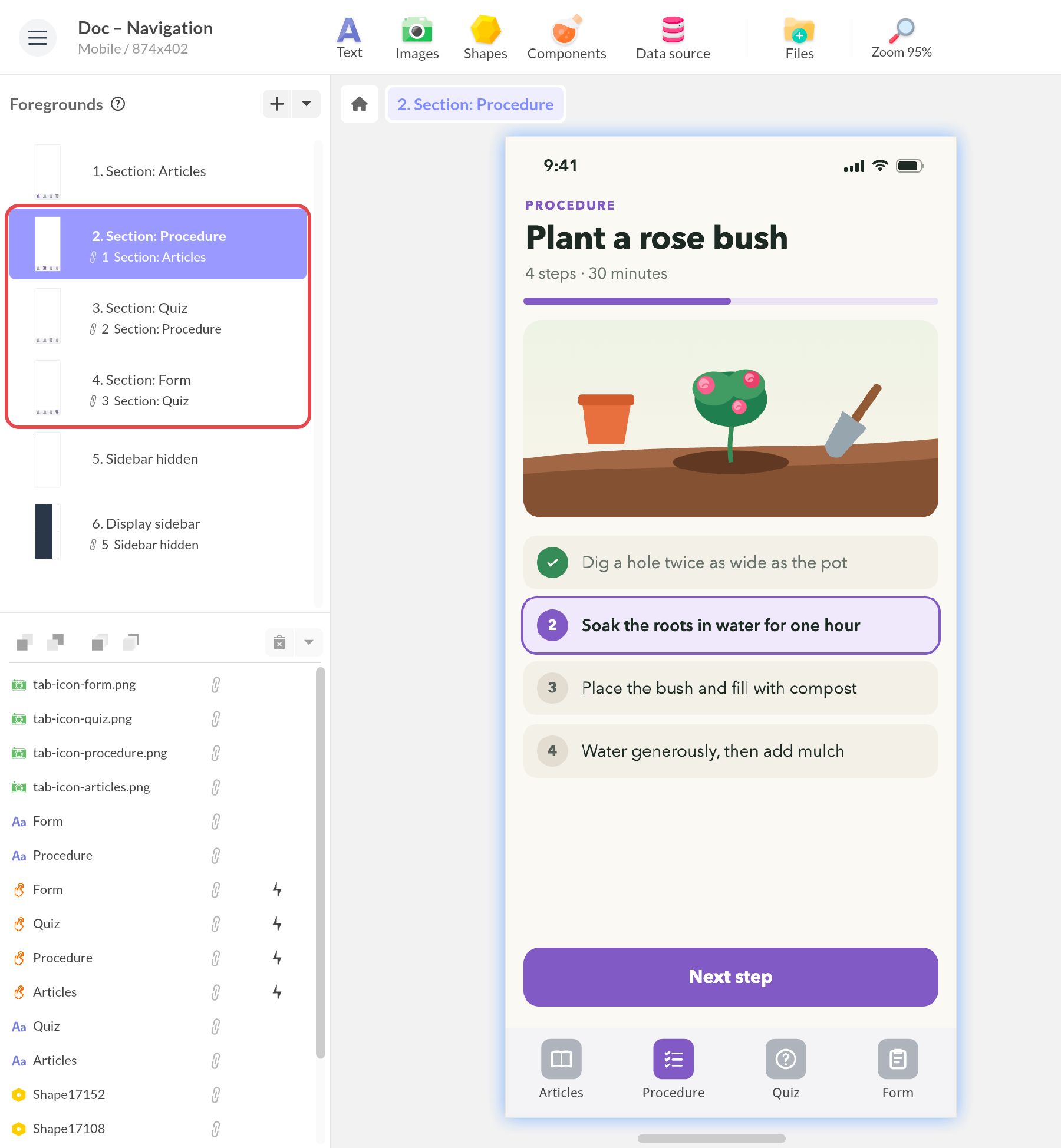
Decline the other sections (“Procedure”, “Quiz”, “Form”) by creating new linked foregrounds: in the Foregrounds panel, open the + menu and choose Create a linked foreground. Each foreground is linked to the previous one to keep the links and transitions. On each one, change the icon color and visually represent the selected icon.
Associate each section with the right foreground
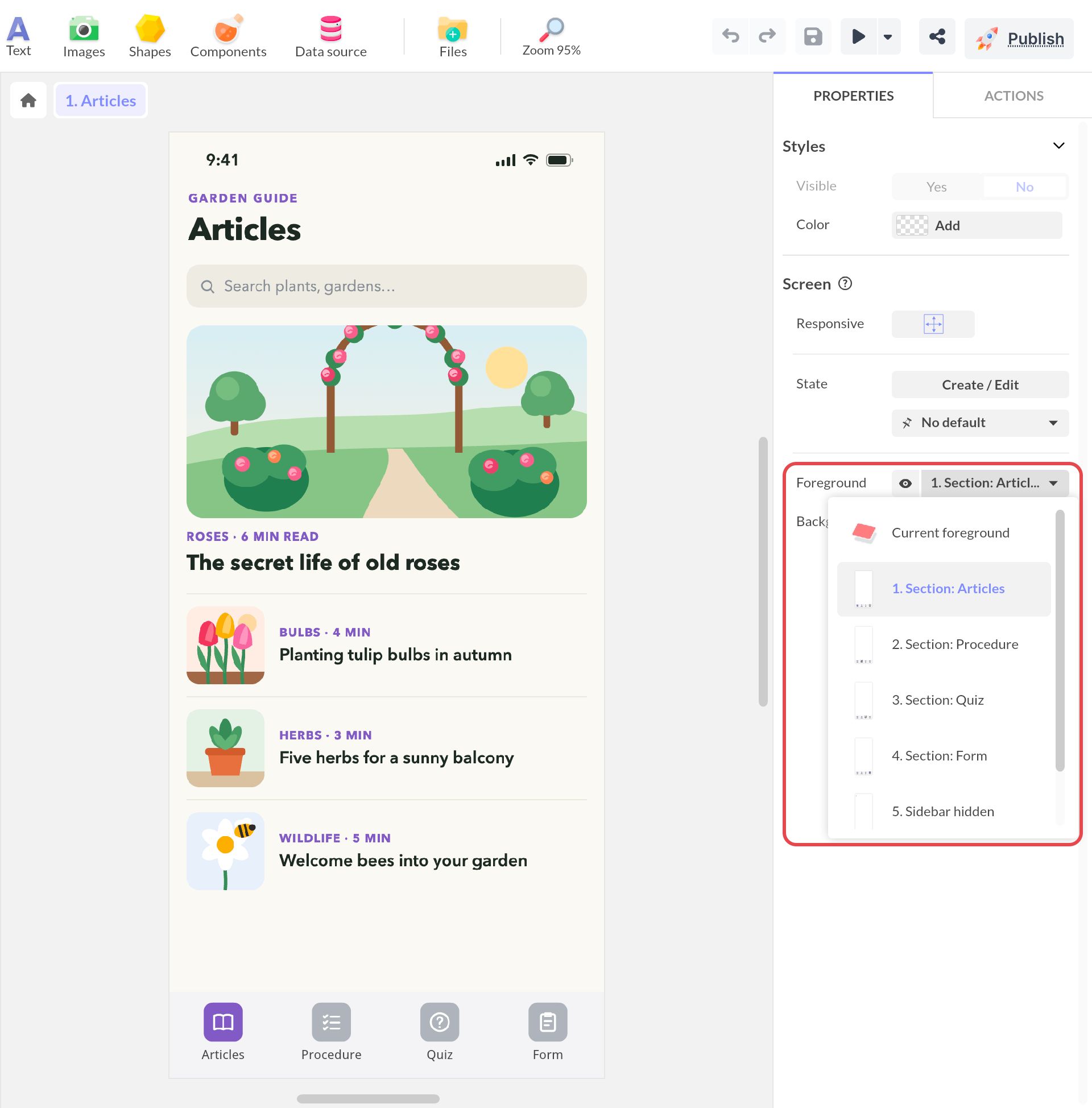
The last step is to associate each section with the right foreground! Select the screen and, in its Properties panel, choose the right foreground in the Foreground list.
Tips
iOS Guidelines : https://developer.apple.com/design/human-interface-guidelines/ios/bars/tab-bars/