

Drop-down menu
Build custom drop-down elements using our Multi-state component and building transitions.
What is drop-down?
Dropdowns are toggleable, contextual overlays for displaying lists of links and more. They are toggled by clicking. This is a great way to display menu items or list items.
How to create drop-down
Insert a Multi-state component. This component is very useful to build custom animations and transitions for your objects.
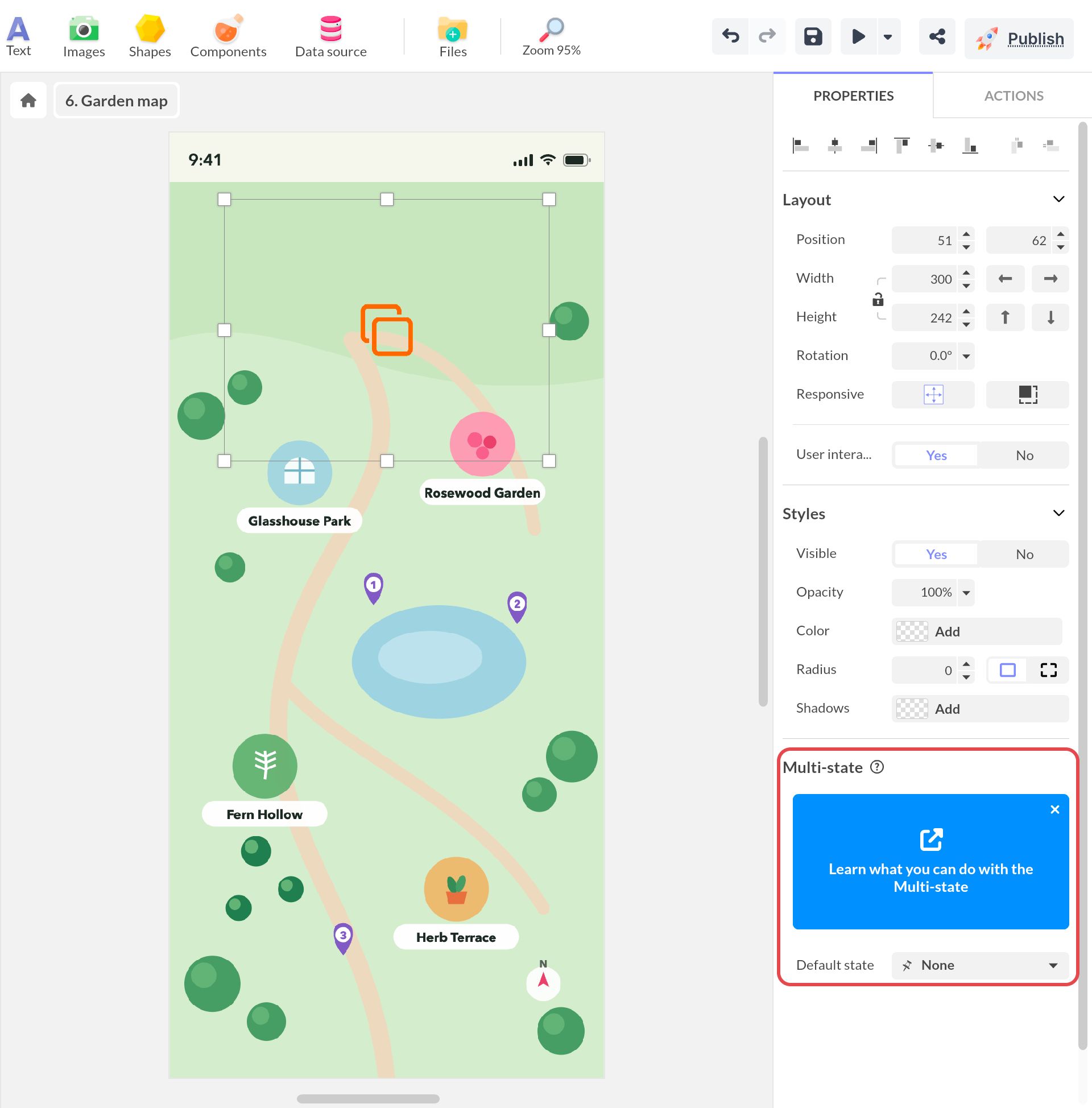
Enter this component and add full content (drop-down button + menu items).
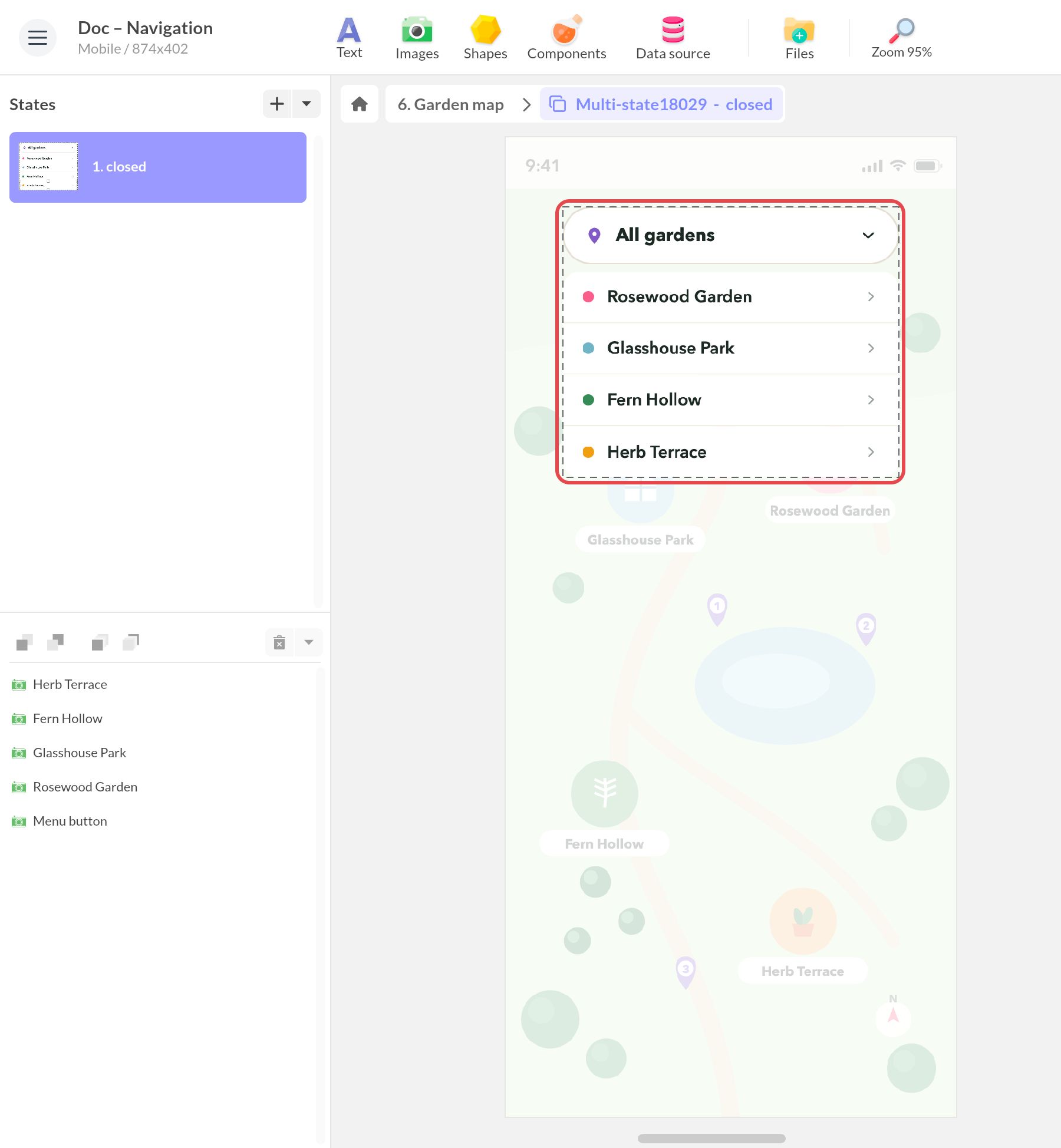
Select all your objects and group using Ctrl+G or Cmd+G. Crop the group to only display the drop-down button. This first state represents the drop-down as closed.
In the States list, click the arrow next to + and choose Create a linked state. In this second state, stretch the group to display the menu items. This second state represents the drop-down as opened: rename it open.
Now you need to create the action to open drop-down menu. Go to state 1 and select the drop-down button. Click Actions, choose Single tap/click and the action Interact with a component. The Studio then offers an Interactive Selection: pick the Multi-state as target, choose Select state and the state open.
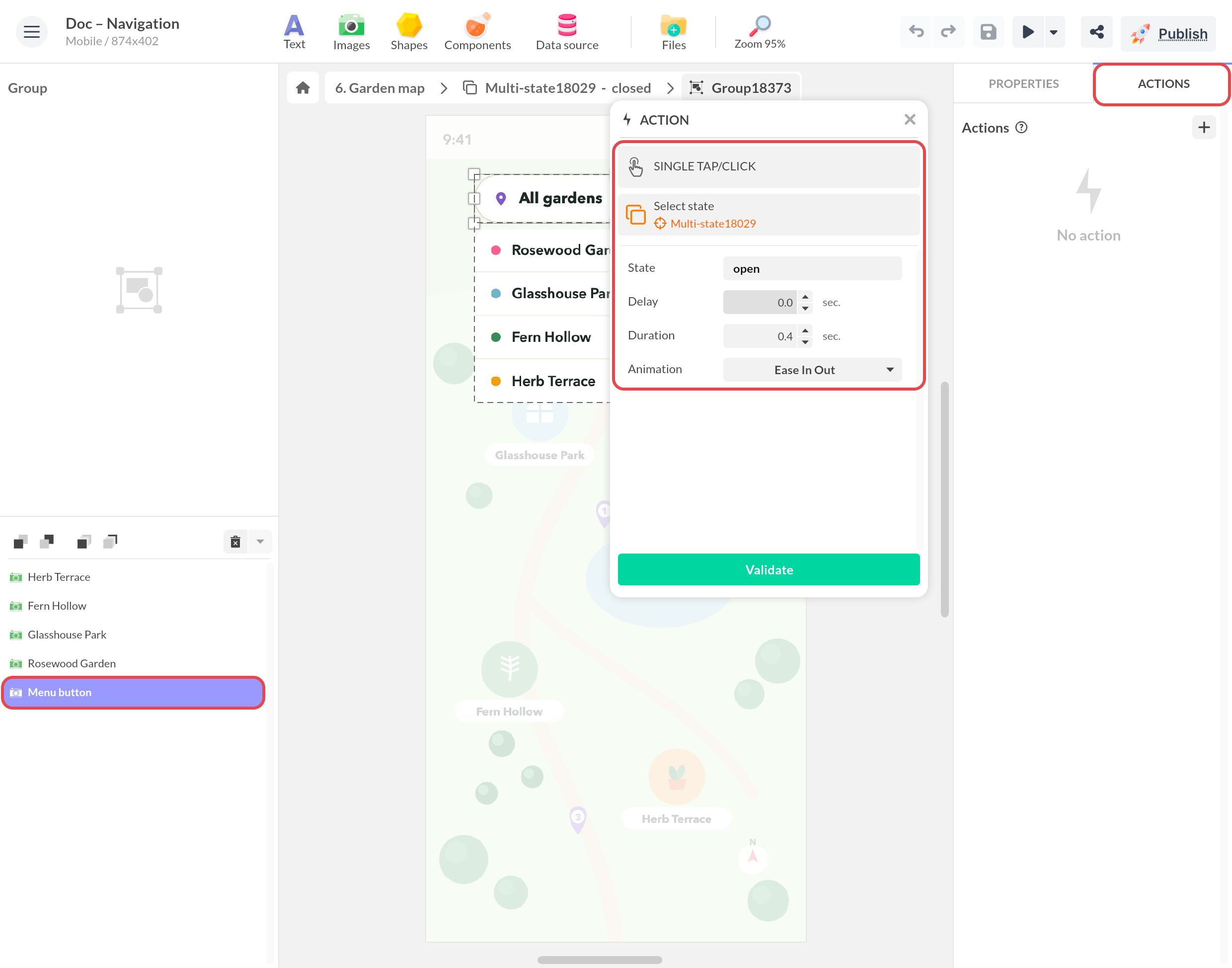
In state 2, the button already carries this action, because a linked state copies the actions of its objects. Select the button, click the action and choose the state closed: the link breaks for this action only, and the button now closes the drop-down menu.