
Pay for an app with an organization license
When your company has a contract with PandaSuite, its organization can provide app licenses. You then activate your apps with a license of the organization: there is nothing to pay.
Who can use a license
The license choice only appears to the members of an organization whose contract includes app licenses. The PandaSuite team sets up these licenses with the contract.
What you can use depends on your role in the organization:
- The owner, publishers, and admins can use every license line that has licenses left.
- Members can only use unlimited lines.
PandaSuite offers the lines whose plan is the one you chose or a higher one.
Activate an app with a license
- Choose a plan for your app, as for a paid plan: when you create an app, or from the Subscription tab of its settings.
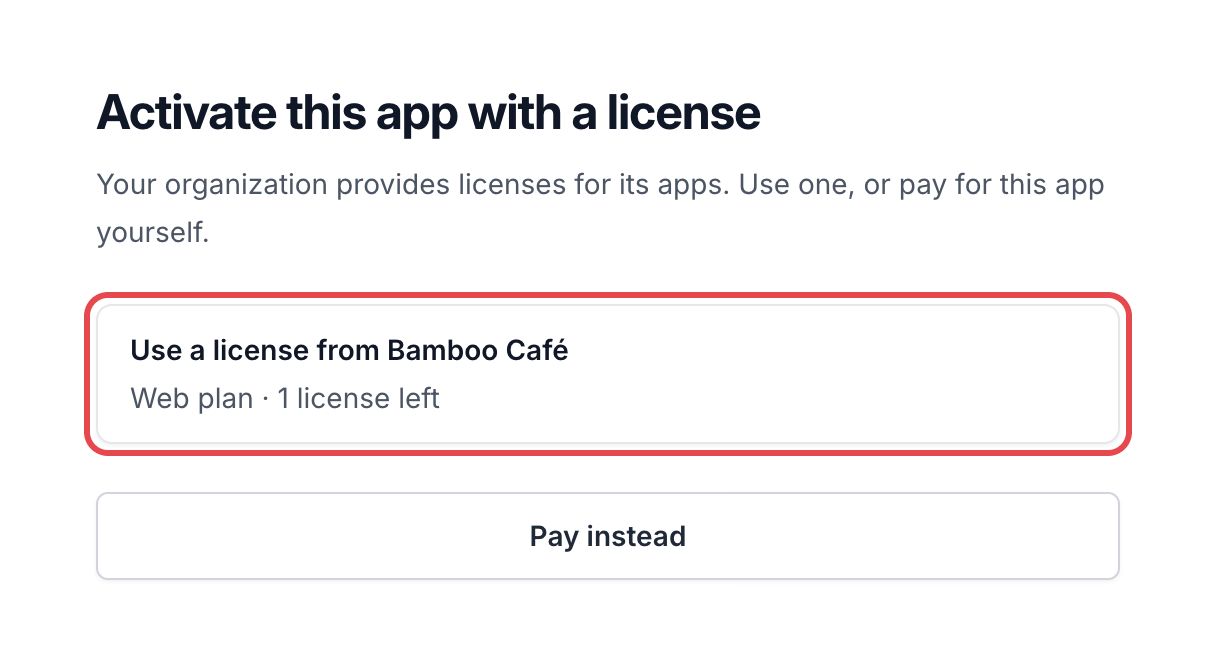
- Before any payment, the Activate this app with a license page lists the licenses you can use. Each one shows Use a license from [organization], with its plan and the number of licenses left.
- Click the license to use. The app takes the plan of this license.
The License activated page confirms that the organization now finances the app.
To pay for the app yourself, click Pay instead: the usual payment page opens.
Follow a financed app
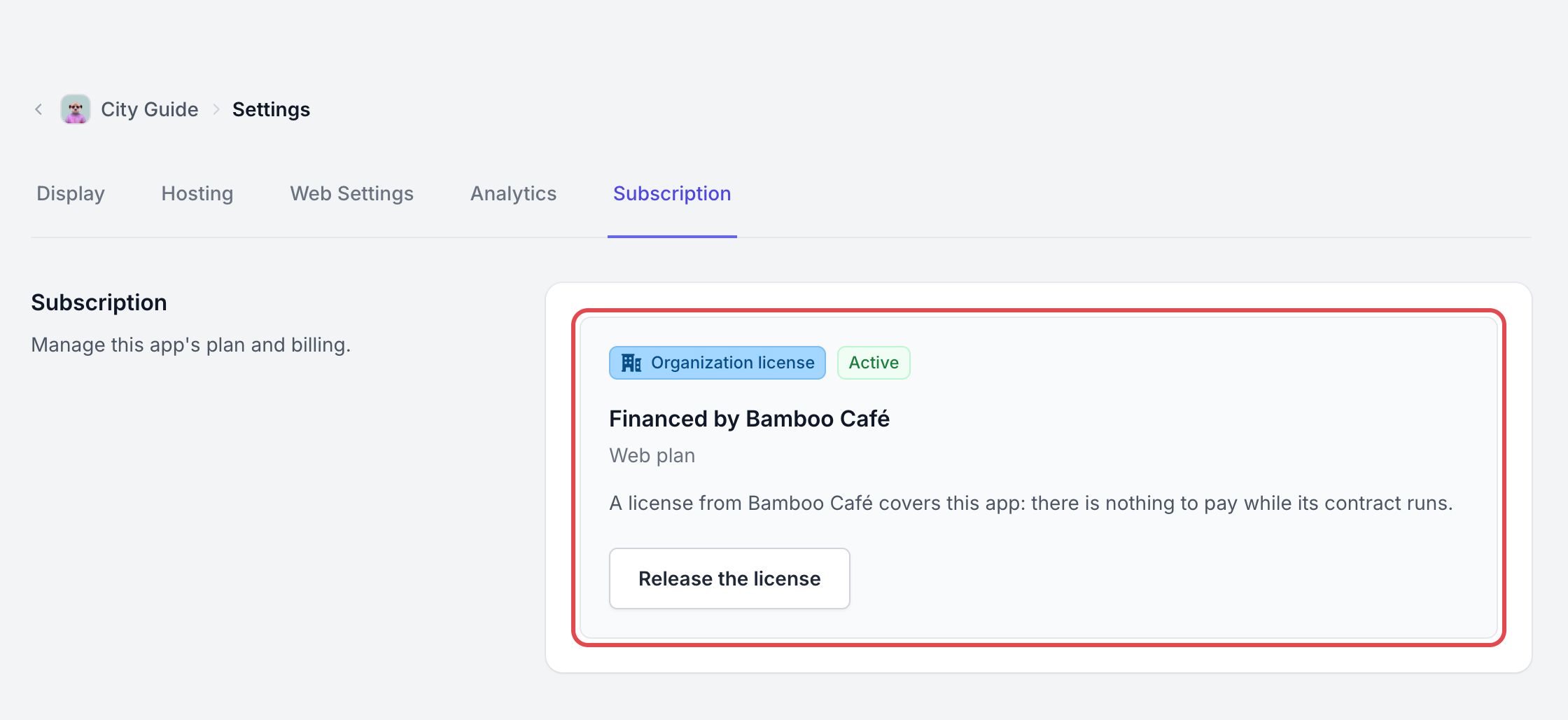
On your app page, open Settings, then the Subscription tab. Instead of the payment options, it shows:
- the Organization license badge and the status of the license, Active or Suspended;
- Financed by [organization] and the plan of the app.
When the contract of the organization ends, the app is suspended: a red App suspended banner appears on its page. Nothing is deleted, and the app comes back when the contract is renewed. Contact the owner of your organization.
Release the license
- In the Subscription tab of the app, click Release the license.
- In the Release the license? window, click Release.
The app is no longer financed by the organization and is deactivated. You can activate it again later, with a license or a plan. The owner of the organization can also release a license from the organization page.
An app financed by a license cannot be transferred to another account: release the license first.