
Export a DMG file
The macOS export is the final step before distributing your desktop application on Mac computers.
You will:
- Customize the application name, icon, and version information.
- Generate a macOS
.dmgpackage from your PandaSuite dashboard. - Share the installer with your users or IT team for installation on macOS.
Once the binary is generated, you can download it from your PandaSuite dashboard.
Desktop export is available on Single, Multi, or Full plans.
What is a DMG file?
The DMG file is the standard macOS disk image format used to distribute applications on Mac. Users download the .dmg, open it on their computer, then install the application from that package.
Use the .dmg export when you want to distribute your PandaSuite application
on macOS devices outside the browser.
Prerequisites
- Desktop export is available on Single, Multi, or Full plans.
- Your project content is finalized and published.
- Your target devices run macOS 10.11 or later.
- Plan a validation pass on at least one Mac before wider distribution.
- If you need a fully offline installation package, plan to enable Asset management (offline) during export. This option requires a Yearly or One-Time Payment plan.
Minimum OS Version and Device Compatibility
| Item | Details |
|---|---|
| Minimum supported version | macOS 10.11 |
| Supported devices | Mac computers |
| Binary type | Native macOS .dmg package |
| Installation | The DMG is opened on a Mac to install the application |
| Distribution type | Standard manual distribution on macOS |
Important points before distribution:
- If you distribute the same project on Windows and macOS, generate one binary per operating system.
- If your project uses native features such as camera, microphone, Bluetooth, or geolocation, test permissions and behavior directly on macOS.
- macOS can display security or permission prompts on first launch depending on the device configuration and the native capabilities used by your project.
- If you enable Asset management (offline), the package includes all assets for offline installation. Any content update then requires exporting and reinstalling a new DMG.
- Any code or feature update requires exporting and redistributing a new DMG.
Export the DMG file
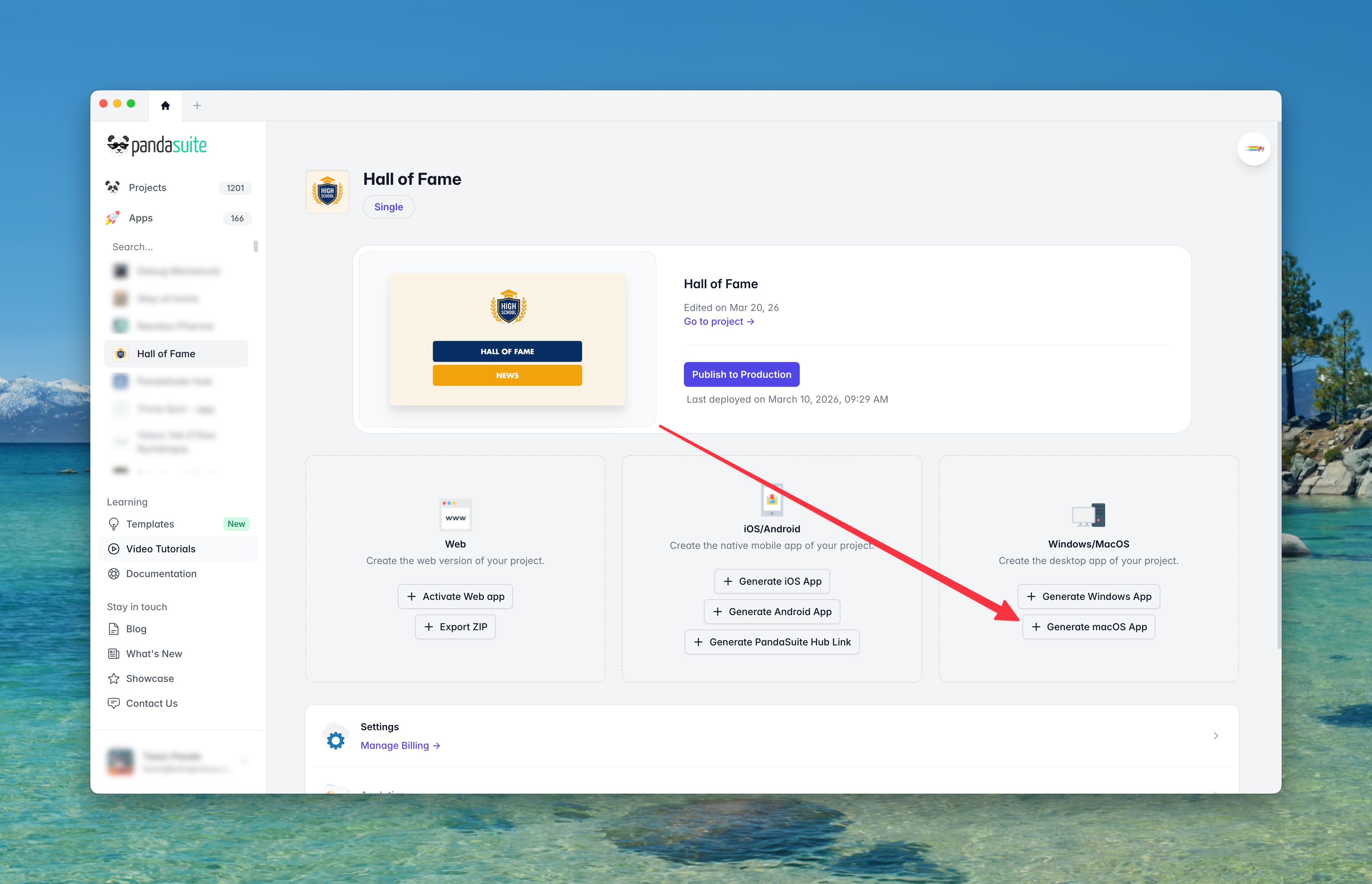
Access the dashboard
- Log in to your PandaSuite dashboard.
- In Apps, create or select the relevant application.
- Go to the Windows / macOS / Linux section.
- Click Generate macOS App.
Review the export form
Before launching the generation, confirm the key information shown in the form:
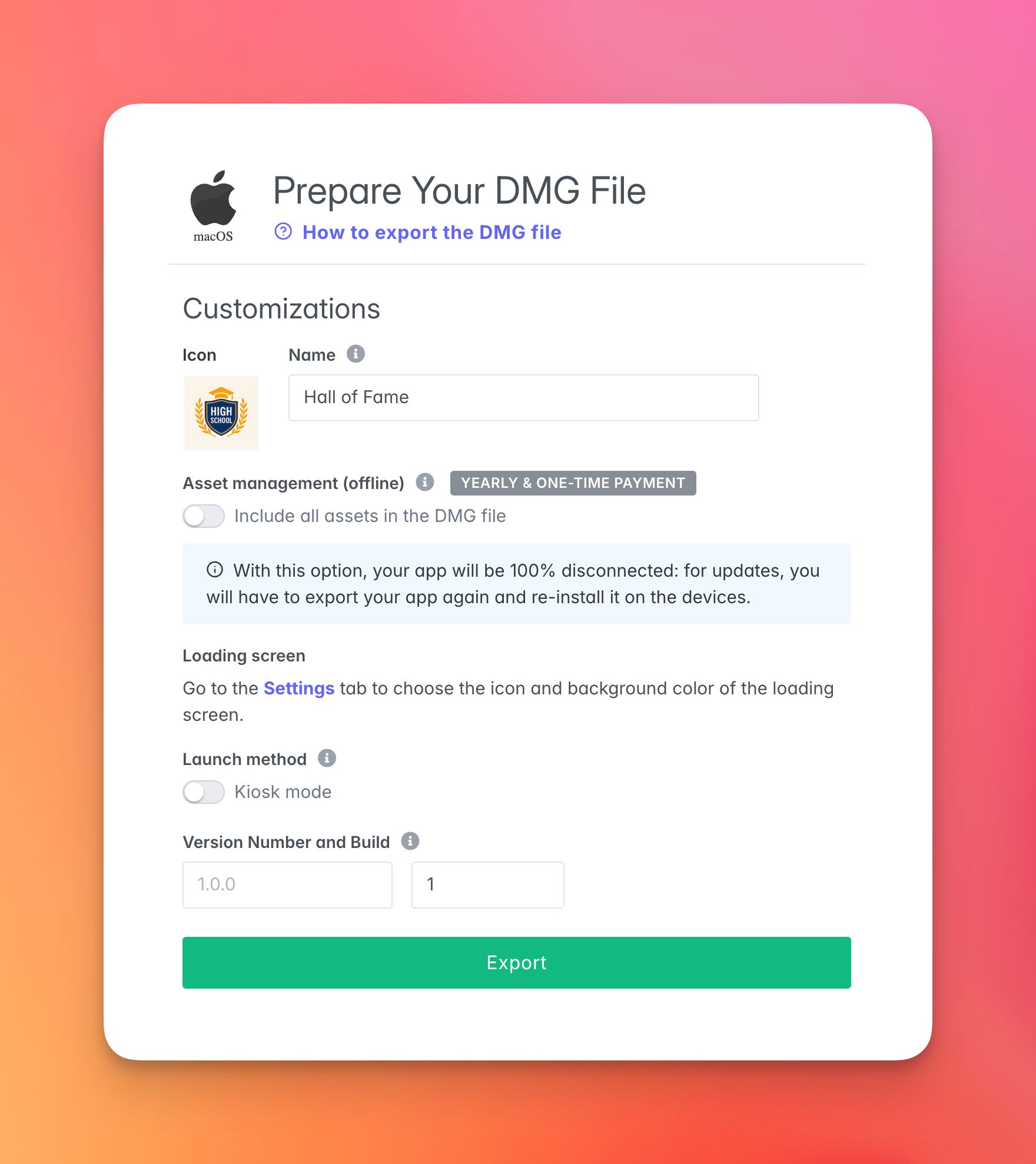
| Field | Description |
|---|---|
| Icon | The icon displayed for the application on macOS after installation. Use the final branded icon you want Mac users to recognize in Finder, Launchpad, and the Dock. |
| Name | The application name shown to Mac users. This is the user-facing name they will see during installation and when launching the app later. |
| Asset management (offline) | Bundles all assets inside the package for a fully offline installation flow. This is useful for disconnected environments, but any later content update then requires exporting and reinstalling a new DMG. Requires a Yearly or One-Time Payment plan. |
| Loading screen | Uses the loading screen configured in your app settings. Review the icon and background color there if you want a more polished startup experience on macOS. |
| Launch method | Lets you enable Kiosk mode for a full-screen startup experience. Use it only if the Mac is intended for a controlled or dedicated use case, and always test first-launch behavior on a real device. |
| Version / Build | We recommend starting with 1.0.0 and 1, then incrementing both with each release. The version is the visible release number, while the build helps distinguish technical revisions of the same app. |
If you already exported this app before, the form is usually pre-filled. Still review the Name, Asset management (offline), Launch method, and Version / Build carefully before validating.
Start the generation
Click Validate.
The process takes place on our servers and can last from a few minutes to several hours depending on the load.
You will receive:
- A confirmation email;
- The download link in the Windows / macOS / Linux tab of your dashboard.
If you do not receive the email, check your spam folder or return to the Windows / macOS / Linux tab in your dashboard to monitor the generation status. Contact support if needed.
Validate the DMG on macOS before wider rollout
Before distributing the DMG broadly, perform a short validation pass on at least one representative Mac:
- download the generated file from the dashboard on a Mac;
- install the application from the DMG;
- launch the application at least once;
- verify any native capabilities used by your project, such as camera, microphone, Bluetooth, or geolocation;
- confirm the displayed name, icon, and version are correct.
On some Macs, the first launch may trigger a macOS security confirmation or one or more permission prompts. Validate this first-launch experience before rolling out the app to a wider group of users.
Share the generated .dmg with your Mac users or IT team for installation.
For the installation flow on Mac, follow Install your DMG
File. For fully
disconnected environments, see Standalone DMG for offline
installation.
If you also distribute on Windows, follow Export an EXE
File.
FAQ
Can I use the same PandaSuite app for Windows and macOS?
Yes. You can generate separate desktop binaries from the same app page, but you must export one file per operating system.
Do I need to export a new DMG after an update?
Yes. Any code or feature update requires generating and redistributing a new DMG.
Where do I retrieve the generated DMG?
From the Windows / macOS / Linux tab of your dashboard, once the generation is complete.
Do I need to test the DMG on a Mac before sharing it widely?
Yes. Always validate installation and runtime behavior on at least one representative macOS device before broad deployment.
Does the macOS export include the same options as the Windows EXE export?
Not necessarily. Some Windows-specific options such as architecture choice, kiosk configuration, silent installation, or offline asset packaging are documented on the EXE side. The DMG workflow focuses on macOS distribution, installation, and first-launch validation.
Can I prepare a DMG for a disconnected macOS environment?
Yes. Enable Asset management (offline) during export to bundle the assets into the package. In that case, updates require exporting and reinstalling a new DMG.