

Sort the items in your collection in Ascending or Descending order based on the criterion of your choice (name, price, etc.).
Create a sort formula
- Select your Collection List and, in its properties, click Sort. The Collection Sort window lists the sorts of the collection.
- Click +, then give the sort a Name, for example Price ascending. The name is required.
- Under Expressions, click Add. Set By to the field to sort by, and In order to Ascending or Descending.
- Click Validate.
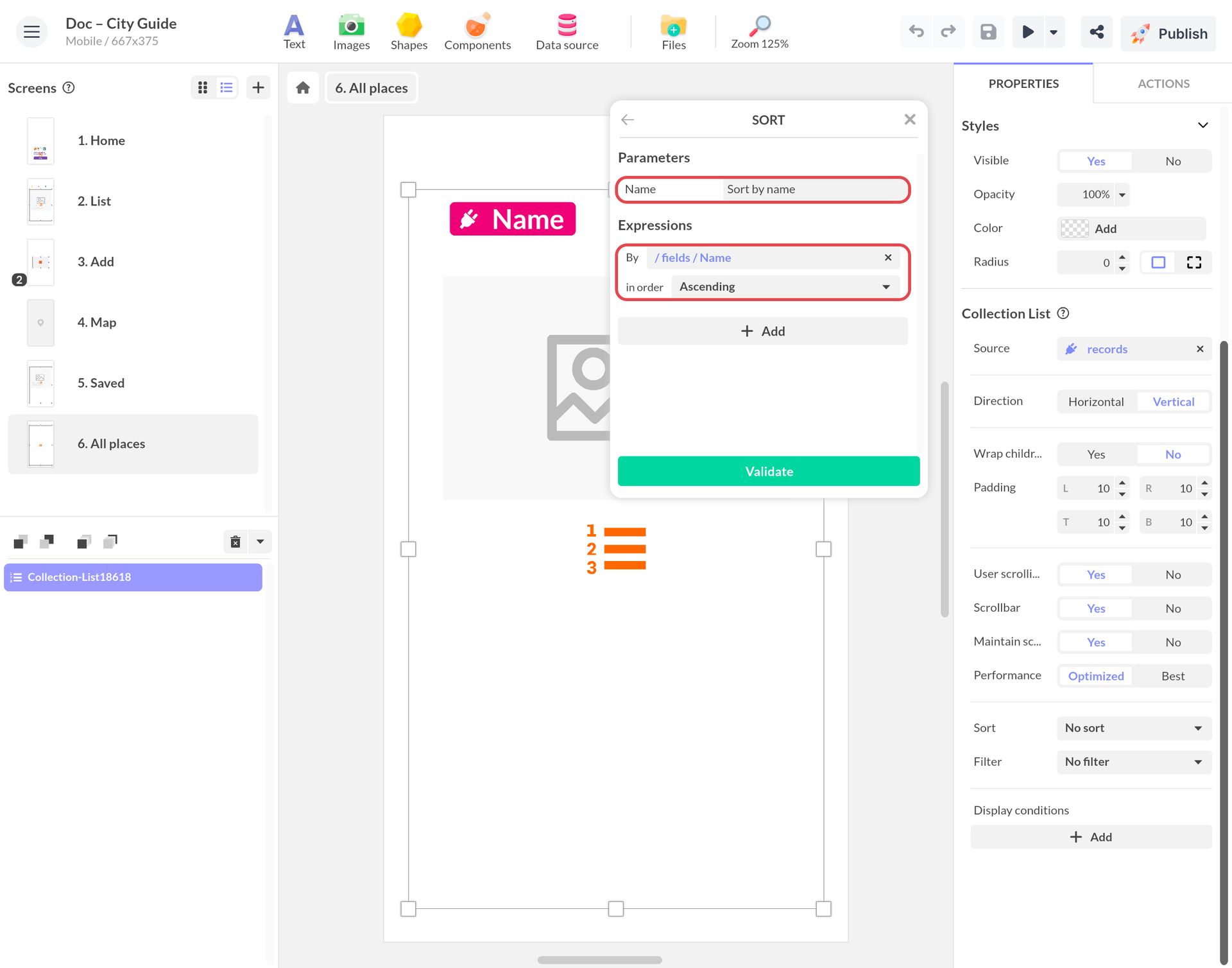
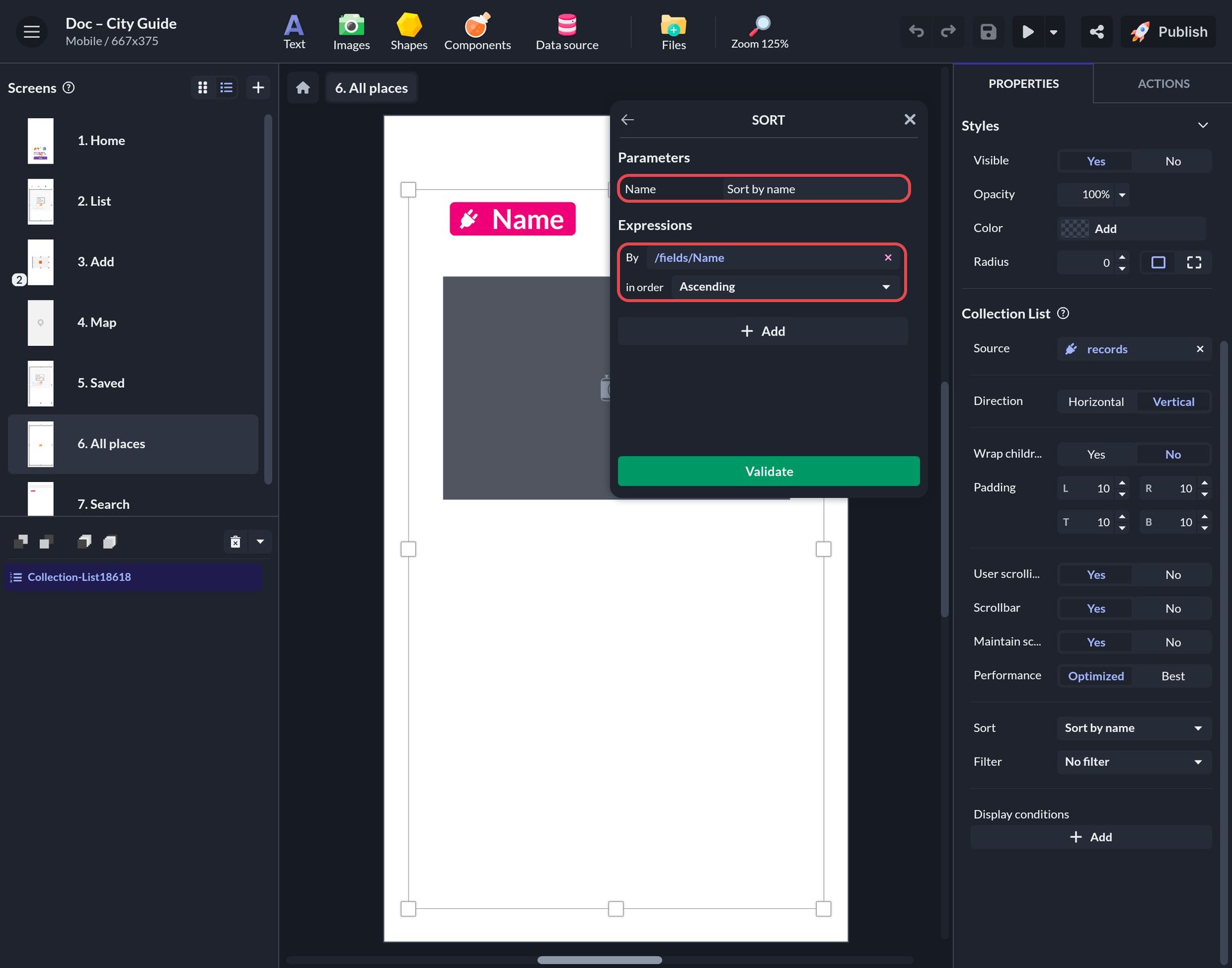
The first sort you create applies to the list right away. To apply another one, click Sort, then click its name in the list. Use the gear icon next to a sort to edit it, and the trash icon to delete it.
A sort can hold several expressions. The list is sorted by the first one; items with the same value are then sorted by the next one. For example, sort by category, then by name within each category.
Let the user change the sort
A Collection List can hold several sort formulas, for example by price and by name, or by price in ascending and in descending order. To let the user switch from one to another with buttons, give each sort its own state.
- Create one sort formula for each sort you want to offer.
- Place the Collection List in a container with states: the screen itself, or a Multi-state component. Create one linked state per sort.
- In each state, select the Collection List, click Sort and choose the formula for that state.
- On each button, add a Change screen state action to the Single tap/click trigger, and choose the state that holds the button’s sort. With a Multi-state, use Interact with a component, then Change State.
When the user taps a button, the list reorders according to the sort of the new state.
Since each sort has its own state, you can also change the look of the buttons in each state to show which sort is active.