
Test & Preview Your Project
An interface that seems perfect in the editor may behave differently on an iPhone SE, Surface Pro, or a slow browser. Testing early and on the right device prevents surprises during deployment.
Overview
When you create a PandaSuite project, it can be delivered in several formats:
- as a website or web app (browser),
- as a mobile application (iOS & Android),
- as a Windows application (
.exefile).
PandaSuite handles the technical aspects (generating the appropriate code for each platform), but you ensure everything functions on the target devices before publishing or deploying.
Testing Modes Overview
PandaSuite offers you several ways to test your project based on the intended format:
| Distribution Format | Where to Test Quickly? |
|---|---|
| Web app / PWA | Web Preview (in Studio) + Share Link |
| iOS | PandaSuite Viewer (iPhone/iPad) or TestFlight build |
| Android | PandaSuite Viewer (Android) or APK/AAB build |
| Windows | Share Link (Chrome/Edge) then .exe build |
Testing the Web Version
Integrated Preview (in PandaSuite Studio)
- Click on the Preview icon ▶️ in the top bar of Studio.
- A browser window opens above your workspace.
- Close the window to return to editing.
The preview starts from the selected screen. To display another screen that is not accessible via navigation, use the side panel or select that screen and relaunch Preview.
Click on Predefined screens to switch from an iPhone SE (375×667) to an iPad Pro (1024×1366) or a computer (1280×800). Activate Responsive to grab the handle and manually resize the window.
Hardware sensors (gyroscope, GPS, push notifications…) are not simulated here. Switch to PandaSuite Viewer when your prototype uses them.
Share Link (Browser Outside Studio)
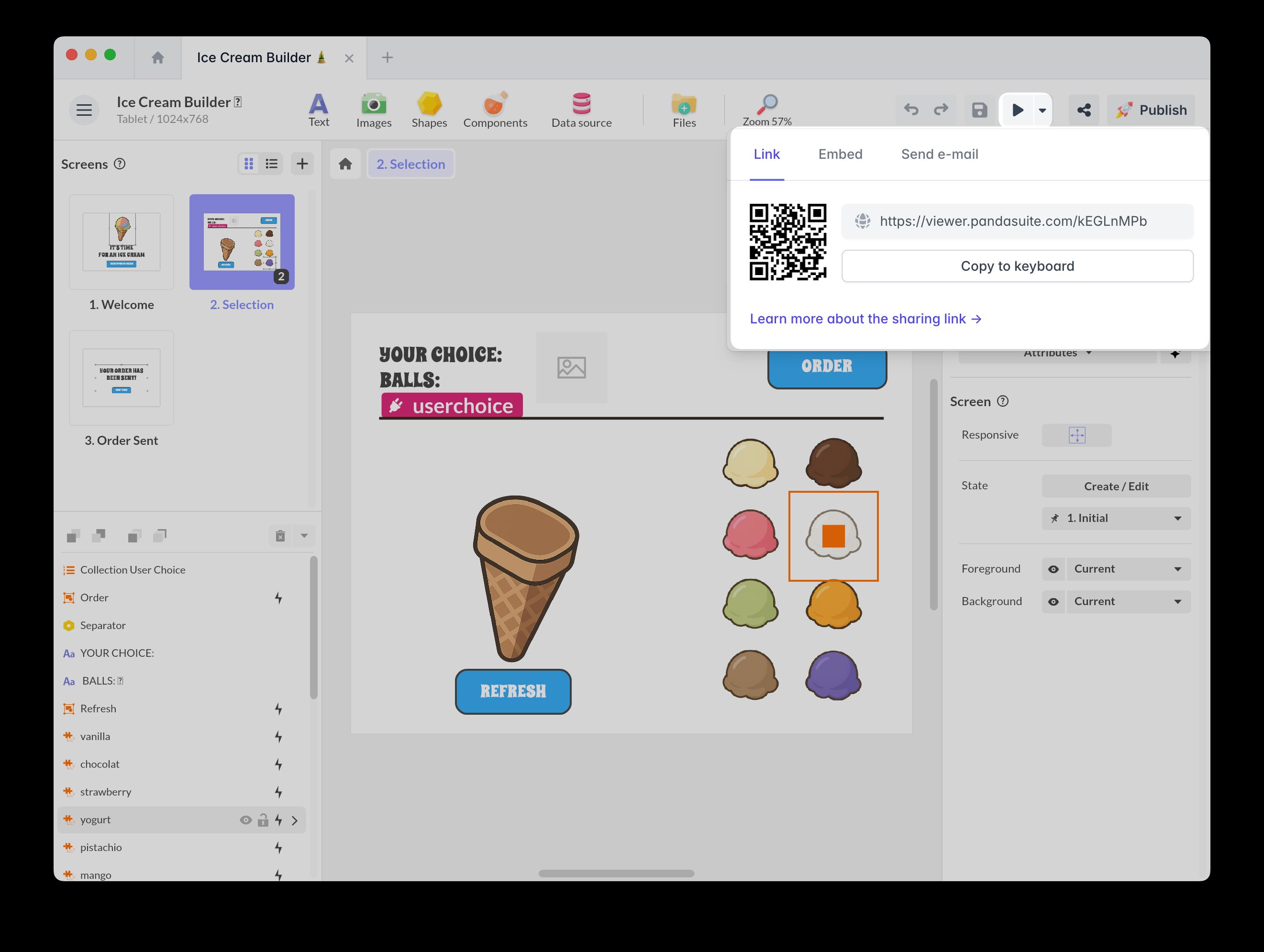
- In Studio, click on Share 🔗.
- Copy the link or scan the QR code.
- Open it in Chrome, Safari, Edge… on a computer, tablet, or mobile without installing anything.
Advantages:
- Nothing to install.
- The link automatically reflects each new Save: no need to resend it.
- Ideal for checking the web app/PWA under real network conditions.
Testing on Native iOS & Android
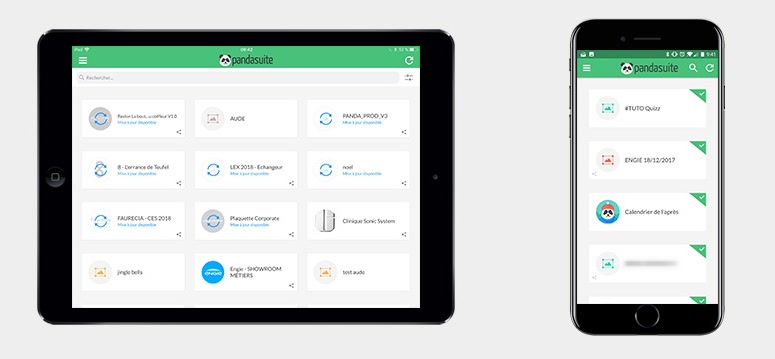
- Install PandaSuite Viewer from the App Store or Google Play.
- Log in with the same account as in Studio.
- Tap your project: it downloads and then opens.
Points to check:
- Touch gestures (scrolling, pinching, rotating).
- Offline functionality: put the device in Airplane mode and relaunch.
- Sensors: camera, microphone, GPS if your app uses them.
PandaSuite Viewer is perfect for testing: it reproduces the final behavior of your application. Once everything is validated, you will create a final build (IPA or APK/AAB file) to test via Testflight (iOS), deploy directly, or publish on the App Store and Google Play.
Testing the Windows Version (EXE)
- Open your share link in Edge or Chrome: this is often sufficient for visual control and navigation.
- Before production, export a .exe file from your Dashboard, install it on a PC, and ensure:
- Full-screen or windowed display.
- Mouse usage (right-click, scroll wheel).
- Offline access if necessary.
Sharing with Other Testers
- In Studio, open Share
- Send the link or QR code.
Branding
Whatever the preview mode (share link, PandaSuite Viewer), your project opens in a PandaSuite-marked testing environment:
- URL in
*.pandasuite.com - PandaSuite Viewer icon and splash screen
- PandaSuite logo in the share link
To publish white-label (custom URL, your choice of icon and splash screen, mention removal), you’ll need to export or publish your project and have a suitable distribution plan.
Checklist for Your Tests
For each platform, remember to check:
- Smooth navigation from one screen to another
- Readable text and clear images
- Responsive and interactive buttons
- Sounds/videos playing correctly
- Offline behavior (if your app should work without a network)
- Sensors or system permissions accepted (camera, microphone, GPS…)
- No slowdowns or crashes after several minutes of use
Recommended Testing Cycle
- Micro-checks: after each action or component added, make a quick Preview.
- Real Devices: test your project on multiple devices different from your target and format of destination.
- Save Your Versions: duplicate your project and keep old versions before major updates.
If you notice unusual behavior/bug, fill out the bug form and provide as much detail as possible (version, device, etc.): https://pandasuite.com/dashboard/report-bug