

Sharing Link
The sharing link allows you to easily distribute your interactive project via a web URL accessible from any browser (Chrome, Safari, Firefox, etc.) on all devices.
It’s the ideal tool to share a test version, gather feedback, or present your project to clients or partners without requiring installation or download.
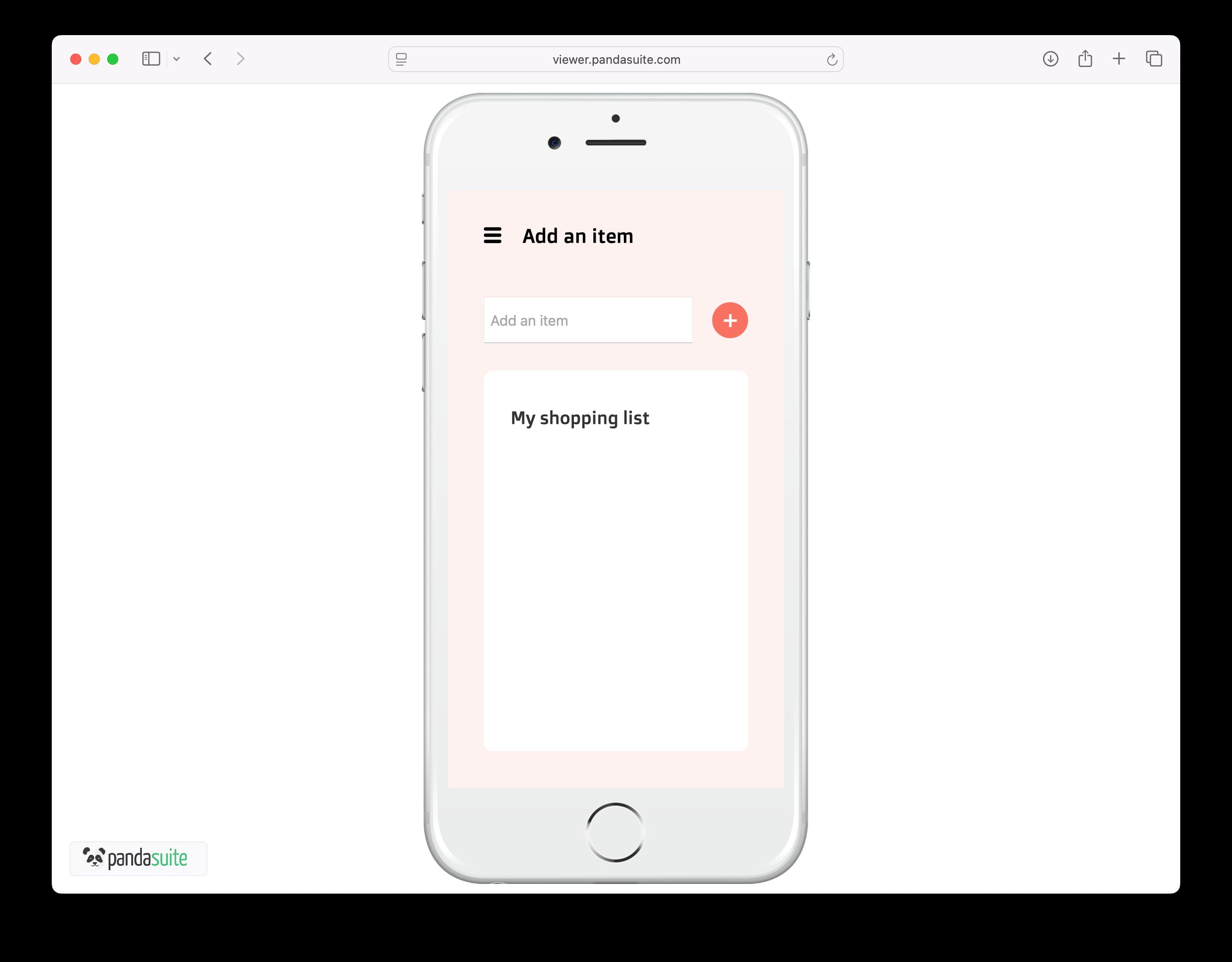
Retrieve the sharing link
Each project has a unique sharing link.
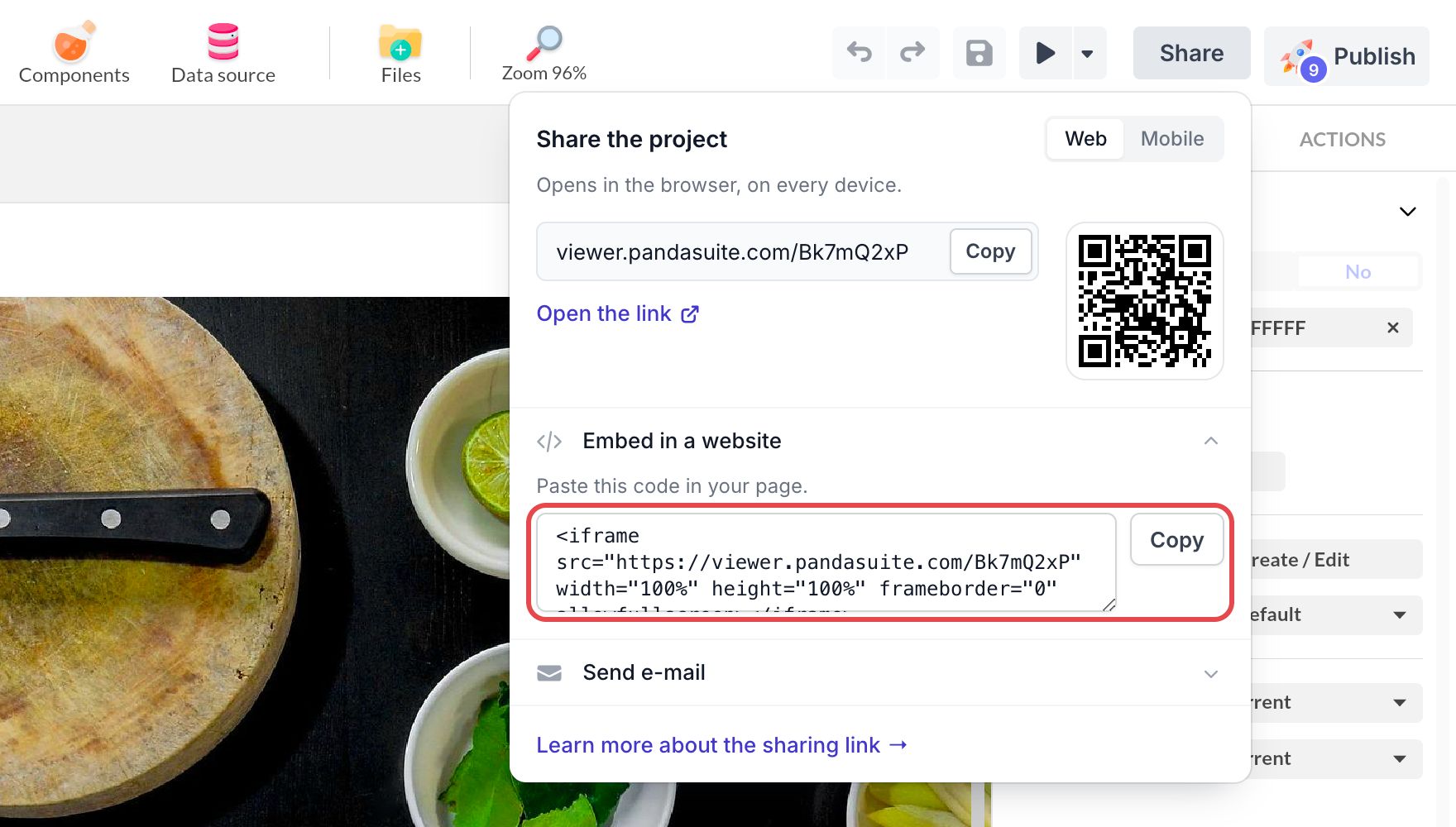
In PandaSuite Studio, click Share in the top bar. The Share the project window opens on the preview link of your project.
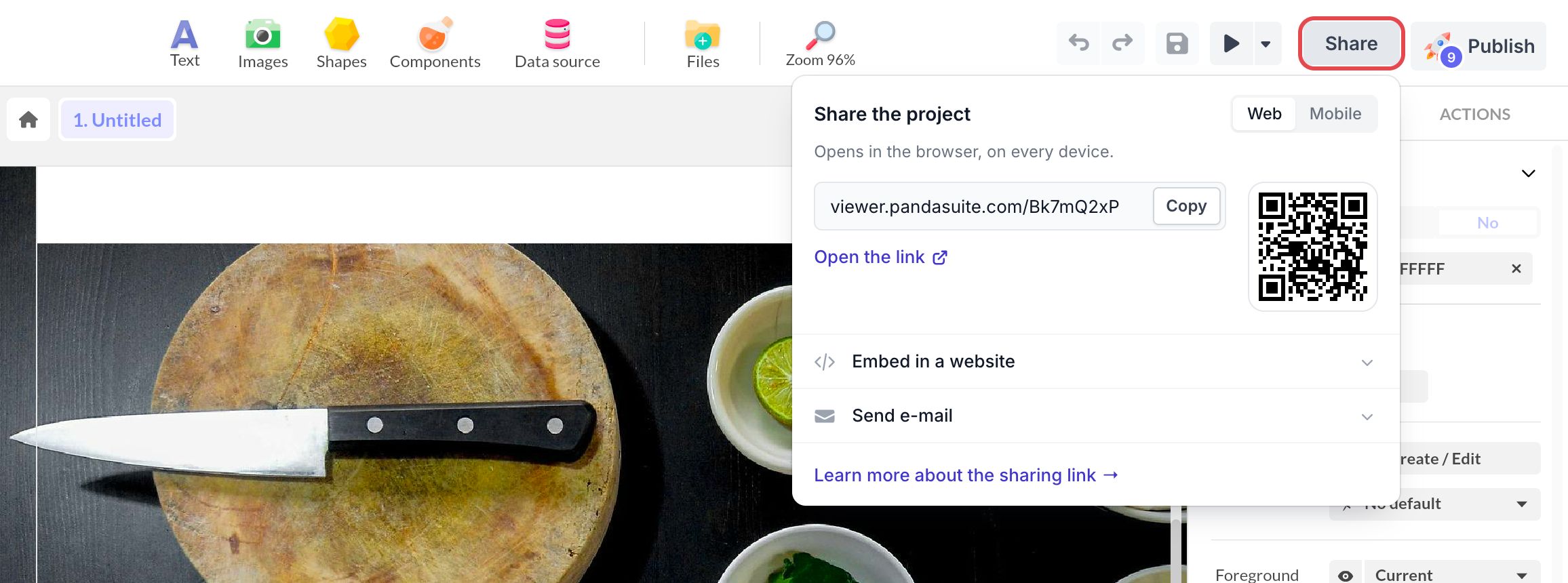
- At the top right, choose the link to share (this choice appears only when the project has a mobile link):
- Web: opens in the browser, on every device.
- Mobile: opens in the PandaSuite Viewer app when it is installed, otherwise in the browser.
- Click Copy to copy the link, or Open the link to open it in your browser.
- To open the project on a phone, scan the QR code. Click the code to display it larger.
The same link is in your dashboard: hover over the project, click ···, then Share… The Sharing tab of the project settings shows the Preview link (Web or Mobile), its QR code, and the code to embed the project in a website.
Note: it is not possible to share an archived project.
Send the sharing link
You can distribute your sharing link in several ways: copy and paste it, scan its QR code, send it by e-mail, or embed it in a web page.
By e-mail
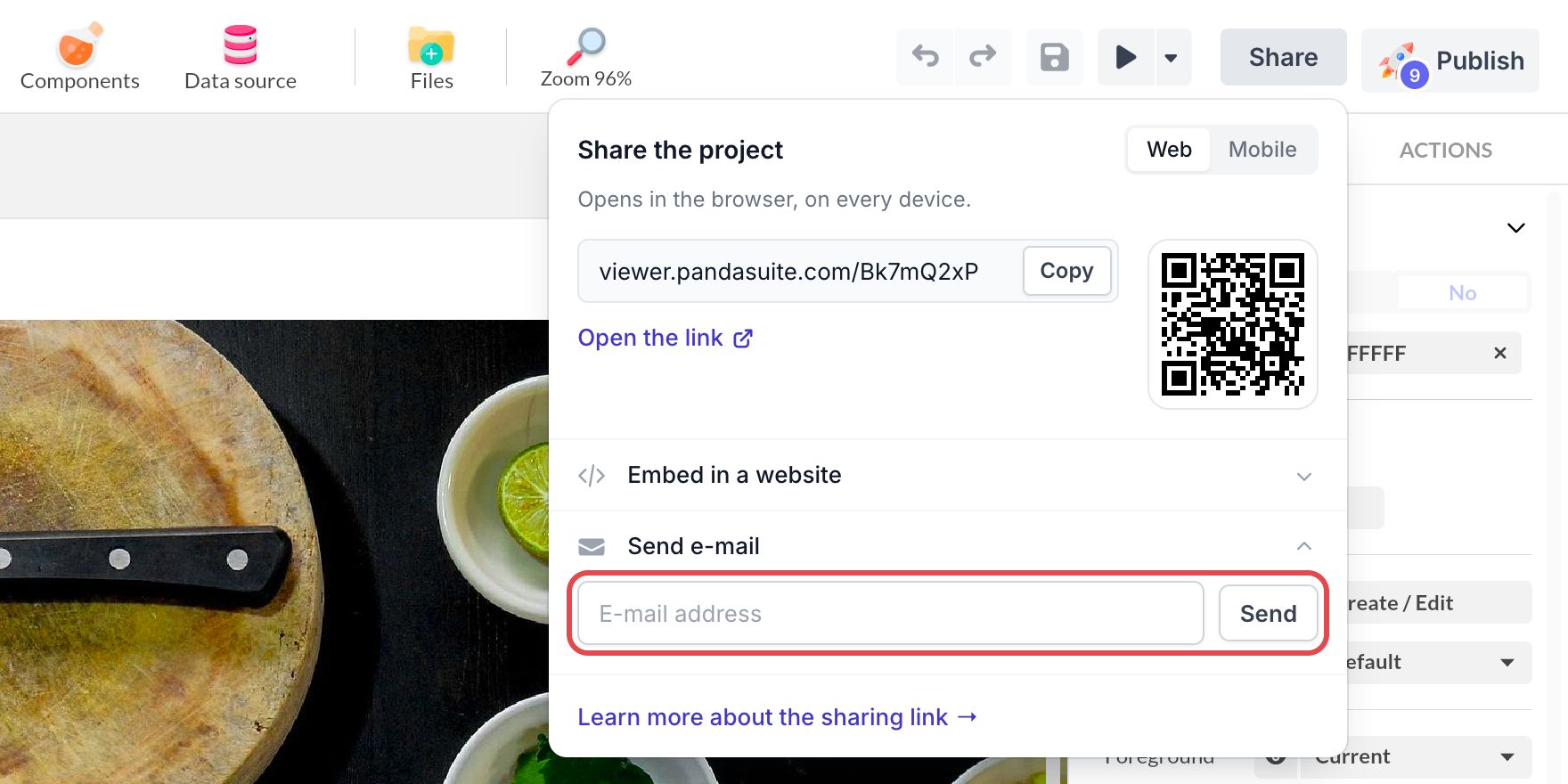
In the Share the project window, expand Send e-mail, enter your recipient’s e-mail address, then click Send. The e-mail contains the link selected at the top of the window (Web or Mobile).
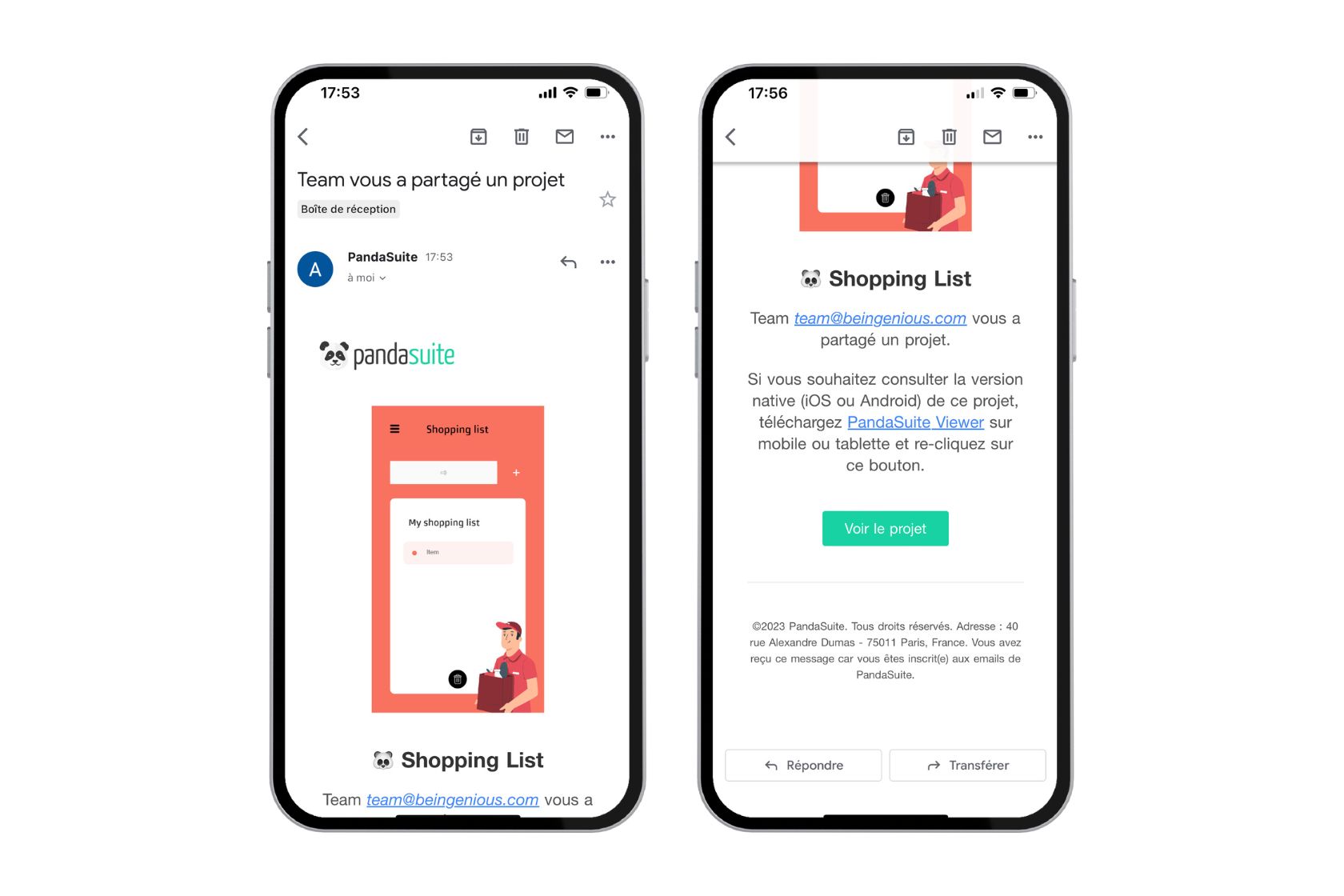
Here is the message your recipient receives:
Embed
In the Share the project window, expand Embed in a website, click Copy, then paste the code into your web page. To learn more, see Embed into a website.
Password protection 👑
To secure access to your project, you can protect your sharing link with a password.
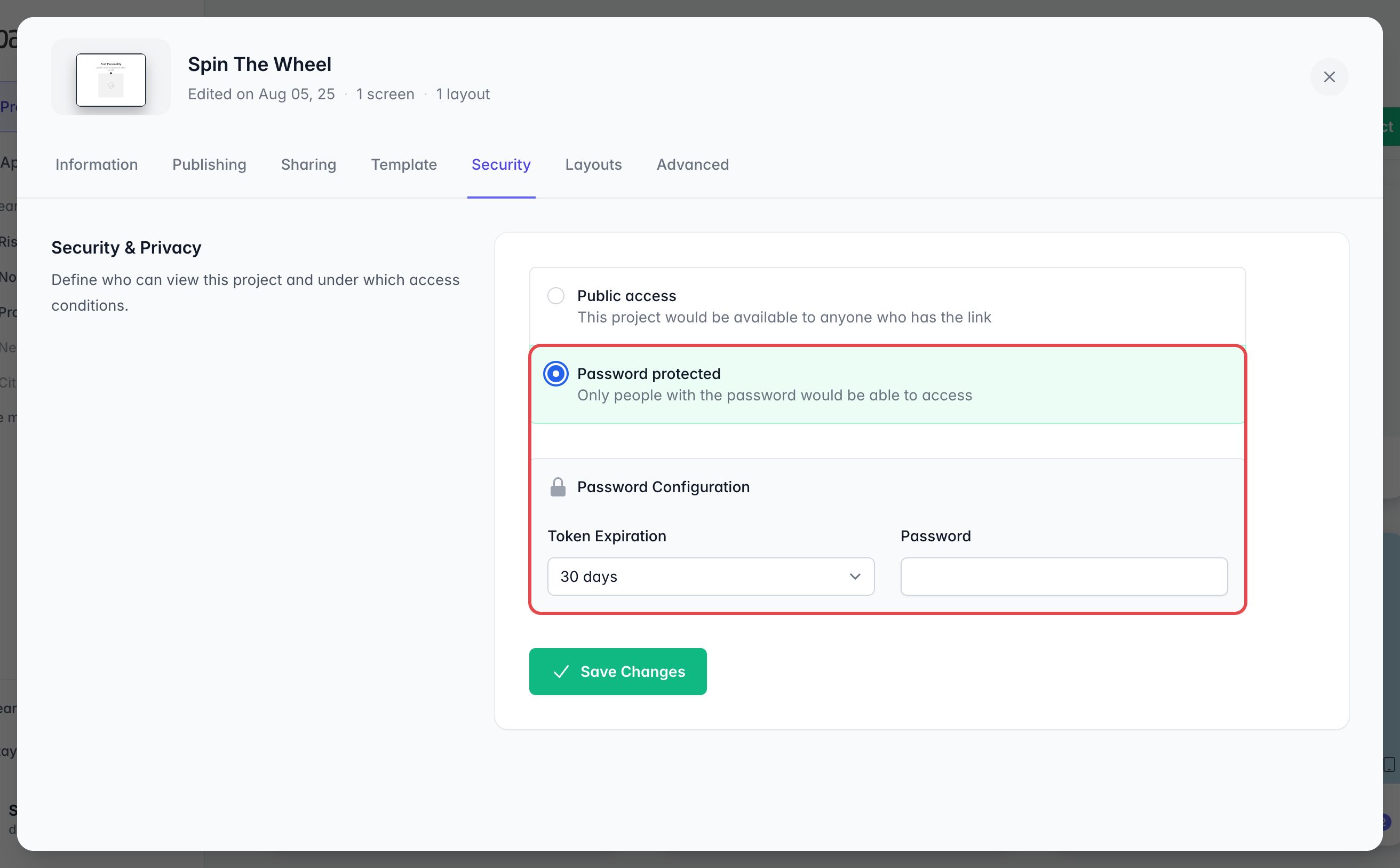
In your dashboard, hover over the project, click ···, then Security… Select Password protected, set the Token Expiration and the Password, then click Save Changes.
Access modes:
- Public access: anyone with the link can access the project.
- Password protected: users must enter a password to access the project.
Security settings:
- Password definition: choose a custom password to restrict access.
- Token Expiration: how long a visitor stays signed in after entering the password: 5 minutes, 1 hour, 24 hours, 7 days, 30 days, or 1 year. Once this time has passed, the visitor must enter the password again. The password itself does not expire.
These options allow you to precisely control who can view your project and how often visitors must enter the password.