
Create API keys
An API key lets an external tool or an automation access the PandaSuite API on behalf of your account. You choose what each key can access, and you can revoke it at any time.
Create an API key
- In the dashboard, click your name at the bottom left, then Account, and open the Security tab.
- In API Keys, click Create API Key.
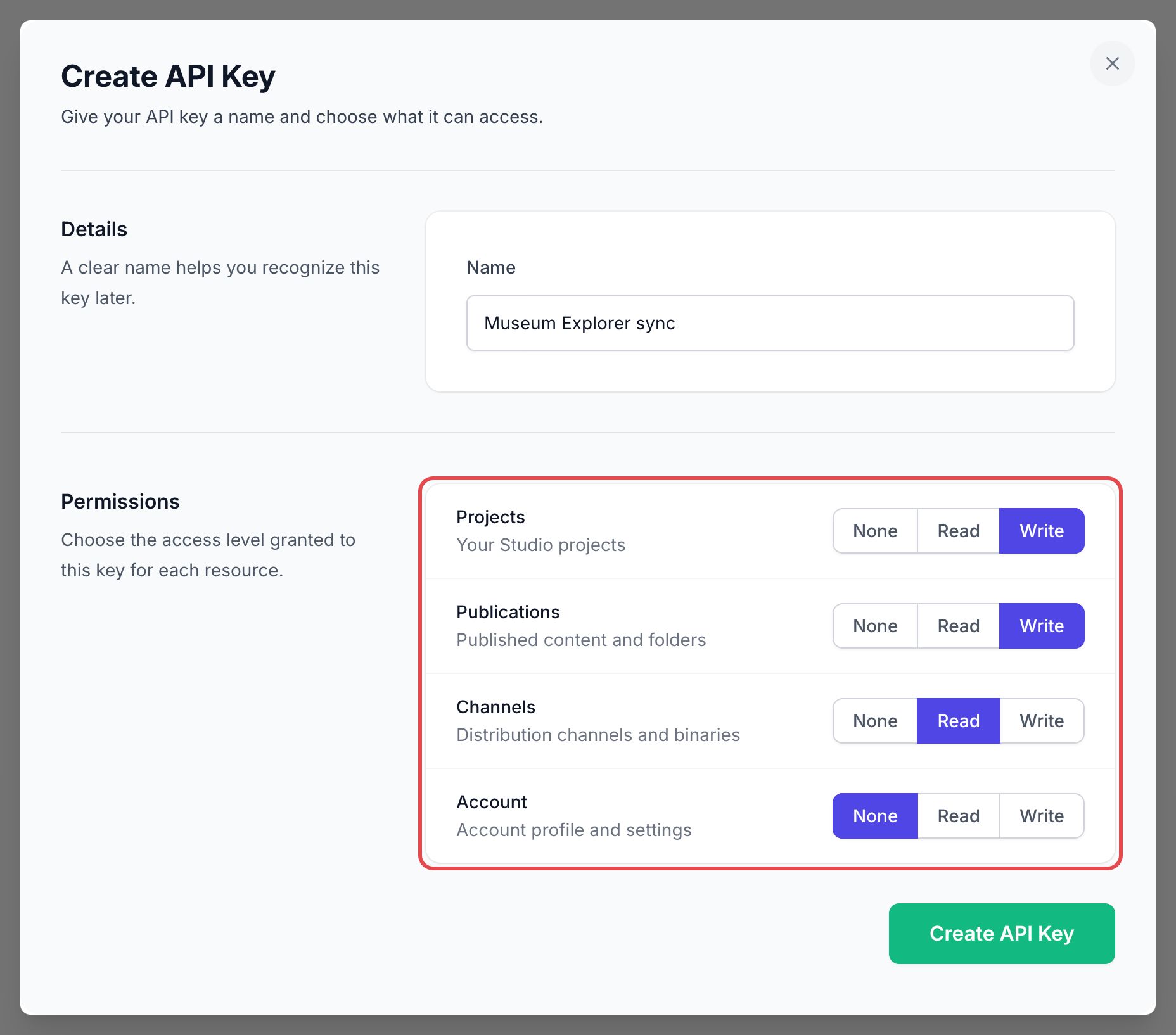
- In Name, enter a name that helps you recognize the key later, for example the tool that uses it.
- In Permissions, choose the access level of the key for each resource: None, Read, or Write (write includes read).
- Projects: your Studio projects.
- Publications: published content and folders.
- Channels: distribution channels and binaries.
- Account: account profile and settings.
- Click Create API Key. The button stays disabled until the key has a name and at least one permission.
- The API Key Created window shows the Secret key. Copy it now and store it somewhere safe: for security reasons, PandaSuite never shows it again. Click Done.
Anyone who has the secret key can access the API with the permissions you granted. Never share it in a public place. If a key leaks, revoke it and create a new one.
Manage your API keys
The API Keys list shows each key with its Name, the last characters of the Key, its number of Scopes (hover over it to see them), its Created date, and its Last Used date.
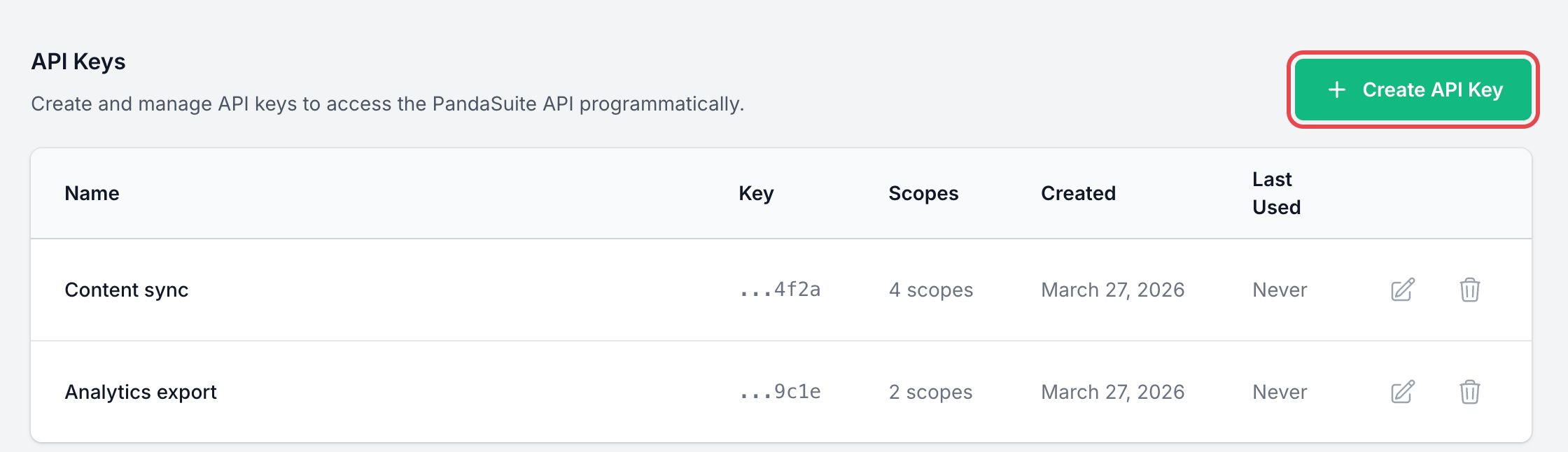
- Edit a key: click the pencil icon. In the Edit API Key window, change the name or the permissions, then click Save changes. The secret does not change.
- Revoke a key: click the trash icon, then Revoke in the Revoke API Key window. Every tool that uses this key loses access immediately.
If two-step authentication is on, PandaSuite asks you to verify your identity before you see or change your keys: click Verify, then confirm with one of your methods.