

Connect your app to an analytics tool
Connect your app to an analytics tool (Google Analytics, Mixpanel, Tealium, Matomo, Firebase…) to collect data and understand your users’ behavior.
PandaSuite does not provide its own analytics dashboard. To collect and review usage data (including automatic tracking and your custom tracking actions), you need to connect your app to an analytics tool.
Choose the right analytics tool based on the type of application and how it is deployed:
- For a web app: Google Analytics, Mixpanel, Tealium, Matomo, or another web analytics script
- For a mobile iOS & Android app: Firebase Analytics
You will review your data directly in the connected tool (for example, Google Analytics reports or the Firebase console).
When an analytics tool is connected to your application, PandaSuite allows you to collect a set of data on the pages and events of your application. Thanks to the custom tracking plan, you can also choose to track specific events, particular forms, or specific pages.
Add a tracker from the dashboard
Google Analytics, Mixpanel, LinkedIn Insight Tag, Firebase, and AppsFlyer connect from the dashboard, without code:
- On your app page, click Settings, then open the Analytics tab.
- Click Add Tracker.
- In Type, choose the tool: Google Analytics, Mixpanel, LinkedIn Insight Tag, Firebase for Android, Firebase for iOS, Firebase for the Web, or AppsFlyer.
- In Value, paste the identifier that the tool gives you, such as the measurement ID of Google Analytics.
- To limit the tracker, click Advanced settings in Add Filter:
- Target Channel: adds the tracker to one of the app’s channels instead of the app itself (No Channel). This list appears only if the app has channels.
- Target Device: limits the tracker to Mobile, Tablet, or Desktop. With no device selected, it applies to all of them.
- Method: All, Web for the web app, or Native for the native apps.
- Click Add Tracker.
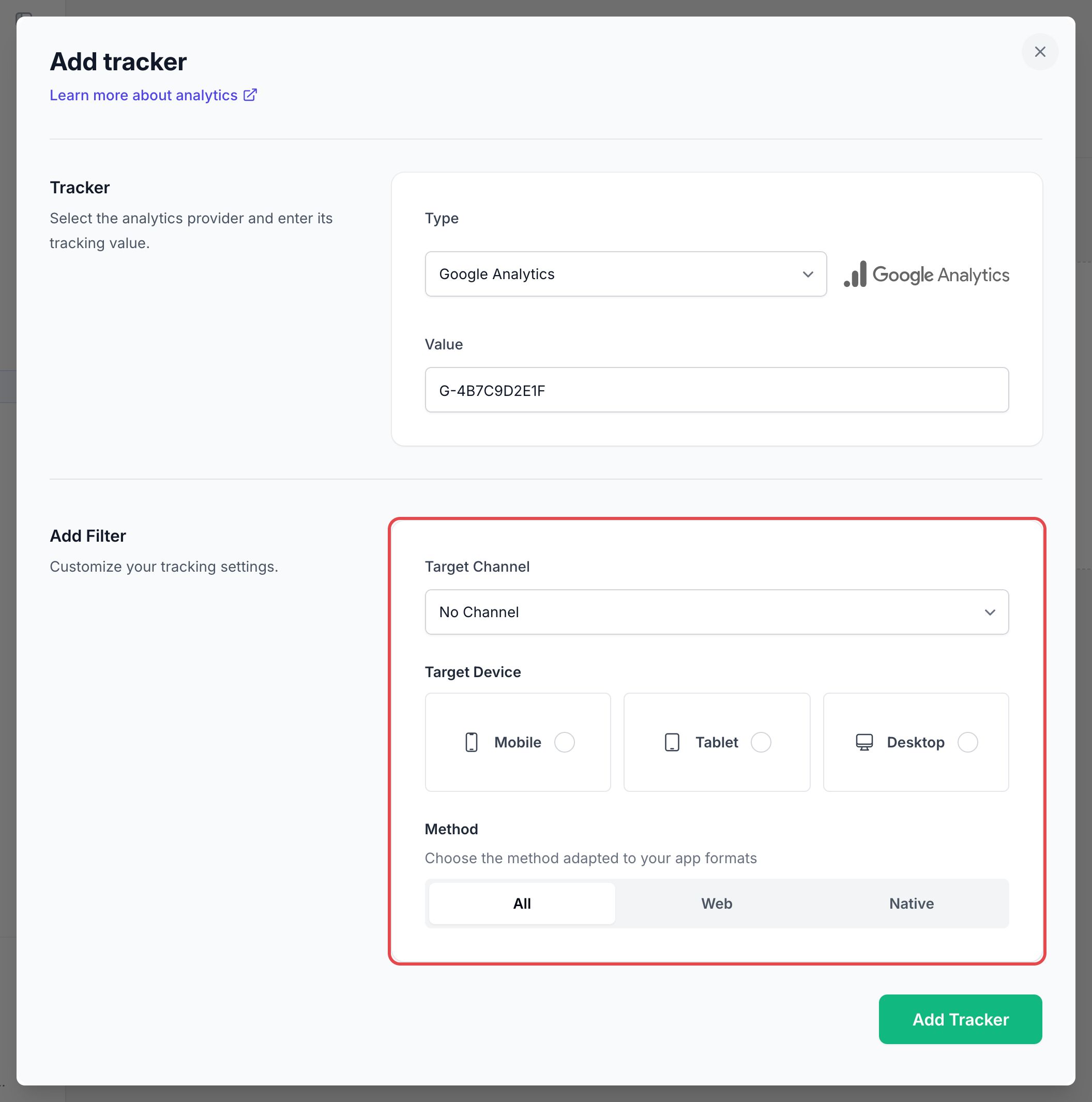
Filters are not available for Firebase and AppsFlyer trackers. After adding a Firebase for Android tracker, generate a new APK: the Firebase configuration is not dynamic on Android.
For step-by-step guides, see Connect to Google Analytics and Connect to Firebase Analytics.
Connect a custom analytics script to a web app
For web apps, you can also add analytics scripts that are not listed in Settings > Analytics. Use this option for tools such as Matomo, Piwik PRO, Tealium, Piano Analytics, Meta Pixel, or a tag manager provided by your organization.
On your app page, go to Settings > Web Settings > Custom code and paste the provider script in Space before </head>. The script must include the <script> tags and any HTML that the provider asks you to place in the page head.
When the script is loaded, PandaSuite can send automatic analytics and custom tracking actions to compatible web analytics APIs. For Matomo, use a setup that exposes the standard _paq queue on the page. For Meta Pixel, paste the base code provided by Meta as is. If you use a tag manager, make sure it forwards PandaSuite page views and events to your analytics tool without duplicating page views.
Then enable Auto. analytics in your project properties if you want PandaSuite to send baseline screen and interaction events automatically. To track specific interactions, add custom tracking actions in your project. See Custom tracking plan.
Be sure to provide a cookie consent banner if you collect data from a web app.
Remember to connect the tool before launching your application/project to access all the information: it is not possible to obtain data retroactively.
If your project is used on a kiosk or in a place with limited connectivity, remember that analytics tools can only receive data when the device has an internet connection.
For offline considerations and alternatives for fully offline devices, see Kiosk and offline projects.