

Export an APK / AAB file
The Android export is the final step before publishing or distributing your application.
You will:
- Customize the name, icon, and splash screen.
- Choose the file format (APK or AAB) and distribution mode.
- Digitally sign the application so Android can install it.
Once the binary is generated, you will have a download link from your PandaSuite dashboard.
APK / AAB export is only available on Single, Multi, Full, or Ultra plans.
What is an APK / AAB file?
The APK (Android Package) file is a package containing the files of an application in Android format. This file makes it possible to install an application on your device. You can export the APK file of your application from your dashboard.
Since August 2021, Google requires a new format for new applications entering the Play Store: the Android App Bundle (AAB) format. This lighter format replaces the old APK format. It is now possible to export your application in AAB format, while the APK format remains used for installation outside the Store (sideloading).
Prerequisites
- APK / AAB export is only available on Single, Multi, Full, or Ultra plans.
- Your project content is finalized and published.
- (Optional) A Google Play account if you plan to publish on the Store.
- For EasySign signing: your P12 certificate + its password + the Application ID (Android package name, format
com.company.myapp).
Minimum OS Version and Device Compatibility
| Item | Details |
|---|---|
| Minimum supported version | Android 7.0 (API level 24) |
| Supported devices | Android phones and tablets |
| Choices in the export form | Mobile, Tablet, or both (a Single plan is enough) |
| Binary types | .apk for direct installation, .aab for Google Play publishing |
| Installation | An APK can be distributed directly; an AAB must be uploaded to Google Play for signing and delivery |
Important points before distribution:
- If you target both Mobile and Tablet, test your project on several screen sizes and densities to validate the layout.
- AAB is the recommended format for Google Play, while APK remains useful for testing, sideloading, or internal distribution.
- Behavior can vary depending on the manufacturer, Android System WebView version, battery optimization rules, or permissions denied by the user.
- If your project uses native capabilities such as push notifications, camera, Bluetooth, GPS, or NFC, verify them on real devices before release.
Export the APK / AAB file
Access the dashboard
- Log in to your PandaSuite dashboard.
- In Apps, create or select the relevant application.
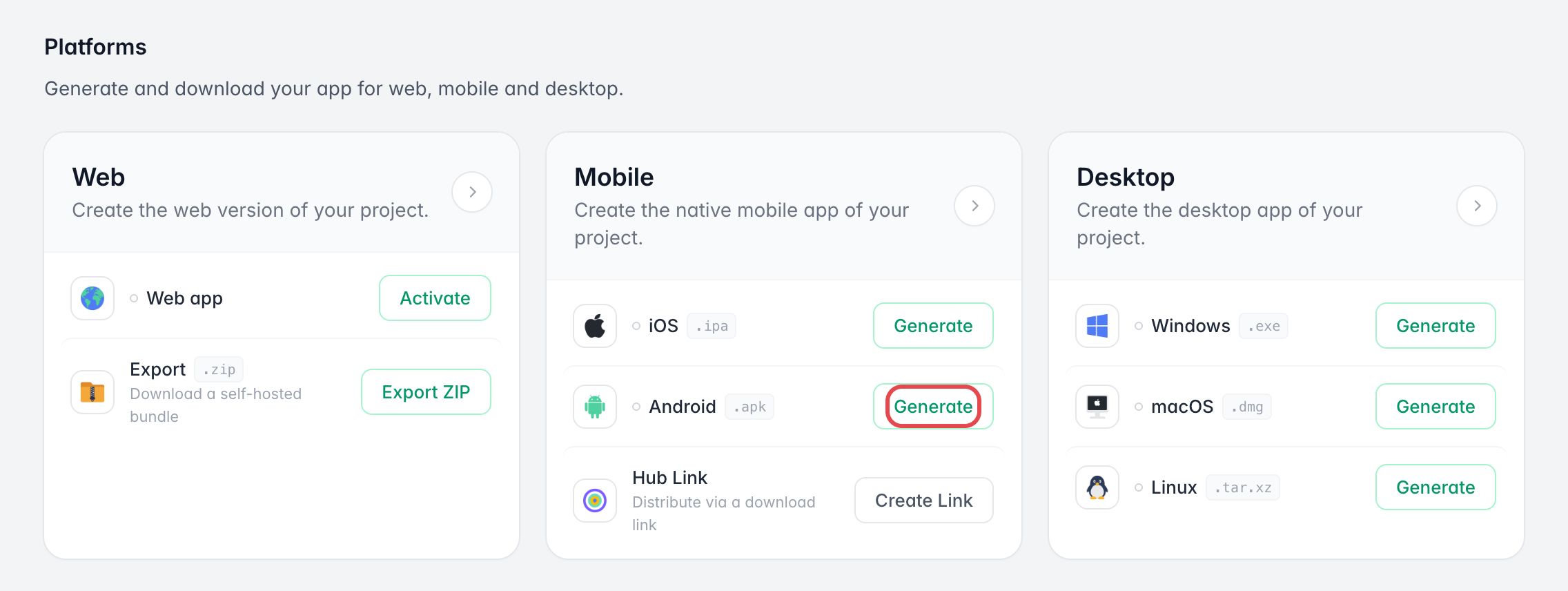
- In Platforms, find the Mobile card.
- Click Generate next to Android.
Fill out the form
| Field | Description |
|---|---|
| Icon | PNG 1024 × 1024 px, no transparent background. This icon is used once the Android app is installed, so it should match the final branding you want users to see on their launcher. |
| Name | Displayed under the icon on the device. Use the final user-facing name, because this is how people will identify the app on their phone or tablet. |
| Device Compatibility | Choose Mobile, Tablet, or both: a Single plan is enough. This setting should match the layouts you tested and the Android devices you intend to support. |
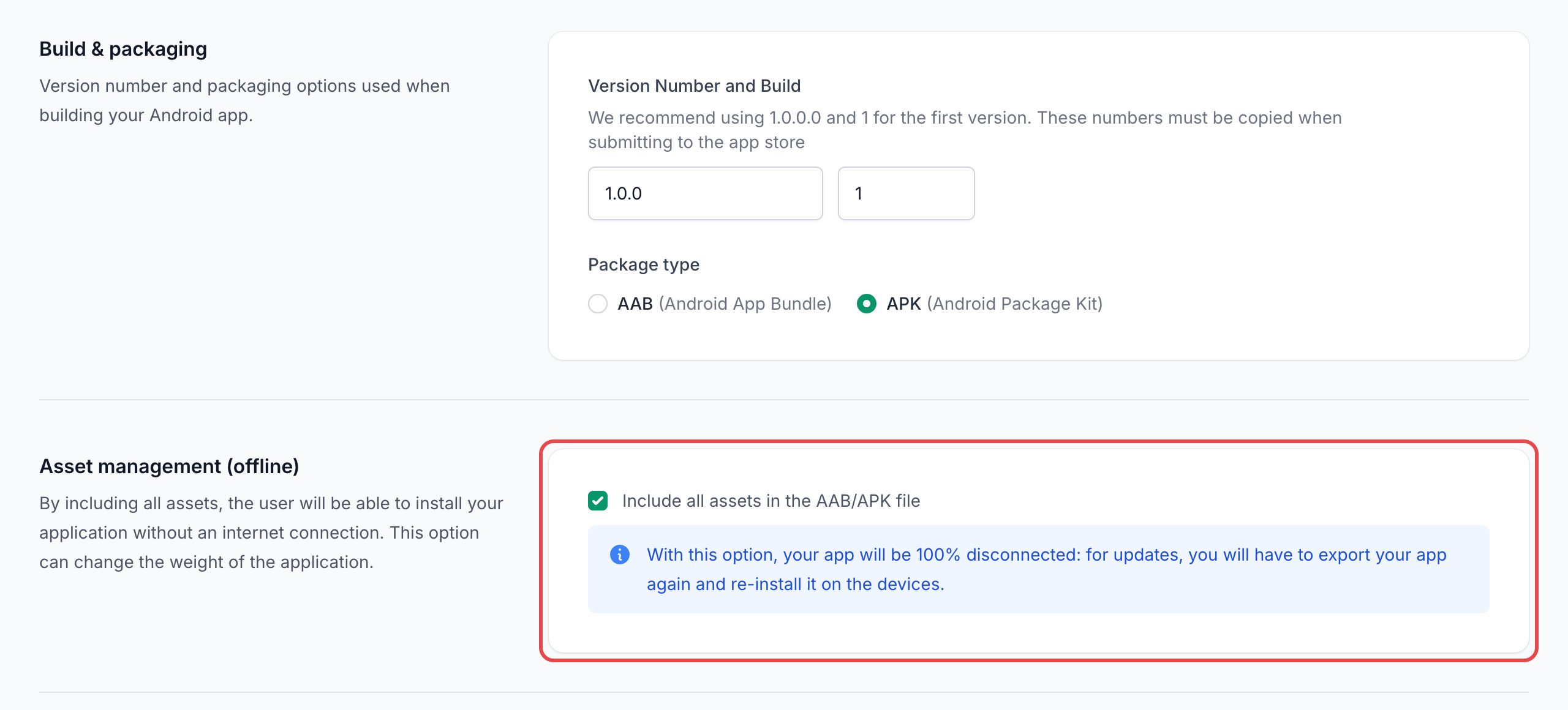
| Version / Build | We recommend starting with 1.0.0 and 1. Increment them with each update: the version is the visible release number, while the build tracks technical revisions. |
| Package type | Choose APK for direct installation, testing, or sideloading, and AAB for Google Play publishing. This choice affects how the file can be distributed later. |
| Asset management (offline) | Include all assets in the AAB/APK file so that, once installed, the app opens its project without an internet connection; the file gets heavier. External websites, streamed media, and remote data still need the network. The app then stays on its embedded content: any later content update requires a new export, reinstalled as an APK or uploaded to Google Play as an AAB. Requires a Yearly or One-Time Payment plan, and is available only if your application contains a single project. |
| Loading screen | Import an image (portrait and landscape) or let PandaSuite generate the screen from your icon. Use your own visuals if you need stricter control over the startup branding. |
| Android Distribution Mode | • Publish on the Google Play Store • Distribute outside the Play Store (sideloading). Select the mode that matches how you plan to deliver the Android build to users. |
| Signature | Determines whether the file is signed with your Android certificate, with the PandaSuite certificate (only for an APK distributed outside the Play Store), or left unsigned for manual signing. |
| Advanced options | Click Show advanced options. • Navigation bar logo (only for hub app): if you are exporting a content hub, choose the logo displayed in the navigation bar. • EMM (Enterprise Mobility Management) parameters: appears when your projects declare EMM parameters. Choose Enable so that your MDM can pass their values to the app. You can usually ignore this section for a standard single-app export. |
If you are unsure, double-check Device Compatibility, Package type, Android Distribution Mode, and Version / Build before validating. These are the fields that most often affect installation and publication workflow.
Signature options
| Option | When to use it? | Requirements |
|---|---|---|
| Sign the application with your Android certificate | You are publishing in your name on Google Play. | • Google Play account • .p12 file + password• Application ID (Android package name) |
| Sign the application with a generic certificate from PandaSuite | Distribution outside Play Store (tests, internal use). | No developer account required. APK only, with Distribute outside the Play Store (sideloading): unavailable for an AAB. |
| Do not sign the AAB/APK file | You manage signing through your own scripts/CI. | Download an unsigned APK |
Start the generation
Click Export.
The process takes place on our servers and can last from a few minutes to several hours depending on the load.
You will receive:
- A confirmation email;
- The download link on the Mobile card of your app page.
To publish on the Play Store: follow the guide Publish on Google Play Store. For direct sharing: send the APK link to your testers and remind them to allow unknown sources.
FAQ
Which format should I choose between APK and AAB?
Choose AAB for Google Play. Choose APK for testing, sideloading, or direct distribution outside the Store.
Can I install an AAB file directly on an Android device?
No. An AAB file must be uploaded to Google Play, which then generates the builds delivered to devices.
Do I need to sign my Android export?
Yes for standard distribution. You can sign with your own certificate, use the PandaSuite certificate for an APK distributed outside the Play Store, or manage signing manually depending on your workflow.
Google Play Console shows warnings after I upload my AAB. Is the file invalid?
Not necessarily. After import, Google Play Console can show warnings about missing debug symbols, edge-to-edge display, deprecated Android APIs, or large-screen behavior. These messages can be recommendations rather than blocking errors. If Google Play still lets you save the release and continue to review, your AAB is usually still accepted. Review the warnings and plan fixes when needed, but distinguish them from errors that stop the release process. For an AAB generated by PandaSuite, the warning that no deobfuscation file is associated with the App Bundle is expected: you have nothing to upload.
Should I test on several Android devices?
Yes. Behavior can vary depending on screen size, manufacturer, Android version, system WebView, and granted permissions.