

Shadow
Add a shadow to your graphic objects to add depth and dimension to your user interface. Define their color, size, position and blur level. You can add multiple shadows on the same object and create animation effects on the shadow.
Add a shadow
You can create shadows on text, images, shapes, groups, the Scroll Zone component and the Flexbox component.
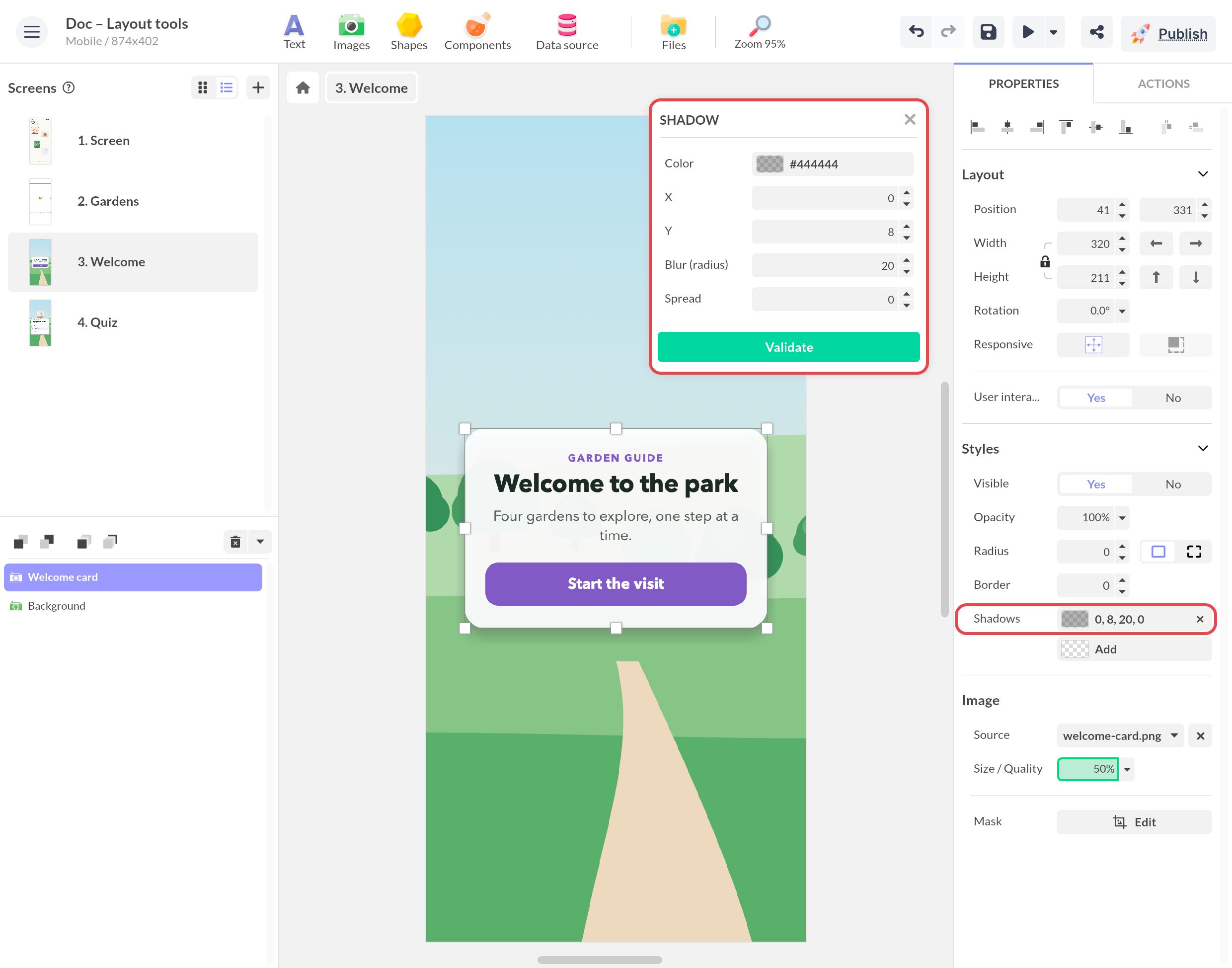
In the Styles section of the properties, click Add next to Shadows. Each shadow then appears as a row: click it to edit it, or click the cross to remove it.
Here are the drop shadow properties:
- Color: choose the color of the drop shadow.
- X: shift the drop shadow along the x axis (horizontal).
- Y: shift the drop shadow along the y axis (vertical).
- Blur (radius): soften the edge of the shadow. The higher the value, the more diffuse the shadow.
- Spread: enlarge the shadow beyond the outline of the object.
Create a shadow effect
You can create shadow effects using states.
Learn more: States and transitions