Tripetto
Tripetto allows you to create offline forms in your application. With the Tripetto component, integrate your forms and use the data entered by the user.
Introduction to Tripetto
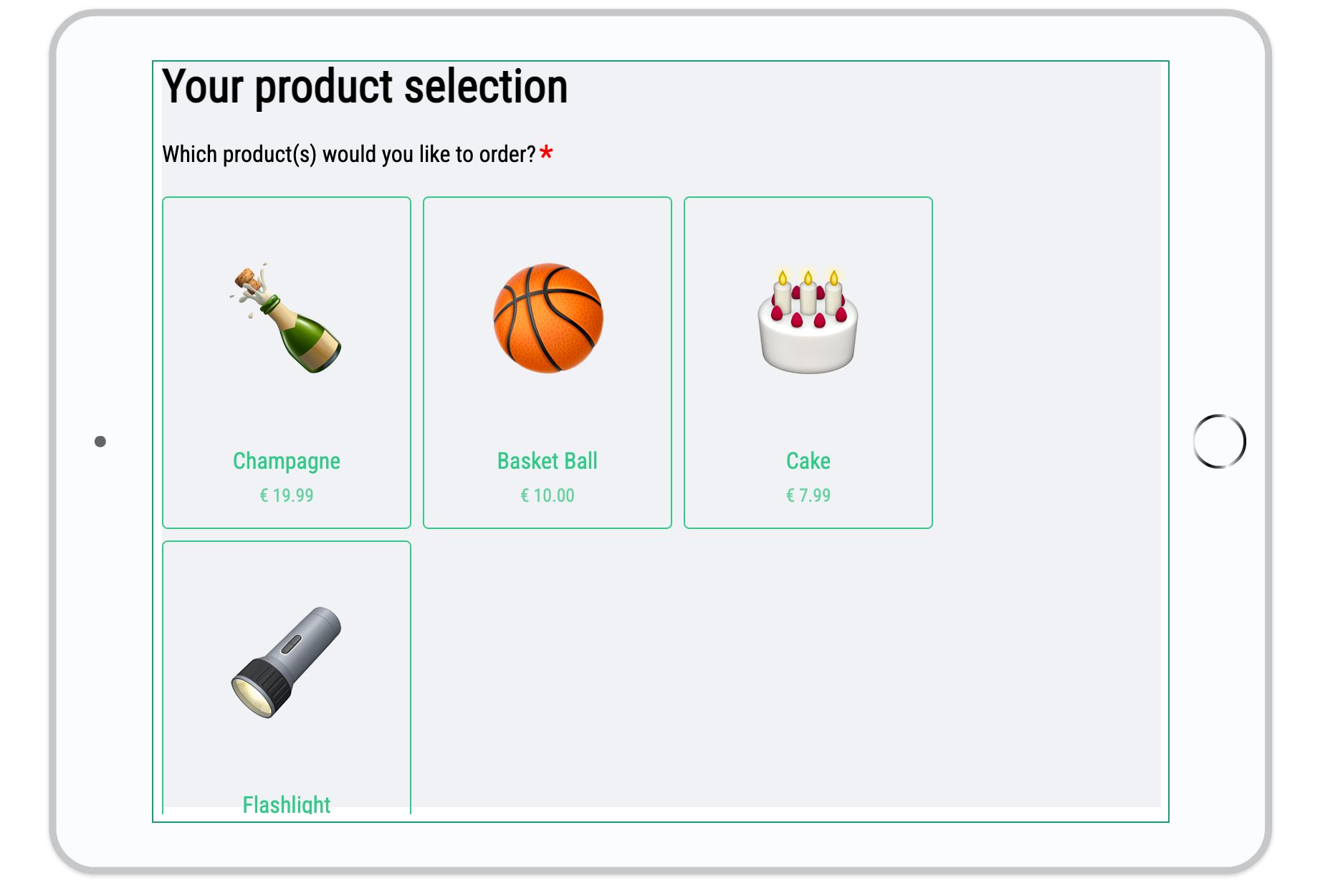
Tripetto allows you to create forms in various formats: checkboxes, dropdown menus, multiple choice, scores… Creation is visually done through a drag-and-drop editor requiring no coding knowledge.
Tripetto offers several advantages:
- It allows displaying your form and storing data without any internet connection
- It is possible to associate actions with this form and use them in an automation workflow for example, to send these data by email or to an external service (CRM tool).
Forms already inserted in your projects keep working, offline included: the component stores the form in your project, so your app doesn’t depend on your Tripetto account. You only need a paid Tripetto account to create or change a form. Without one, the Forms page describes other ways to collect data, including a custom form built with the Text Input component, which also works offline.
Create the form
- Go to tripetto.com and sign in to your account. Tripetto no longer offers free Studio accounts: creating or editing a form requires a paid account, which you can request from Tripetto if you don’t have one yet (Tripetto’s announcement).
- In the Studio, create a new form or use an existing template. In our example, we used and simplified the Order Form example.
There are many options for customizing the style and logical scenario of the questionnaire. For any questions about Tripetto, please consult their help center.
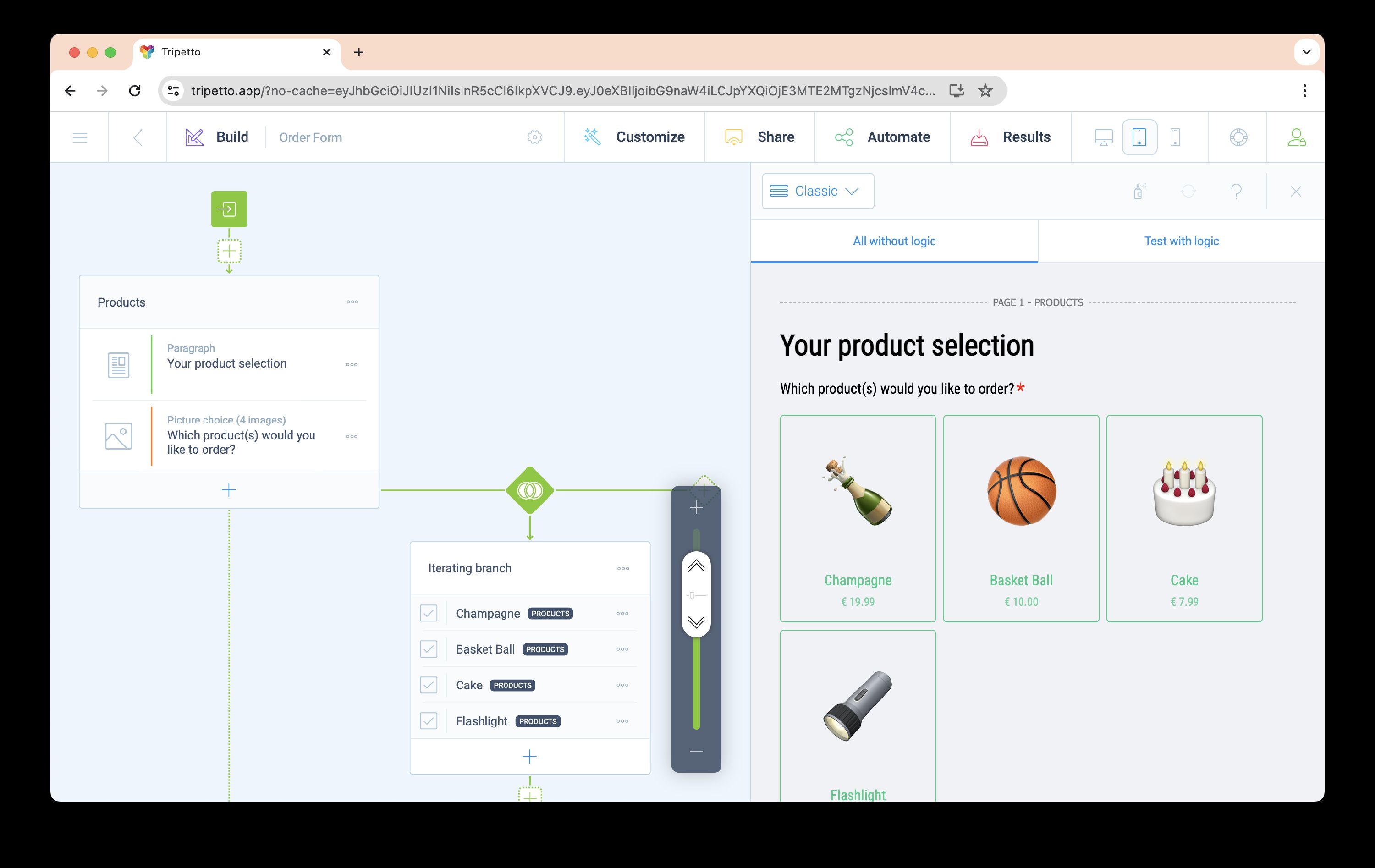
- When your form is ready, click on the Share button.
- In the window that appears, select the method: Embed in a website
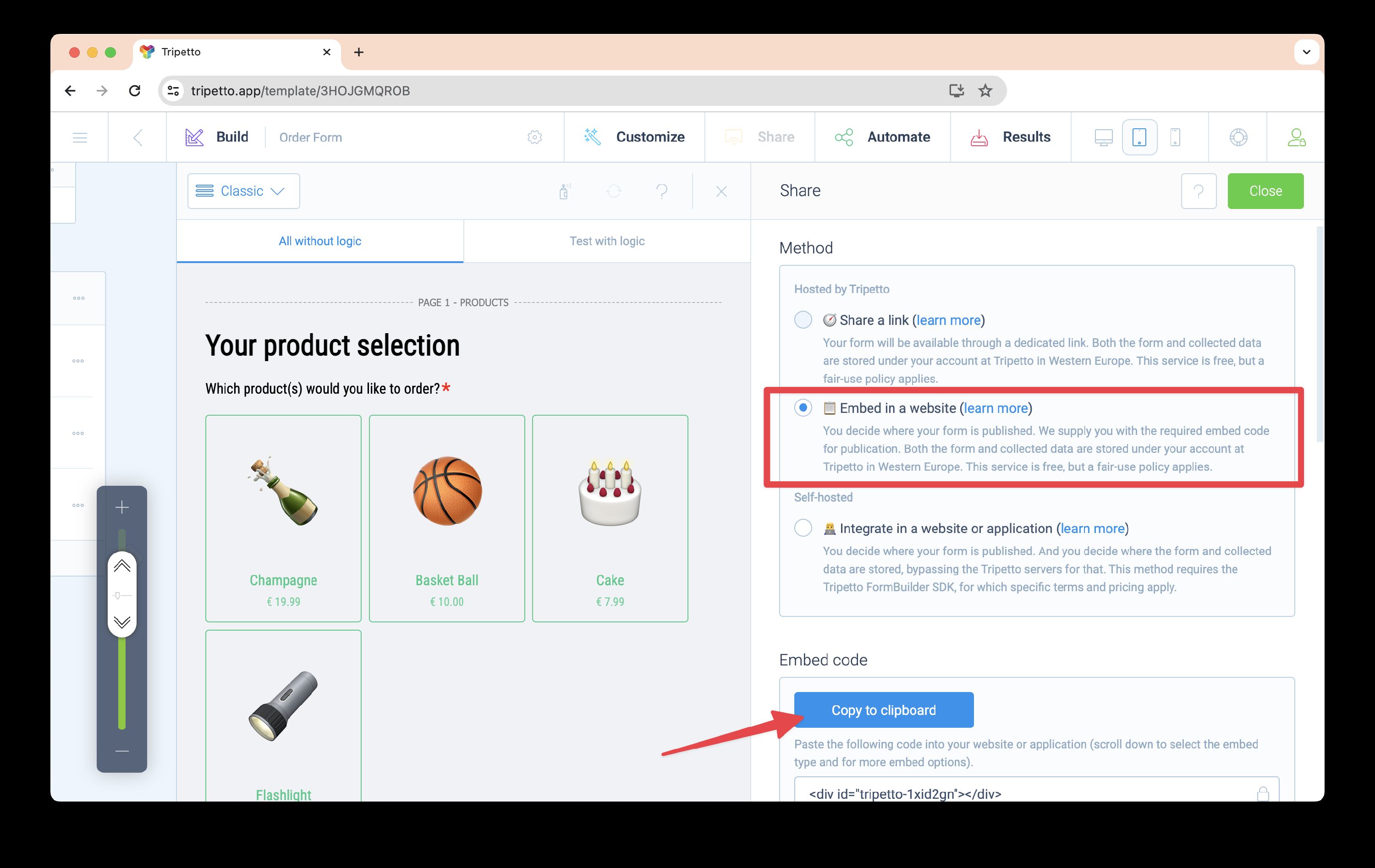
- Click on the Copy to clipboard button to retrieve the code
Insert the form
To insert the form into your project, go to PandaSuite Studio:
- Click on Components and insert the Tripetto component
- In the properties, click on the Edit button for content and paste the content inside
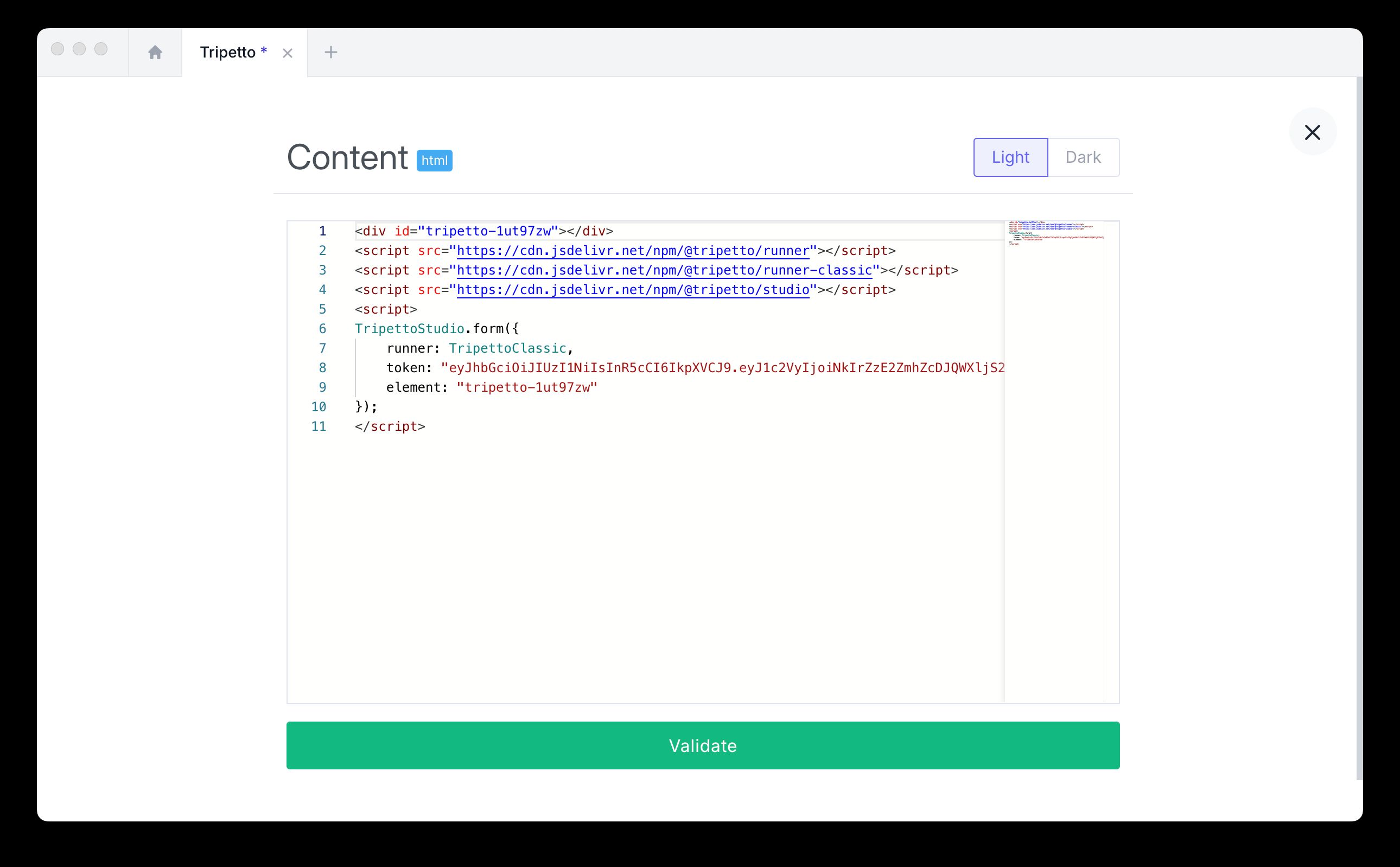
- Your form appears when you double-click on the component area.
With each modification of your Tripetto form, you must copy and replace the code.
Trigger an action when the form is submitted
You can associate an action at the end of the form:
- Select the component and click on Actions.
- Choose the trigger Form submitted (onSubmit)
- Then set up the action of your choice, for example, sending these data to an external service or linking to another screen.
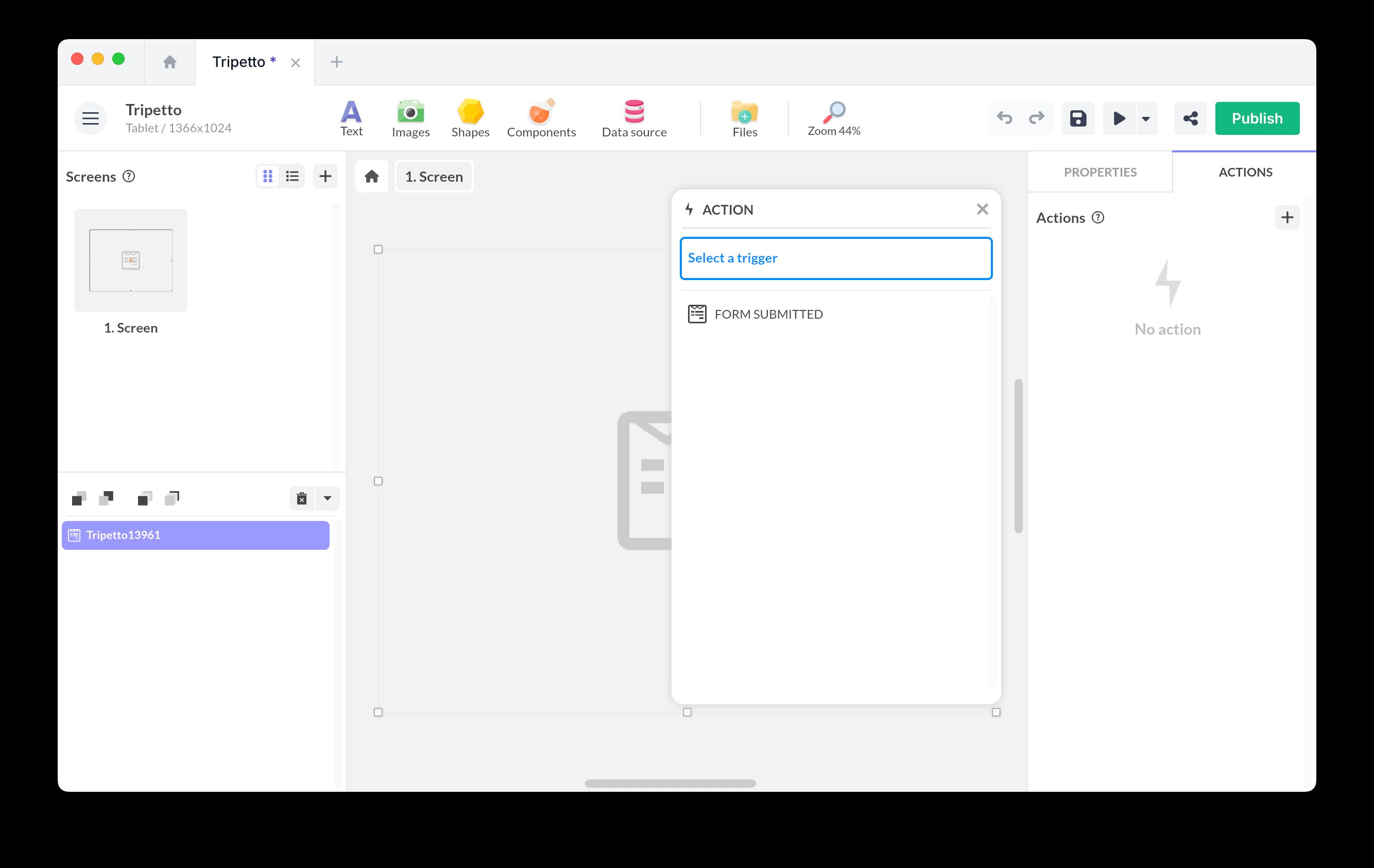
To send these data to an external service, it is necessary to create a webhook via Integromat / Zapier using the HTTP component.
Use the form data
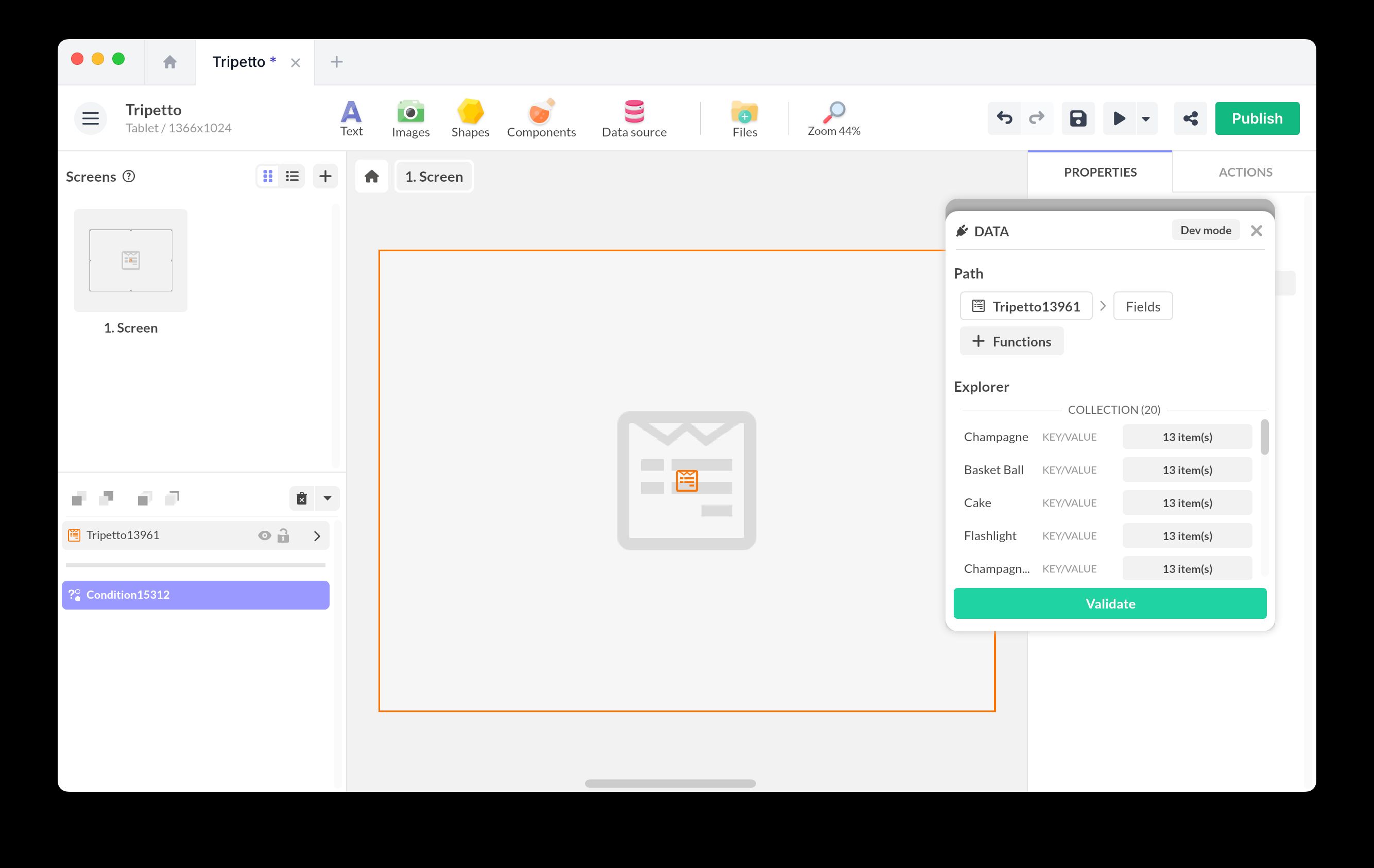
You can access the form data or associate a condition based on the data entered by the user.
To create a condition based on the data:
- Submit the form once (from the PandaSuite Studio creation) to display the data: PandaSuite needs this to understand the information.
- Add a condition
- In the Target field, select the Tripetto component and browse the data to select the data of your choice.
- Finalize your condition