
Save user data in Firebase
Save user data in Firebase (score, profile, language preference, progress…) and make user experience more personal in the app.
This feature relies on the authentication system via Firebase.
When a user account is created on Firebase, it has a fixed set of properties: a unique identifier, an email address, and a name that are stored in the Firebase project user database. Thanks to Cloud Firestore, the Firebase database, you can store additional properties: a score, a user profile, etc.
Before associating any data with a user, first create a Firebase project and configure it properly via the Firebase Session component. Insert the authentication form to allow users to log into your application.
See also
Data structure
Cloud Firestore is a NoSQL cloud database that is used to add, retrieve, and update data in your application. Basically, it is a database used to store data in your Firebase console. Firestore data is stored as documents, which are organized into collections. There are no tables or rows. Each document contains a set of key-value pairs.
The collection users contains your different users, each represented by a document.
Here is an example of a document:
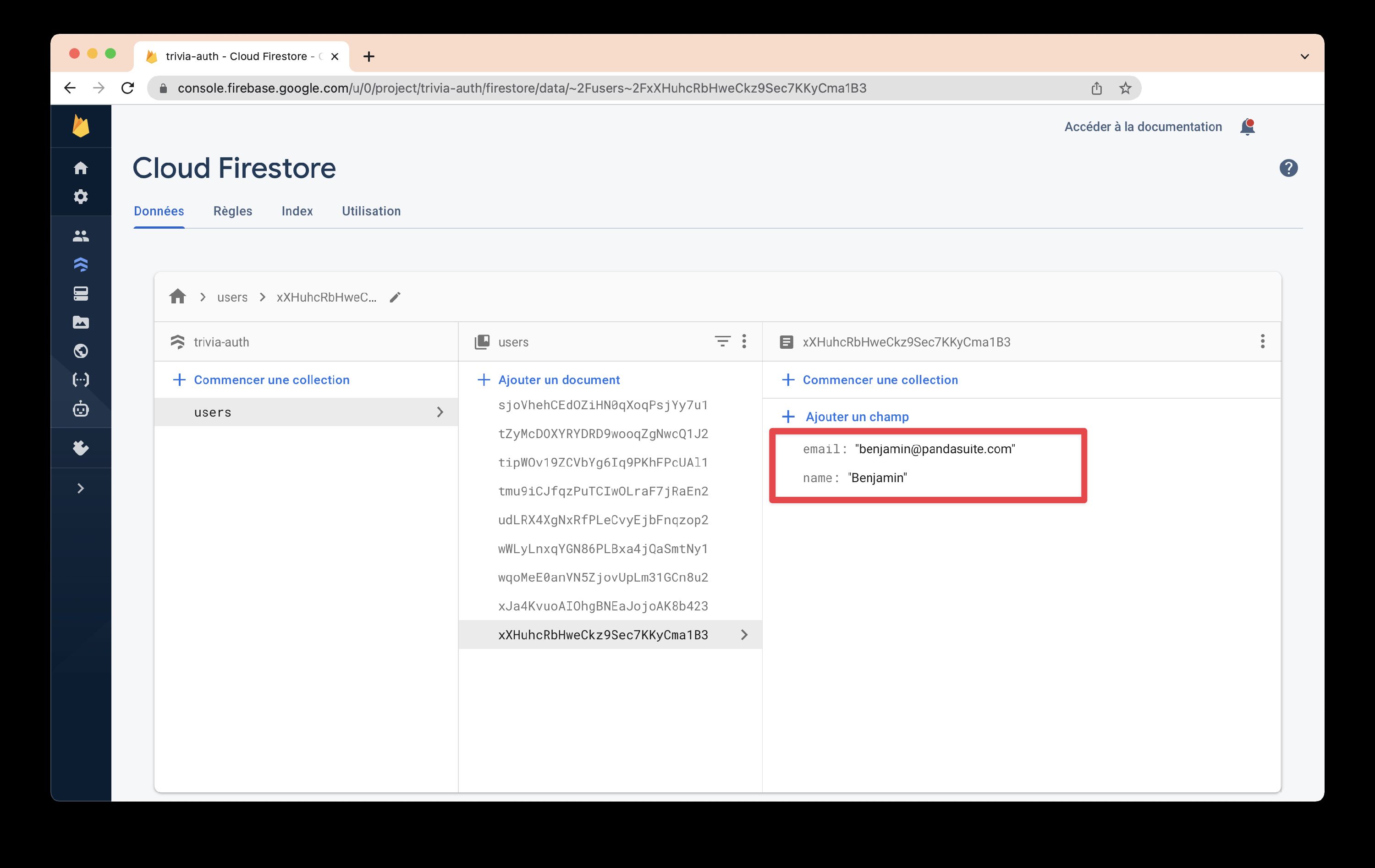
Cloud Firestore is schema-free, so you have complete freedom over the fields you place in each document and the types of data you store in those fields.
Create / edit data from the app
Cloud Firestore does not require a predefined schema. However, in PandaSuite, the easiest workflow is now to define that structure in advance so Studio can expose it more clearly when you configure your app.
Prepare the user document structure
Start with Default user data in the Firebase Session component.
This tab defines the document that will be created in Cloud Firestore for each new user. It is the best place to prepare profile fields, progress data, preferences, nested objects, arrays, or PandaSuite collections.
Because this structure already exists in Studio, it becomes easier to target the right fields later in your bindings, conditions, and actions.
Complete the profile during sign-up
If you also need to collect information in the registration form, add it with Advanced user fields in the Authentication component.
These sign-up values are then merged into the default structure when the user account is created.
Update user data later from the app
Once the user account has a document in Cloud Firestore, select a trigger and choose Interact with a data source > Session Firebase > Modify the data.
This action uses the same generic data editing field as the Datastore, but it updates the Cloud Firestore document of the currently signed-in user.
Use it to update an existing field, increment a score, add or remove items in an array or collection, or clear a field when needed.
In this control, choose a Target, then a Function, and a Value when that function requires one.
Use the same field name everywhere in your project. For example, if you save
language in one action, reuse exactly language when you read or update it
elsewhere.
If a field was not prepared in Default user data, it can still be added later when you update an existing user document from the app. This remains possible, but preparing the structure first usually makes configuration much easier in Studio.
Manage data from the Cloud Firestore console
From the Firebase console, view, add, edit and delete your data in real-time. Click on a collection to view its documents, then click on a document to view its fields and sub-collections. Click on a field to change its value.
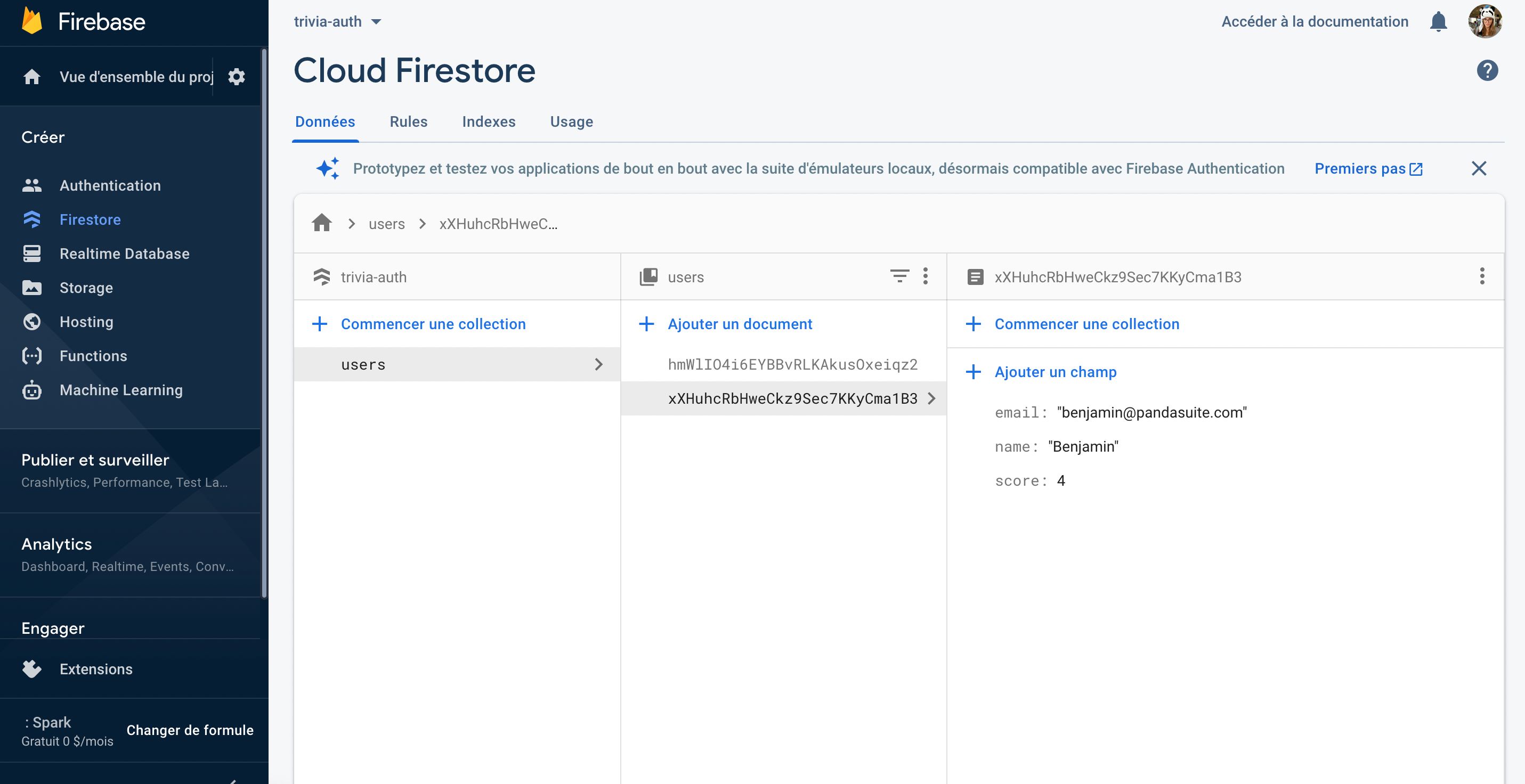
You can then reuse this data in your app with data binding, conditions, and automation workflows.
Store PandaSuite-specific data types in Firebase
You can also use Firebase to store PandaSuite-specific types and easily retrieve them. This helps maintain the structure of associated data and use it for automated actions, such as resuming progress or triggering a screen change based on previously saved information.