Custom tracking plan
Discover how to create a custom tracking plan for your application.
The custom tracking plan allows you to gather specific data about user interactions and screen loading in your app when your app is connected to an analytics tool (Firebase, Google Analytics…).
PandaSuite does not store analytics data itself. It sends tracking data to the analytics tool you connect, where you can review it.
While PandaSuite can automatically track many data points, this article shows how to add custom tracking actions to obtain more targeted information.
Auto analytics
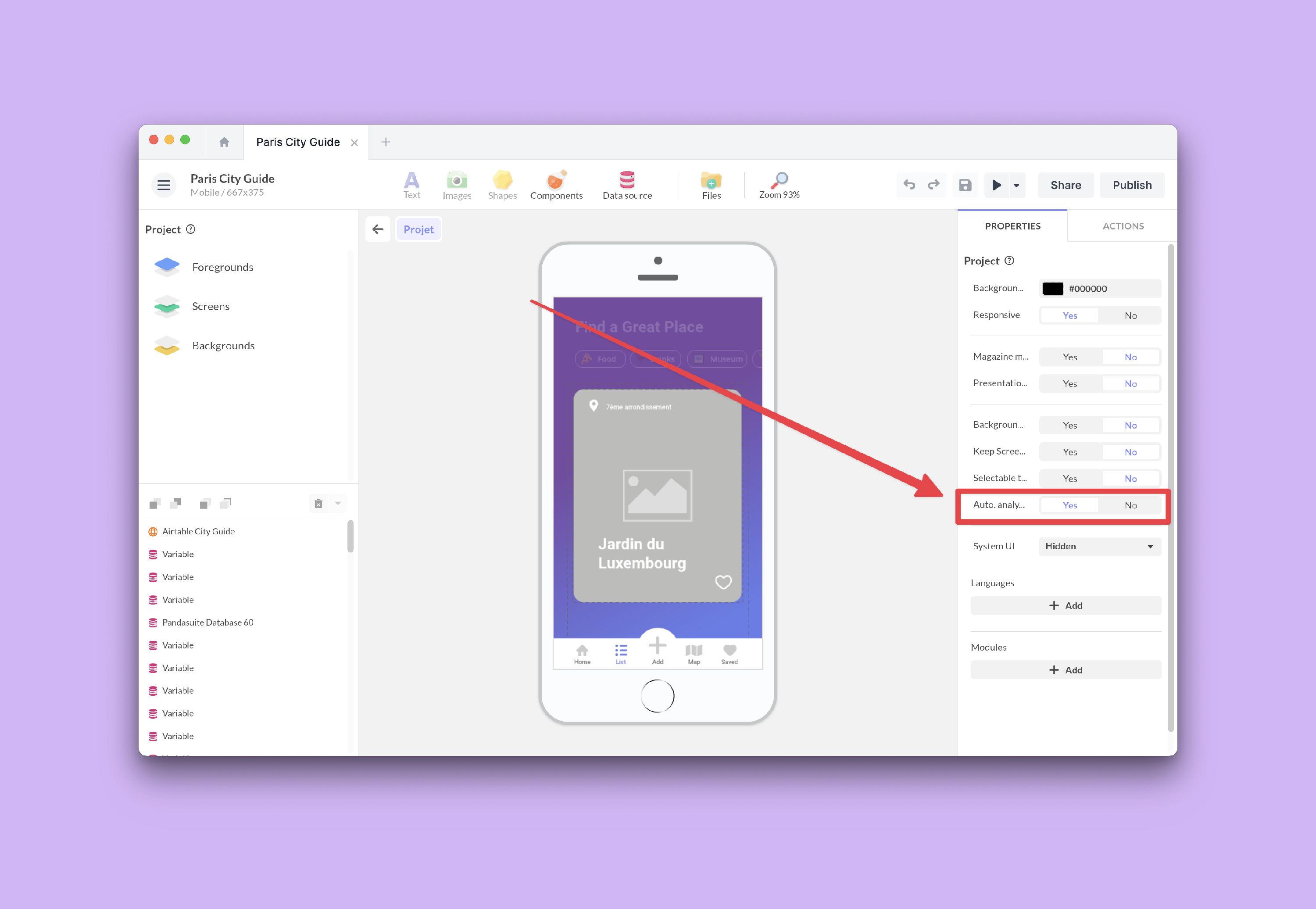
The Auto analytics feature in PandaSuite automatically tracks common usage signals (such as screen views and user interactions) and sends them to your connected analytics tool.
You can enable or disable it in your project properties. See Project properties.
However, sometimes you may need specific data that is not included in the automatic tracking.
Where to review Auto analytics data
Auto analytics data appears in the analytics platform you connected (for example Google Analytics or Firebase Analytics). PandaSuite does not provide its own analytics dashboard.
If you have not connected an analytics tool yet, start with Connect your app to an analytics tool.
What Auto analytics typically tracks
Auto analytics is designed to give you a baseline of usage without adding any action in your project. It typically includes:
- Screen loading (views) when users navigate in your app
- Common user interactions (for example tap/click and other gestures like scrolling or swiping)
- Interactions that trigger navigation or actions in your project
The exact events and naming depend on the analytics tool and the platform (web, iOS, Android).
Compatible web analytics scripts
For web apps, automatic analytics and custom tracking actions are sent to the analytics script loaded in the page. PandaSuite currently sends web tracking to common globals such as gtag/ga (Google Analytics), utag (Tealium), _paq (Matomo), and pa (Piano Analytics).
If your tool is installed through Custom code (see Connect a custom analytics script to a web app for the setup steps), check that the provider script is loaded before the interaction you want to track. For Matomo, the script or tag manager must expose _paq for PandaSuite to push page views and events. If events do not appear, first verify the script in Web app > Custom code, then check the real-time or debug tools in your analytics platform.
Custom tracking
In PandaSuite, you can add or replace automatic tracking actions with custom tracking actions to obtain specific data. This allows you to collect personalized information about events and views in your app. For example, you can track clicks on a specific button or the time spent on a specific page.
Once you have configured your custom tracking actions, the collected data will be sent to the tool your app is connected to. This can be analytics tools such as Firebase, Google Analytics, or other third-party tools. Make sure to properly connect your app to the tool of your choice so that the data is transmitted and processed appropriately.
Kiosk and offline projects
Analytics tools receive data over the network. If a device is offline, data can only be sent when the device is online again (behavior depends on the platform and the analytics provider).
Tracking without a public URL
Some analytics tools ask for a URL during setup (for example when you create a web “data stream”). If your kiosk app is not publicly available yet, you can generally use a placeholder URL during setup. Tracking still relies on the tracker ID you configure in PandaSuite.
If your project is fully offline (the device never connects to the internet), analytics tools cannot receive events. In that scenario, plan a different logging approach outside of analytics tools.
One option is to store a simple local event log in the Datastore (for example: screen name, action name, timestamp), then use Export data (local) to retrieve it as a CSV. See Export data (local).
If your goal is to make a web project usable offline (content caching), see Activate the service workers.
Add a custom tracking action
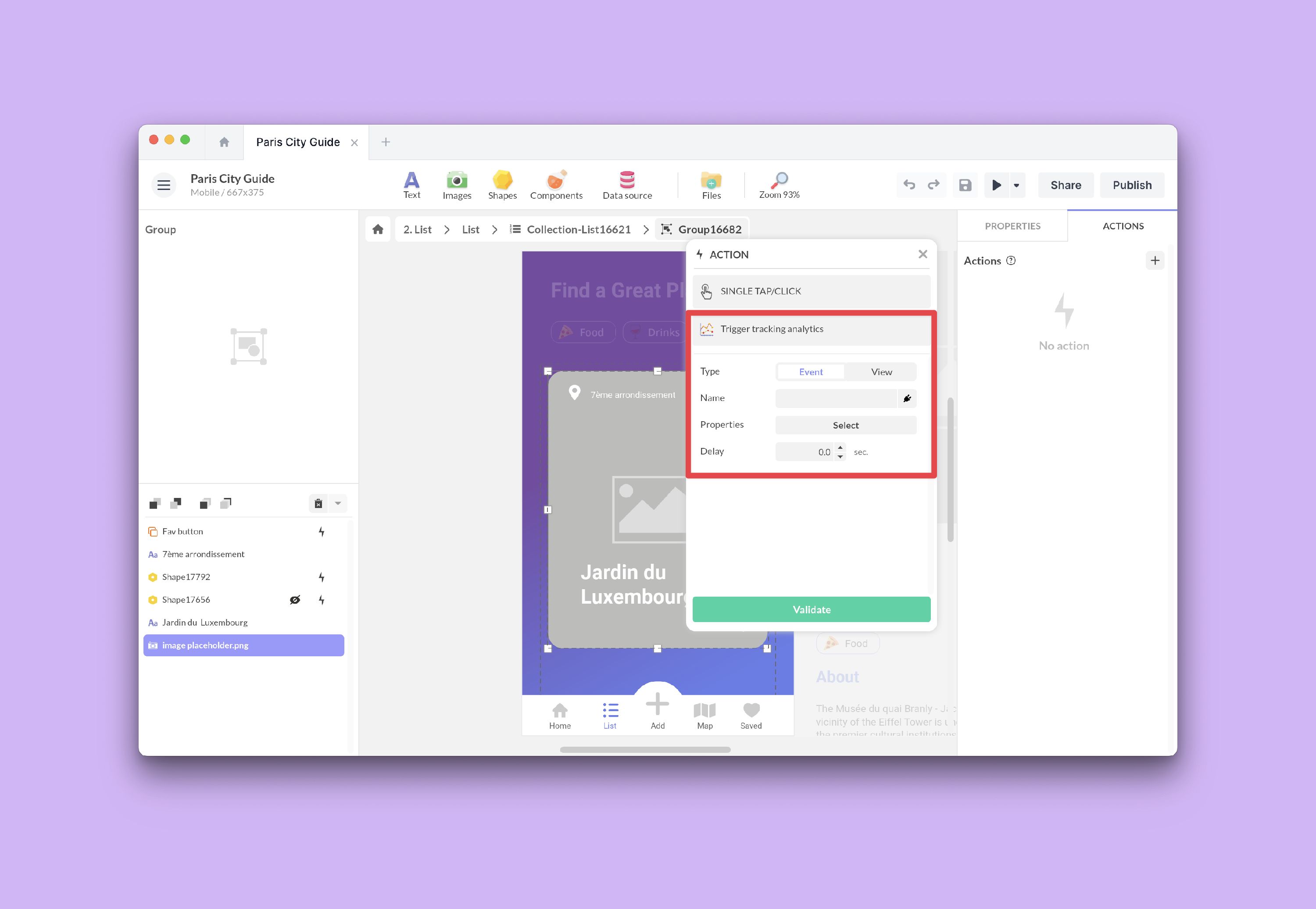
Here’s how to create a custom tracking action in PandaSuite:
- Choose a trigger: identify the event or action that will trigger your custom tracking action. It can be a button click, navigation to a new page, or any other interaction you want to track.
- Add the Trigger a Tracking Action action.
- Choose between Event or View: an event is used to track specific actions, such as a button click. A view is used to track the display of a particular page or screen.
- Choose a Name: Give a name to your custom tracking action. Choose a descriptive name that will make it easy for you to understand the collected data. For example, if you are tracking clicks on an “Add to Cart” button, you could name your action “Click on Add to Cart button”.
- Property: Some tools require you to configure this data in a specific way.