
Condition
The Condition component adds logic to your application by executing actions only when specific criteria are met. Use it to customize user paths, validate inputs, control navigation, or create dynamic experiences based on user data.
A single Condition component can manage multiple independent conditions. Each condition evaluates one or more expressions and triggers actions when the criteria are satisfied.
Common use cases:
- Show premium content only to subscribed users
- Display different screens based on quiz scores
- Validate form inputs before allowing submission
- Adapt content based on device orientation or time of day
Create a condition
Step 1: Add the component
Click on Components and insert a Condition component.
- For screen-specific logic, add it to that screen
- For application-wide logic, add it at the Project level
The Condition component is non-graphical and appears in the Objects list.
Step 2: Create a new condition
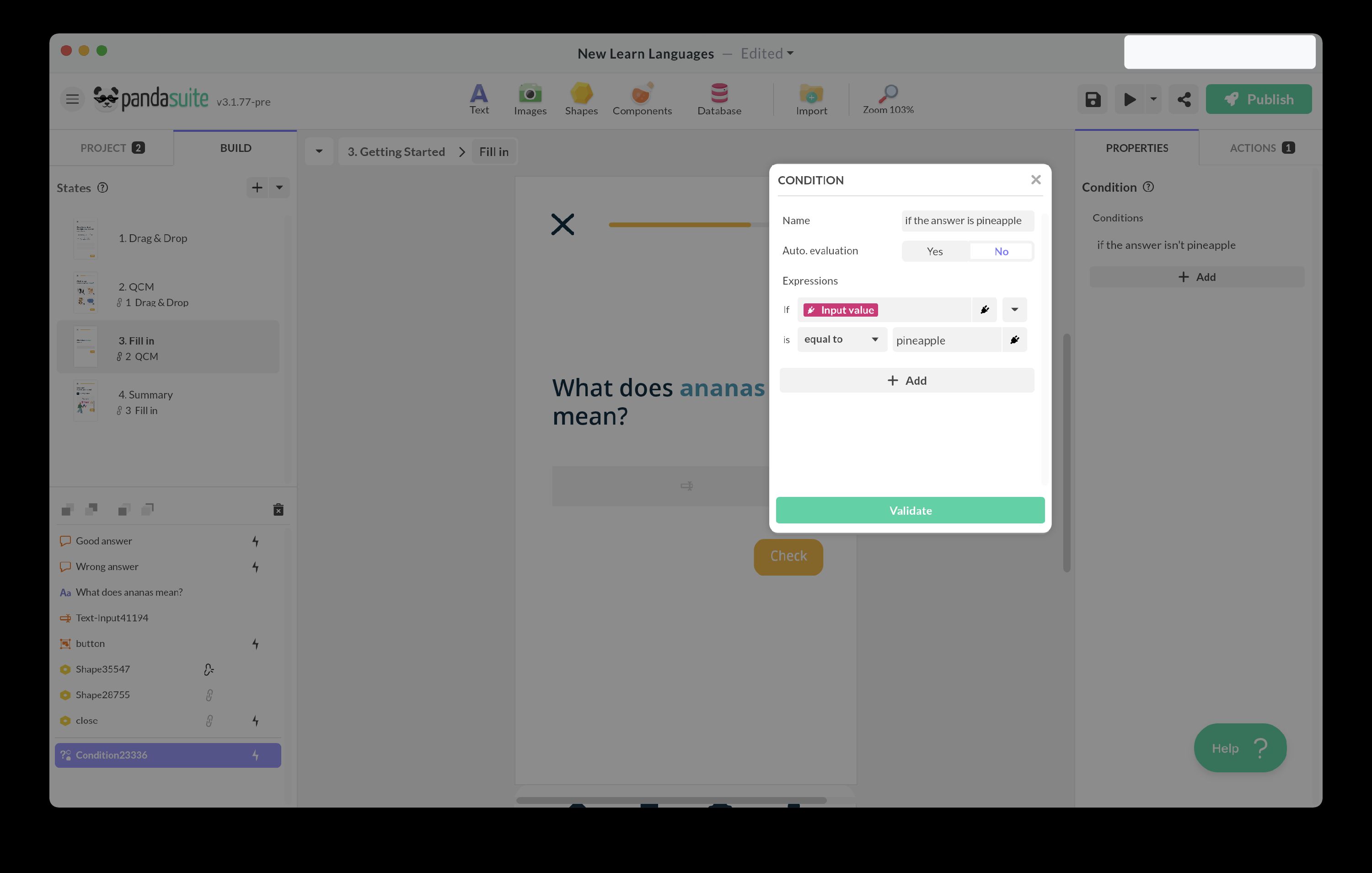
In the component properties, click + Add to create a new condition. Give it a clear, descriptive name.
This name appears throughout the interface when referencing your condition in triggers and actions. Choose a name that clearly describes what the condition checks.
Step 3: Add expressions
Each condition evaluates one or more expressions. Click + Add expression to define the criteria that must be met.
Combining multiple expressions
When your condition has multiple expressions, you can choose how they should be evaluated together using AND / OR logic:
- AND: All expressions must be true for the condition to be met
- OR: At least one expression must be true for the condition to be met
This selector appears automatically when you add more than one expression to your condition.
Example with AND logic:
- Expression 1: Score > 100
- Expression 2: Time < 60
- Logic: AND
- Result: Condition is true only when score is greater than 100 AND time is less than 60
Example with OR logic:
- Expression 1: User level = “premium”
- Expression 2: User level = “admin”
- Logic: OR
- Result: Condition is true when user is either premium OR admin
Mixing AND and OR
A condition uses a single operator: the AND / OR selector applies to every expression at once. You cannot mix AND and OR in the same condition, and expressions cannot be grouped with parentheses.
To build grouped logic such as required AND (option A OR option B), split each group into its own condition, then reference one condition from another (see Using conditions as data sources).
Example: one required rule combined with optional filters
A collection filter often needs one required rule together with optional filters, which a single condition cannot express. Extract the optional part into its own condition:
- Condition 1, “Matches the optional filter”, combines two expressions with OR logic: the selection variable is Unknown or empty, OR the current item matches the selected value.
Then write the Filter of your Collection / List as a single condition, combined with AND logic: the current item belongs to the required category, AND Condition 1 is True.
While nothing is selected, Condition 1 stays true, so the list shows every item in the required category. Selecting a value narrows the list without ever escaping that category.
Composing an expression
Each individual expression is composed in three parts:
- Data source: Select what to evaluate (variable, component value, etc.)
- Function: Choose how to test the data (equals, greater than, contains, etc.)
- Value: Specify what to compare against (when applicable)
Using conditions as data sources
Instead of selecting a variable or component value, you can reference another condition as your data source. This enables powerful composition patterns.
How it works:
When you select a condition as your data source, you can use the True or False functions to test whether that condition is currently met.
Common use cases:
-
Inverse logic - Easily create the opposite of an existing condition without rewriting all expressions:
- Condition “User is premium” exists
- Create “User is NOT premium” by selecting that condition with the False function
-
Complex nested logic - Combine multiple conditions with different priorities (like parentheses in math):
- Condition A: “High score” (score > 100 AND time < 60)
- Condition B: “Premium user” (account type = “premium”)
- Condition C: “Show bonus” = A is True OR B is True
-
Reusable condition blocks - Define complex logic once and reference it multiple times:
- Condition “User can edit” (is owner OR is admin OR is moderator)
- Use this condition in multiple places without duplicating the expressions
Example:
Create a branching logic for a game:
- Condition 1: “Can play advanced level” = (level > 5 AND has tutorial completed)
- Condition 2: “Show advanced content” = “Can play advanced level” is True AND device orientation = “landscape”
This approach keeps conditions readable and maintainable as complexity grows.
Available functions
PandaSuite offers 18 condition functions organized by data type and use case. The available functions automatically adapt based on your selected data source type.
Comparison functions
These functions work with numbers, dates, and text to compare values.
| Function | Description | Example use case |
|---|---|---|
| Greater than | Tests if source is greater than value | Check if score > 100 |
| Less than | Tests if source is less than value | Check if remaining lives < 3 |
| Greater than or equal to | Tests if source is ≥ value | Check if age ≥ 18 |
| Less than or equal to | Tests if source is ≤ value | Check if progress ≤ 50% |
| Equal to | Tests if source equals value exactly | Check if answer = “correct” |
| Not equal to | Tests if source differs from value | Check if status ≠ “pending” |
For date comparisons, these functions compare timestamps numerically. A date closer to now is “greater than” a date in the past.
Boolean functions
These functions test true/false values and work with boolean data sources.
| Function | Description | Example use case |
|---|---|---|
| True | Tests if value is true | Check if user is logged in |
| False | Tests if value is false | Check if tutorial is not completed |
| Unknown or empty | Tests if value is null, undefined, or empty | Check if optional field is not filled |
True and False are particularly useful when referencing another condition as a data source. Use False to easily create the inverse of an existing condition.
Text functions
These functions work specifically with text data.
| Function | Description | Example use case |
|---|---|---|
| Starts with | Tests if text begins with specific characters | Check if email starts with “admin” |
| Ends with | Tests if text ends with specific characters | Check if filename ends with “.pdf” |
| Match | Tests if text matches a regular expression pattern | Validate phone number format |
The Match function uses regular expressions. For example, the pattern
^[0-9]{5}$ matches exactly 5 digits, useful for validating zip codes.
Existence functions
These functions check whether data exists or has a value.
| Function | Description | Difference |
|---|---|---|
| Unknown | Tests if value is null or undefined | Use for checking if a variable has been initialized |
| Unknown or empty | Tests if value is null, undefined, OR empty string/array | Use for checking if user input or optional data is missing |
| Known | Tests if value exists and is not empty | Opposite of “Unknown or empty” - confirms data is present |
Unknown only checks for null/undefined, while Unknown or empty
also considers empty strings (""), empty arrays ([]), and empty objects as
“unknown”. Use Unknown or empty for form validation.
Collection functions
These functions work with arrays, collections, and multi-reference data.
| Function | Description | Example use case |
|---|---|---|
| Contains | Tests if array/collection includes a specific item or if text contains a substring | Check if favorites list contains current item |
| Doesn’t contain | Opposite of Contains | Check if user hasn’t already completed this level |
| Every | Tests if every item in source array is contained in the value array | Check if user has collected all required items |
| Some | Tests if at least one item in source array is contained in the value array | Check if user has any premium features |
Every vs Some explained: Imagine a user who collected badges ["bronze", "silver"] and you want to check against required badges ["bronze", "silver", "gold"]. The Some function returns true because the user has at least
one matching badge (bronze OR silver). The Every function also returns
true because every badge the user collected exists in the required list.
However, if you test against just ["bronze"], Some still returns true
(user has bronze) but Every returns false (user has more than what’s
being tested).
Exposed properties
The Condition component exposes the result of each condition as a boolean property that you can use with data binding. This allows you to directly control other components without setting up triggers and actions.
Using condition results with data binding
Each condition you create becomes available as a data source with a boolean result (true or false). You can bind this result to any property that accepts a boolean value.
Common use case:
- Control visibility: Bind a container’s visibility to a condition result to show/hide content based on logic
To bind a condition result:
- Select the component you want to control
- Click the Data binding icon next to the property (e.g., Visibility)
- Select your Condition component as the data source
- Choose the specific condition whose result you want to use
The bound property updates automatically whenever the condition is re-evaluated.
Using data binding with condition results is often simpler than setting up trigger-based actions, especially for visibility control. The binding automatically stays in sync when condition data sources change.
How conditions are evaluated
Once you’ve created your conditions, they need to be evaluated to test whether they’re true or false.
Automatic evaluation
Enable Automatic evaluation in the condition properties to have it run automatically whenever its data sources change.
For example, a condition checking “score > 100” will re-evaluate immediately when the score variable updates. This is ideal for real-time validation and dynamic UI updates.
Automatic evaluation is not limited to a single condition: the component watches the data sources of every condition it contains. When one of those sources changes, the component re-evaluates its conditions, and every condition that is true at that moment fires its trigger again, including conditions whose own data did not change. Even a condition with no action takes part, because the component watches its data sources too.
A condition that stays true re-fires its trigger on every re-evaluation, so an action can run again when an unrelated condition’s data source changes. To avoid this, place independent conditions in separate Condition components, so each one reacts only to its own data. When you only need a condition’s result rather than an event, bind to that result instead of using a trigger.
Manual evaluation
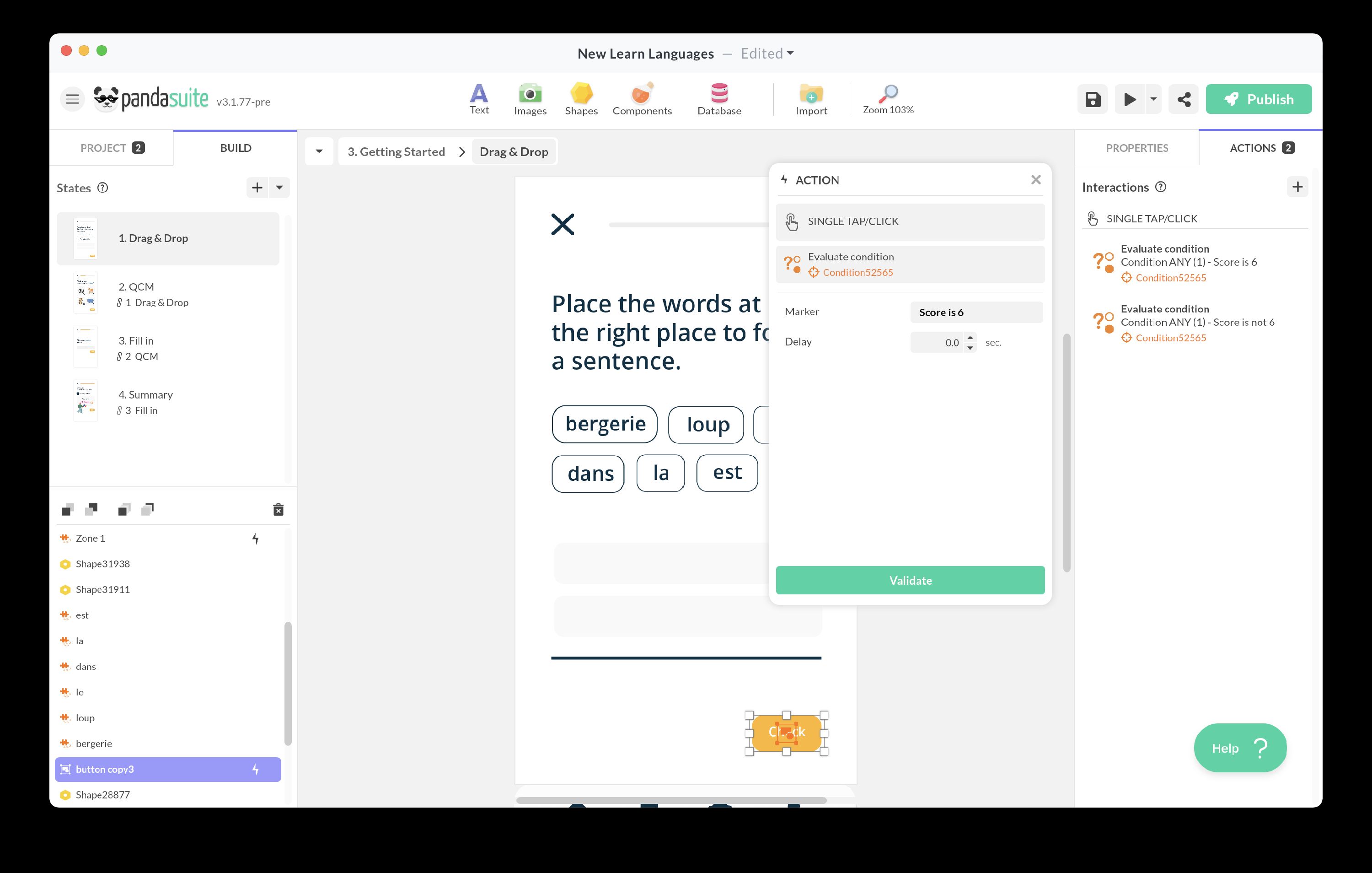
To evaluate conditions on demand, use these actions from any trigger in your application:
| Action | Use case |
|---|---|
| Interact with a component > Conditions > Evaluate condition | Trigger evaluation of a specific condition when an event occurs (button click, screen load, etc.) |
| Interact with a component > Conditions > Evaluate all conditions | Evaluate all conditions in the component at once |
You can optionally add a delay before evaluation.
Reacting to condition results
When conditions are evaluated, they fire triggers that you can use to execute actions.
Per-condition triggers
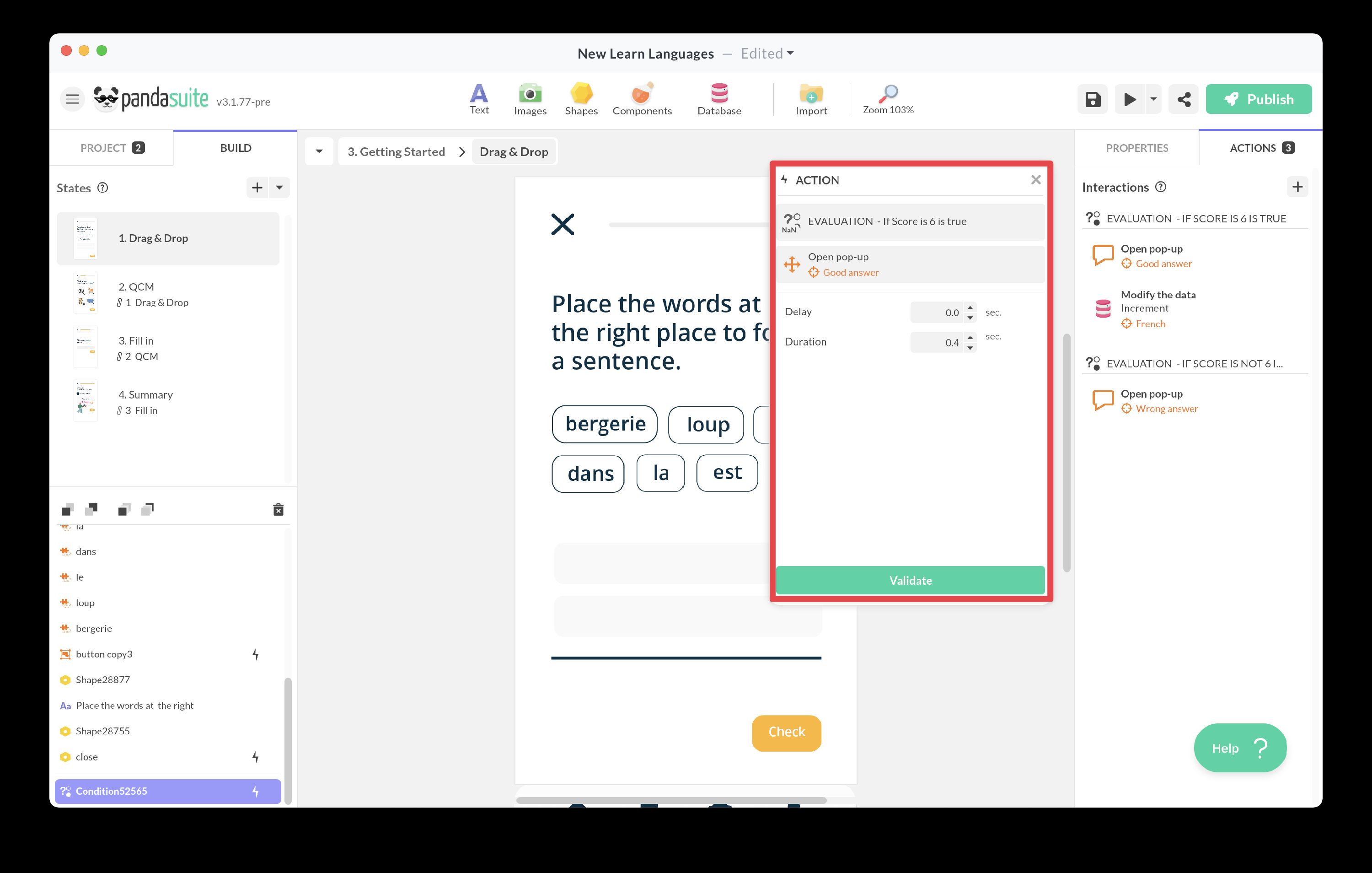
Each condition you create gets its own Evaluation trigger that fires each time that specific condition is evaluated as true. Use this to react to individual conditions.
To set up:
- Select your Condition component
- Add a new action
- Choose the trigger Evaluation: [your condition name]
- Add your action: navigate to a screen, show a pop-up, update data, etc.
Component-wide triggers
These triggers react to the overall state of all conditions in the component:
| Trigger | When it fires |
|---|---|
| Evaluate if all conditions are true | All conditions in the component are true |
| Evaluate if at least one condition is true | One or more conditions are true |
| Evaluation if none of all conditions is true | All conditions are false |
Use these when you need to react to the combined result of multiple conditions.
Example workflow:
A quiz application with branching logic:
-
Condition 1: “Passed” - Score ≥ 80
- On Evaluation: Passed → Navigate to “Congratulations” screen
-
Condition 2: “Failed” - Score < 80
- On Evaluation: Failed → Navigate to “Try Again” screen
This pattern keeps your logic clear and maintainable.
Related articles
- Detect screen orientation changes - Use conditions to respond to device orientation
- Creating conditions based on date/time - Build time-based logic in your application
- Filter a collection - Combine conditions with collection filtering
- Add to favorites - Use the Contains function with favorites