
Variables
A variable is a mechanism that allows you to store, modify and reuse a value defined by the user or for the application (a number, text etc..). This value affects the user interface in some way at a given time.
Here are some use cases: store and display the user’s score, know if the user has already opened the application or not, store a color code, save a user’s selection…
Variables allow you to add more customization in your application and set up logical scenarios with the conditions.
What is a variable?
A variable associates a name with a value that can change.
Choose the name of the variable: it must be unique, composed of alphanumeric characters, and it must allow you to understand its use explicitly. For example: score to store the user’s score or selected_item to store the identifier of an item selected by the user.
Once your variable is created, you can associate a default value with it, change its value from any trigger and display it in the interface.
When you create a variable via the Datastore, this variable is local: it is stored only on the user’s device. It is persistent even after closing the application. However, it is not possible to access it if the user uses another device or to know its value outside the application.
The value of a local variable is reset to its default value each time the application is republished.
You can also create a variable associated with a user using the Firebase Session component. In this case, it is possible to get the value of this variable and/or to edit it from the Firebase interface. If the user uses another device, his account remains associated with this variable.
Create a variable
To create a variable:
- Add a Datastore at the Project level so the variable remains available throughout the app.
- Click the Add property button.
- Choose the name of your variable and its type. You can set a default value.
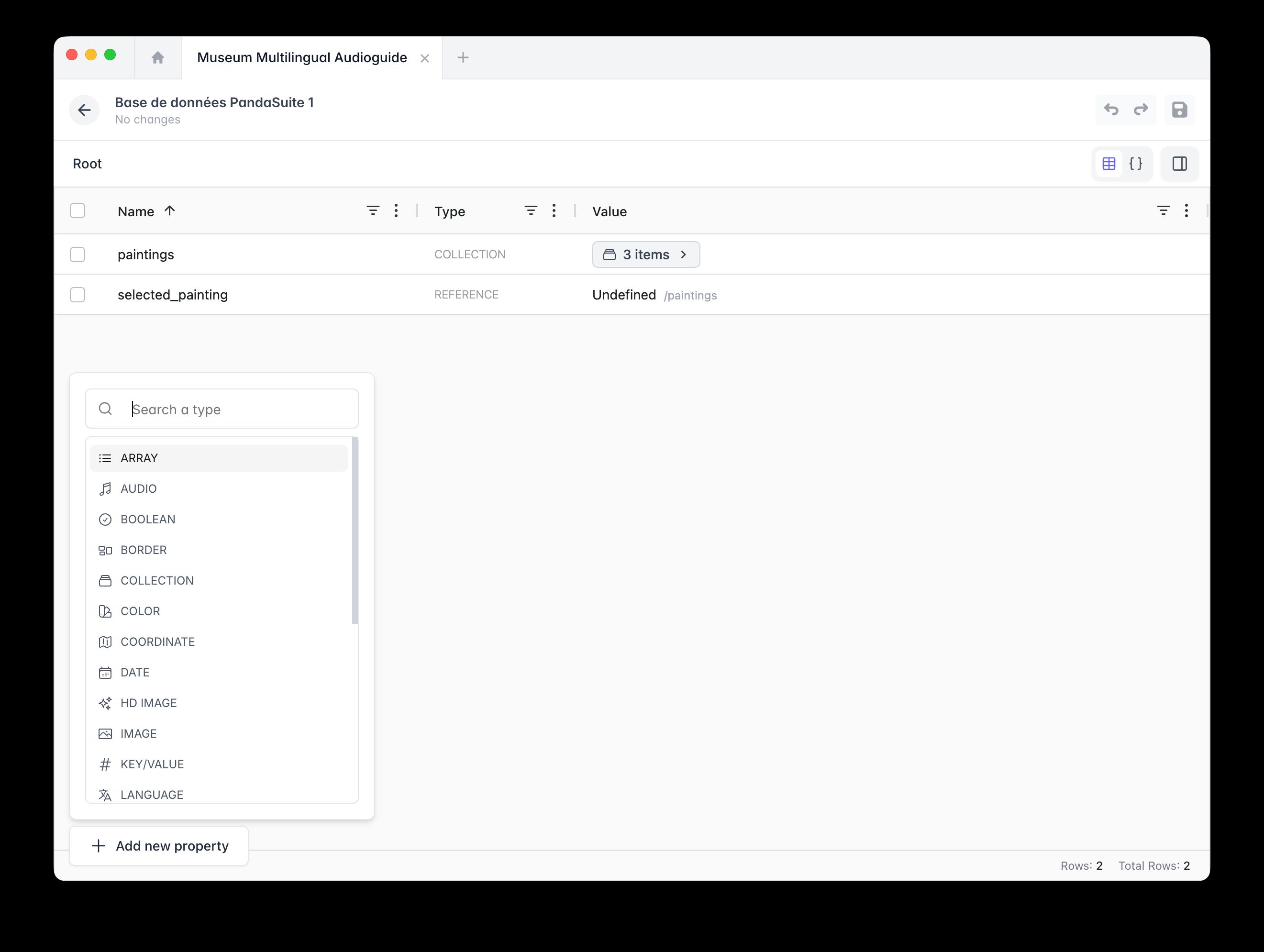
Variable types
| Type | Description | Example use case |
|---|---|---|
| Boolean | True or false value (true / false) | Menu open/closed, favorite toggled |
| Number | Integer or decimal numeric value | Score, counter, age |
| Text | String of characters | Username, entered answer |
| Color | Hexadecimal color code | Dynamic theme, custom background |
| Array | List of values | Multiple selections, bookmarks |
Edit the value of a variable
You can change the value of a variable at any time and from any action in your user interface: when a screen is displayed, when a button is clicked, etc.
Select your trigger and the action Interact with a data source. Select your Datastore and the action Create/Update Data (Local).
Choose from the functions available: Set, Increment, Decrement, Add, Delete.
In the example below, the identifier of the current element is added within the variable saved_items (for the bookmarking).
Display the value of a variable
Thanks to data binding, you can display the value of your variable in any component that accepts a data source (text, image, color…).
To display a variable in a text block:
- Insert a Text block.
- In the Properties panel, click Source.
- Choose From the Datastore and select your variable.
Learn about a concrete use case for a variable: Score
Reset a variable
To reset a variable to its default value (for example at the start of a quiz), use the Set function with the desired value.
Select your trigger, then the action
0 for a score).
Place this action on the Screen displayed trigger of the first screen of your activity to ensure a clean state at the start of each new session.